

Encountering the “anonymous proxy detected” warning while browsing can abruptly halt your workflow even when your internet connection is fully stable. This alert simply flags your proxy or VPN connection, indicating that your connection method has been identified by the site. In this article. IPFighter breaks down the core causes behind the issue and walks you through actionable troubleshooting steps to resolve the block.
1. What does the "Anonymous Proxy detected" message actually mean?
When the "Anonymous Proxy detected" message appears, it means the website's security system has identified signs that your connection is routed through a proxy, VPN, or another intermediary network. Depending on its security policies, the website may block access, require CAPTCHA verification, or display a warning before allowing you to continue.
Many users assume that hiding their original IP address makes them completely "invisible" to cybersecurity systems. However, hiding your real IP and avoiding proxy detection are two different things. A proxy server may successfully conceal your original IP address, but that IP can still be identified through IP classification databases, IP reputation scores, or other connection signals.

Example of an anonymous proxy detection warning displayed on a website.
Discover more:
-
What is an IP address, and how does it work?
-
How to find IP address on Windows, Mac, iPhone, and Android devices
-
IP reputation check: How IPFighter scores your IP
2. Why do servers detect your anonymous proxy connection?
Websites use various methods to evaluate the trustworthiness of a connection. Rather than relying solely on the IP address, security systems may analyze the IP's origin, network information, and browsing behavior to identify potentially suspicious connections.
Below are four common reasons why you may encounter the "Anonymous Proxy detected" warning.
2.1. Your proxy IP address has been flagged
One of the most common reasons websites display the "Anonymous Proxy detected" warning is that your current IP address has been identified by security systems as a proxy, VPN, or high-risk traffic source. This is often related to the IP address's origin and usage history.
For example, IPs belonging to datacenters, public proxy servers, or popular VPN services are generally easier to identify than ordinary residential IP addresses. Additionally, an IP address previously associated with spam, fraud, or website policy violations may be added to a blacklist. This is also why free and shared proxies tend to have a higher risk of being flagged: multiple users share the same IP address, making its activity history harder to control.
Another factor to consider is that IP classification data is not static. Security databases continuously update their information from various sources. As a result, an IP address that previously worked normally may be reclassified after new risk signals emerge.
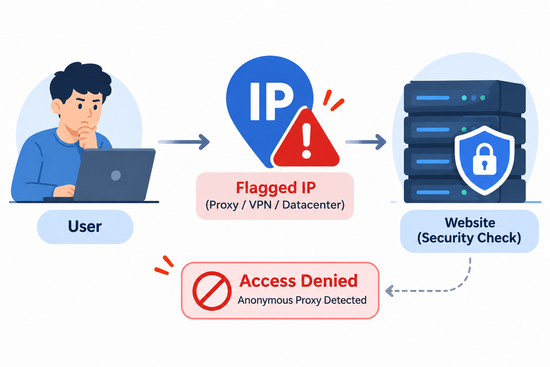
How websites detect and block high-risk proxy IP addresses.
2.2. Your real IP address or network information has been exposed
Even when your proxy is working, certain network configurations and browser features may still expose information about your original connection.
There are three common issues to be aware of:
-
HTTP headers: Some headers, such as Via and X-Forwarded-For, may reveal information about intermediary servers or the original IP address, depending on how the proxy is configured.
-
WebRTC leaks: Certain WebRTC configurations may cause browsers to expose real IP addresses or local network information through real-time connection requests.
-
DNS leaks: If DNS queries are sent through your ISP connection instead of the intended network route, information about your network provider or connection location may be exposed.
Additionally, inconsistencies between your proxy IP's geolocation, browser time zone, and language settings may create unusual signals. When combined with other factors, these discrepancies may cause security systems to request additional verification.
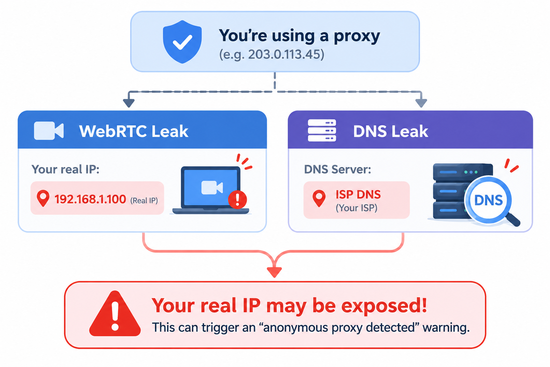
How WebRTC and DNS leaks can expose information about your original network.
2.3. Your browsing behavior looks suspicious
Even if your proxy IP has a good reputation and your network is properly configured, your browsing behavior can still trigger security systems. For example, sending too many requests from the same IP address within a short period or performing repetitive actions at unusually regular intervals may make your activity resemble automated bot behavior.
Changes in your connection environment can also increase suspicion. For instance, repeatedly changing IP addresses while keeping the same browser fingerprint, or switching to an IP associated with a different geographical location during an active browsing session, may create inconsistent signals. When combined with other risk factors, these patterns may cause websites to flag your connection or request additional verification.
2.4. You are not using a proxy, but your IP is still being detected
In some cases, you may encounter the "Anonymous Proxy detected" warning even when you are not actively using a proxy or VPN. The cause may be related to your network configuration, running software, or the IP address assigned by your ISP.
Three common scenarios include:
-
Forgotten network configurations: A VPN running in the background, a manually configured proxy in your operating system, or a browser extension capable of rerouting traffic.
-
Security software interfering with your connection: Some antivirus programs or network traffic filtering tools may change how your connection is processed and displayed.
-
Low-reputation IP addresses: An IP assigned by your ISP may have previously been used by another person for suspicious activities. Public Wi-Fi and shared networks may also have browsing histories that negatively affect an IP's reputation.
Therefore, this warning does not necessarily mean that you are using a proxy. To identify the exact cause, check your network settings, running software, and current IP status before changing your connection.
3. How to fix the "Anonymous Proxy detected" error
Once you have identified the cause, you can choose the appropriate troubleshooting method.
3.1. Replace the flagged proxy IP address
If the test results show that your current IP address has a low reputation or has been identified as a proxy, the first solution is to replace it with a more suitable IP. Prioritize IP addresses with clear origins, a good usage history, and no presence on commonly used blacklists.
Your choice of proxy type should also depend on your intended use. For example, residential or mobile proxies may be more suitable when a website restricts access from datacenter IP ranges. Meanwhile, ISP proxies may be worth considering if you need a stable connection over an extended period. However, no proxy type guarantees complete protection against detection.
In addition to the IP source, geographical location is another factor to consider. Choose an IP from a region that suits your access requirements, and check its proxy/VPN status, geolocation, and IP reputation before using it. After switching IPs, try accessing the website again to see whether the warning still appears.
3.2. Check and fix IP, DNS, and WebRTC leaks
Network configuration issues cannot be fully resolved by simply changing your proxy IP address. Instead, check the components that may expose information about your original connection.
-
Check WebRTC: Use a WebRTC Leak Test tool to determine whether your browser is exposing your real IP address. If a leak is detected, consider adjusting your WebRTC privacy settings or using a reputable browser extension. Note that restricting WebRTC may affect video calls and real-time communication applications.
-
Configure DNS properly: Check whether your DNS queries are routed through the intended network path. If you are using a proxy, make sure your software or application supports routing DNS requests through the proxy. DNS-over-HTTPS encrypts DNS queries but does not automatically ensure that they are routed through a proxy.
-
Check HTTP headers: Review your proxy configuration to limit the exposure of unnecessary connection information. Avoid modifying or removing headers without understanding how these changes may affect application functionality.
-
Synchronize browser settings: Check your time zone, language, and geolocation settings to ensure they do not create unusual inconsistencies with your connection environment.
After making these adjustments, run the WebRTC Leak Test and DNS Leak Test again to verify the results. If no leaks are detected but the warning persists, move on to checking your IP reputation or browsing behavior.
3.3. Maintain consistent browsing behavior
A connection with no detectable leaks may still trigger website verification. In this case, review your browsing habits and how frequently you access the website. Here are some measures you can apply:
-
Control your request frequency: Avoid sending too many requests or repeatedly performing identical actions within a short period. Follow the website's access limits and terms of service.
-
Maintain a stable IP address: Use sticky sessions when you need to keep the same IP address throughout a browsing session. Avoid unnecessary IP rotation, especially before the current session ends.
-
Keep your browser environment consistent: Avoid sudden changes to your user agent, browser fingerprint, or other identifying information within the same session.
-
Manage cookies and cache appropriately: Only clear browsing data when troubleshooting session errors or information conflicts. Frequently deleting cookies may cause websites to request another login or verification.
These measures help reduce unusual signals during browsing, but they do not guarantee that websites will stop detecting your proxy or skip their security verification steps.
3.4. Fix the issue when you are not using a proxy or VPN
Not actively using a proxy but still encountering the warning? Check your network environment before contacting your Internet service provider. You can start with the following troubleshooting steps:
-
Check your operating system settings: Open the Network or Proxy Settings section to determine whether any manually configured proxy is currently active.
-
Check VPN services and browser extensions: Temporarily disable VPN services, proxy extensions, or applications that may reroute network traffic.
-
Try another connection: Access the website using a different browser, device, or Internet connection to determine whether the issue is related to your current environment.
-
Restart your router: If your ISP uses dynamic IP addresses, restarting your router may help you obtain a new IP address. However, this does not guarantee that your IP will change.
-
Contact your ISP: If the warning continues to appear across multiple websites, ask your ISP to check the status of your assigned IP address and whether it has been incorrectly classified by IP databases.
After completing these steps, you should be able to determine whether the warning originates from your device configuration, network connection, or IP reputation. If your IP is still incorrectly identified as a proxy, check its status using specialized tools before considering an IP change or requesting assistance from your ISP.
4. How to check your IP status with IPFighter before accessing a website
Before changing your proxy or adjusting your network configuration, you should determine whether your current IP address has actually been identified as a proxy or VPN.
IPFighter provides IP checking and browser security tools that help you evaluate different aspects of your connection.
4.1. Check whether your IP is detected as a proxy or VPN
Simply visit IPFighter to see whether your current IP address is detected as a proxy/VPN. The results are displayed directly on the homepage.
To check a different IP address, you can use the IP Lookup tool. Enter the IP address you want to check to view its information and detection status.
The image below illustrates an example of an IP check result on IPFighter.
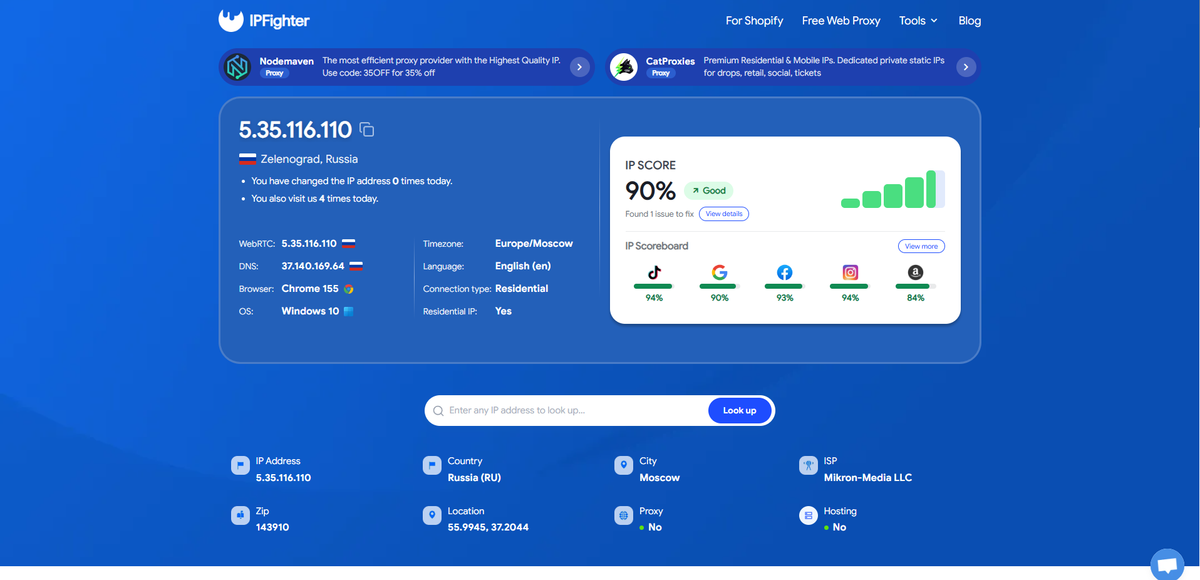
Check your IP and browser environment with IPFighter.
An IP address that is not identified as a proxy/VPN does not necessarily mean your connection is completely problem-free. You should continue checking other factors rather than relying on a single test result.
4.2. Run additional tests when necessary
If IP Lookup does not reveal any obvious issues, you can use other IPFighter tools to examine different aspects of your connection.
|
Tool |
Function |
|
WebRTC Leak Test |
Determines whether your browser is exposing your IP address through WebRTC. |
|
DNS Leak Test |
Checks DNS server information and potential DNS leaks. |
|
Browser Fingerprint |
Analyzes browser identification information and configuration. |
Each tool focuses on a specific aspect of your connection, helping you narrow down potential causes instead of unnecessarily changing your entire network configuration.
However, IPFighter's test results are intended for diagnostic purposes only. Each website may use its own IP databases, security rules, and detection methods. Therefore, a positive result from a testing tool does not guarantee that your IP will be accepted by every platform.
5. Which types of proxies are most likely to be detected today?
Not all proxy types carry the same detection risk. IP origin, usage history, management practices, and network quality can all influence how websites evaluate a connection.
The table below compares several common proxy types:
|
Proxy type |
IP source |
Relative detection risk |
Stability |
Suitable use cases |
|
Free proxies |
Public, shared IP addresses |
Very high |
Low |
Basic testing; not recommended for important activities |
|
Datacenter proxies |
Datacenters and server infrastructure |
High |
High |
High-speed connections and data collection in accordance with website policies |
|
Residential proxies |
IP addresses from residential Internet networks |
Low to medium |
Medium to high |
Market research and region-specific content verification |
|
Mobile proxies |
Mobile carrier networks |
Low to medium |
Medium |
Application testing and accessing services through mobile networks |
|
ISP proxies |
IPs assigned by ISPs, typically hosted on server infrastructure |
Low to medium |
High |
Stable connection management and market research |
Note: The risk levels in the table are for reference only and do not represent a fixed ranking. Residential and mobile proxies can still be detected if their IP addresses have a history of abuse, are excessively shared, or exhibit unusual connection signals.
Read more:
-
How to improve IP score: A complete guide.
6. How to prevent the "Anonymous Proxy detected" error in the future
To reduce the risk of encountering proxy detection warnings again, maintain a stable connection environment and regularly check important settings.
Here is a checklist you can follow:
-
Check your IP before use: Evaluate its proxy/VPN status and IP reputation.
-
Choose a reliable provider: Prioritize proxies with clear IP origins and transparent usage policies.
-
Maintain a stable connection: Avoid repeatedly changing IP addresses within the same browsing session.
-
Check for network leaks: Run WebRTC and DNS Leak Tests whenever you change your proxy or browser configuration.
-
Follow access limits: Avoid excessive requests and activities that violate website policies.
-
Review your settings regularly: Check your proxy, VPN, and browser extensions with network access permissions.
These steps help you identify potential IP and network configuration issues early while minimizing unnecessary interruptions during web browsing.
7. Conclusion
The "Anonymous Proxy detected" error appears when a website's security system identifies signs that a connection is coming from a proxy or VPN. The cause may be related to a flagged IP address, network information leaks, unusual browsing behavior, or an unintended connection configuration.
To fix the issue, you need to identify the actual cause before changing your IP address or adjusting your browser settings. Using IPFighter's IP checking, WebRTC, DNS, and Browser Fingerprint tools is also a useful way to evaluate your connection and identify potential issues.
Visit IPFighter today to check your IP address and secure your browser environment before starting important online activities!
8. FAQ
Does the anonymous proxy detection error reveal my real identity?
Not necessarily. This warning only indicates that the website has identified signs of proxy or VPN usage. It does not mean that your personal identity has been exposed. However, if a WebRTC or DNS leak occurs, some information about your original connection may still be revealed.
Why am I getting this error even though I am not using a proxy?
The cause may be a VPN running in the background, proxy settings configured in your operating system, browser extensions, or an IP address assigned by your ISP that has previously been flagged.
How can I quickly check whether my IP is detected as a proxy?
You can use IPFighter's IP Lookup tool to check IP classification information and proxy/VPN detection status. If no issues are detected, check WebRTC, DNS, and your browser configuration as well.
Can residential proxies be detected as anonymous proxies?
Yes. Although residential proxies use IP addresses from residential Internet networks, they can still be identified if their IP addresses have a suspicious usage history or are classified as high-risk by security systems.
Will changing my IP address always fix the "Anonymous Proxy detected" error?
No. Changing your IP may help if the issue is caused by your previous IP address being flagged. However, if the problem is related to network leaks, browser configuration, or browsing behavior, you will need to address these factors as well.
Can websites detect a proxy even when my real IP address is hidden?
Yes. Websites can use IP classification databases, connection information, browser fingerprints, and behavioral analysis to identify proxy usage. Therefore, hiding your real IP address does not mean your connection cannot be detected.
Read more
Anonymous proxy detected: Causes and how to fix it

"Before we continue… Press & Hold": Why you see this check
Cloudflare human verification bypass extension: What to know
CAPTCHA vs reCAPTCHA: What’s the difference?

Why do I keep getting CAPTCHA? Here's what may be triggering it

What is a CAPTCHA? The check that separates people from bots