

Using extensions is one of the most common ways to add proxies to browsers, but not all extensions are easy to use or guarantee proxy security. That's why IPFighter built the IPFighter Proxy Manager Extension: manage, switch, and protect your proxies right in your browser, with a simple interface, fast switching, and built-in security features.
Ready to get started? Install the extension below, then follow this guide to add your first proxy, verify your IP is working, and unlock a few advanced protection features along the way.
In this guide, we will show you how to install the IPFighter Proxy Manager extension, add proxies step-by-step, verify that your IP address is working correctly, and explore some advanced protection features to create a safer browsing environment.
1. What is the IPFighter Proxy Manager extension?
In the modern digital landscape, managing what is an ip address effectively is the difference between success and a permanent ban. The IPFighter Proxy Manager is a free, lightweight, and powerful browser extension designed to optimize how you interact with proxies on Chrome-based browsers.
Unlike the cumbersome manual proxy settings, this extension allows you to switch between dozens of IP addresses with a single click. It serves as a dedicated control center for your digital identity, offering:
-
Efficient workflow: Streamline the process of adding, switching, and monitoring proxies without ever leaving your browser tab.
-
User-friendly interface: A clean, intuitive design that caters to both beginners.
-
Safe & transparent: IPFighter is developed as an Open Source project. The source code is publicly available on GitHub, ensuring no hidden data collection or background tracking.
-
High customization: Thanks to its open-source nature, you have the freedom to audit the code or customize the logic to fit your specific goals and technical requirements.
Unlike traditional proxy configuration methods that require modifying operating system settings, browser extensions provide a much smoother experience. Everything can be managed within a few clicks.
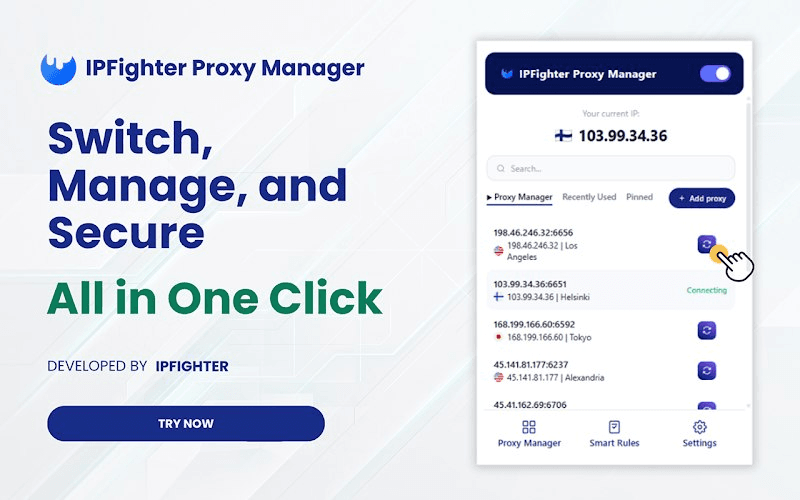
IPFighter Proxy Manager
Discover now:
-
Review everything about the new IPFighter: A new look, new power
-
What is a Proxy? Benefits, usage, and everything you need to know about proxies
2. Step-by-step guide: How to add and use proxies
To help you get started, we have broken down the setup process into clear, actionable steps. Follow this guide to turn your browser into a secure, multi-IP powerhouse.
2.1. Installation
Before you can manage your IPs, you need to integrate the tool into your browser environment.
Step 1: Open the Chrome Web Store
Open your Chrome browser and navigate to the Chrome Web Store. In the search bar, type "IPFighter Proxy Manager".
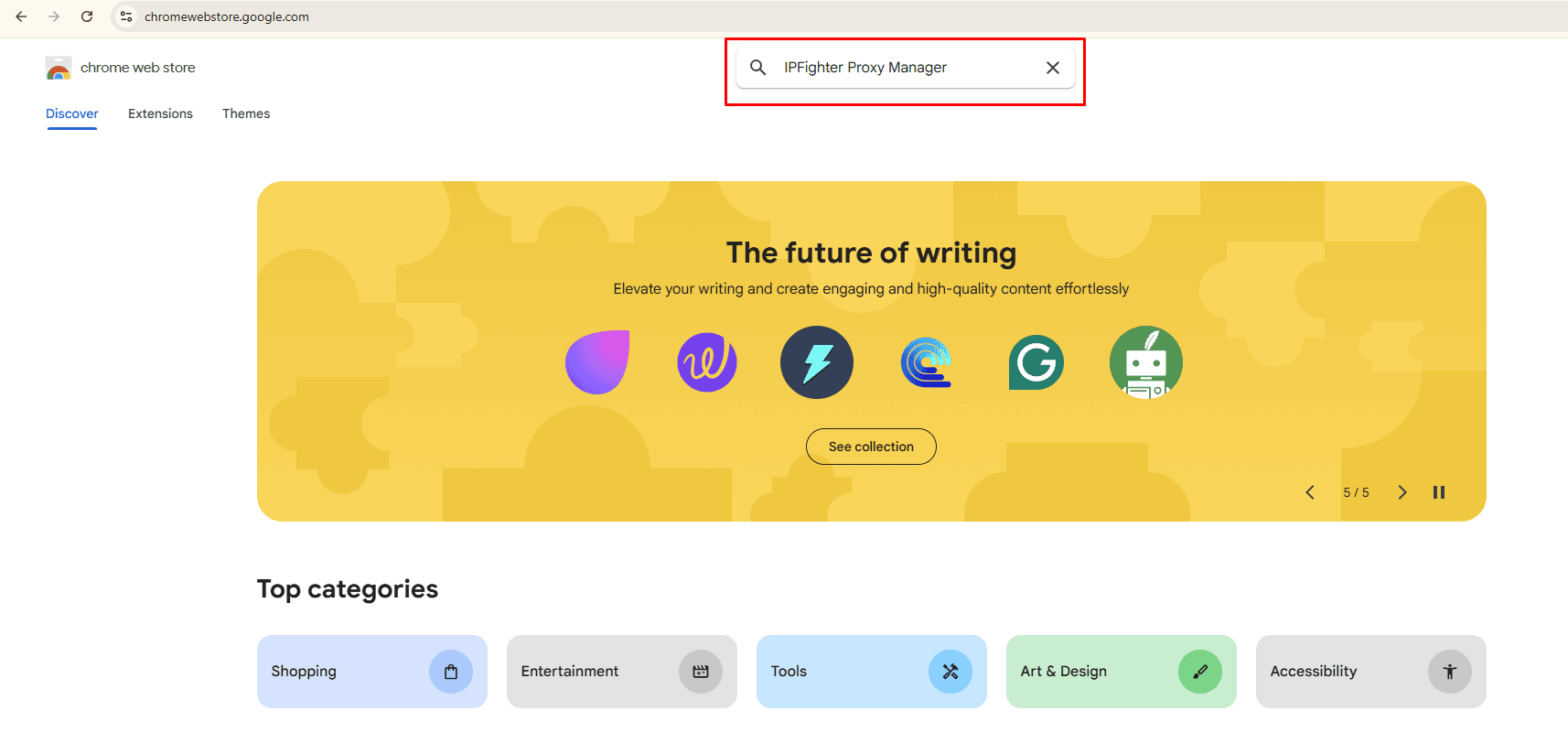
Open the Chrome Web Store
Step 2: Install the extension
Locate the official extension and click the "Add to Chrome" button. A pop-up will appear; confirm by clicking "Add Extension”.
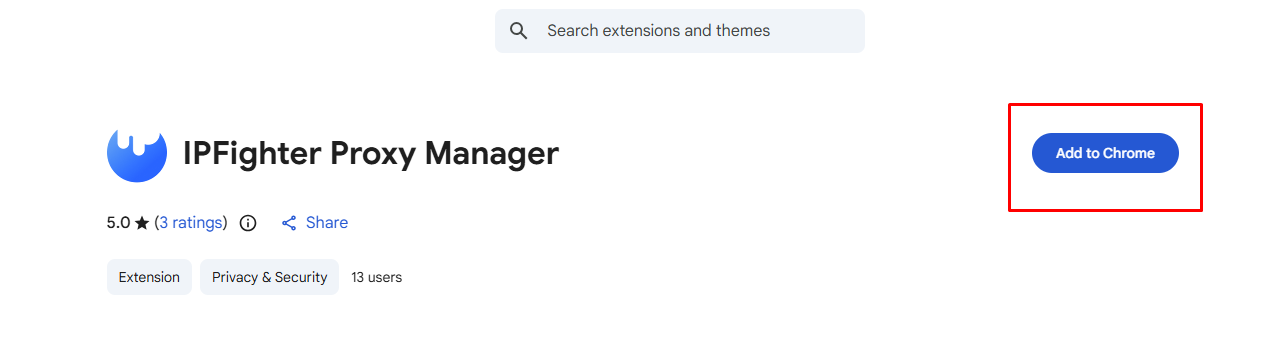
Select “Add to Chrome”
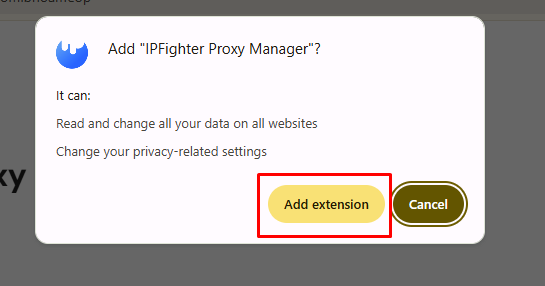
Select “Add extension”
Step 3: Pin the extension for quick access
Once installed, click the puzzle piece icon (extensions menu) in the top right corner of your browser. Find IPFighter Proxy Manager and click the pin icon. This ensures the tool is always visible for quick access.
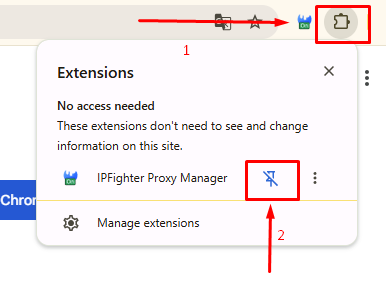
Pin the extension for quick access
2.2. Adding your proxies
Now that the extension is ready, it’s time to input your proxy credentials.
Step 4: Open the extension and select “Add Proxy”
Click the IPFighter Proxy Manager icon in your toolbar. Inside the dashboard, select the “Add Proxy” button. This opens the proxy configuration window.
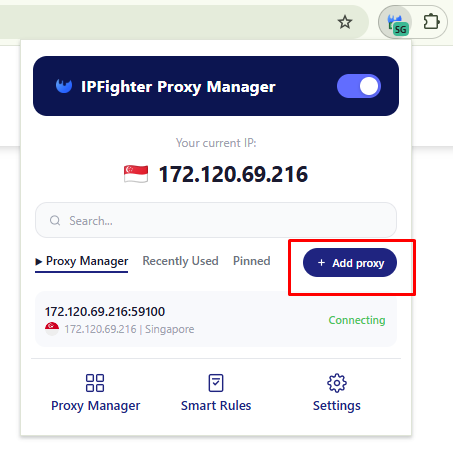
Open the extension and select “Add Proxy”
Step 5: Configure your proxy settings
This is the most important part of the setup process. You will need to enter the correct proxy details provided by your proxy provider. Common settings include:
-
Type: HTTP is the proxy protocol supported by IPFighter Proxy Manager, so ensure the proxy details you enter match the HTTP format provided by your proxy provider.
-
Input format: This is a very important step. IPFighter supports 5 different common formats such as host:port:username:password or username:password@host:port, etc. Choose the format that matches your proxy list to avoid connection errors.
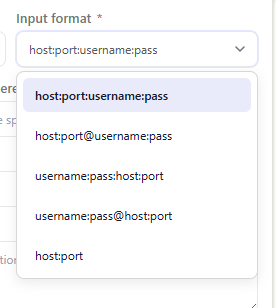
Choose the appropriate input format
-
Add the proxies here: Copy and paste your proxy data into the text box.
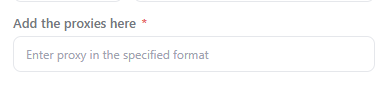
Paste your proxy data into the text box
-
Management details: You can also fill in the proxy “Expired date” and add “Note” for easier management (e.g. Facebook account 01 or Amazon data collection).
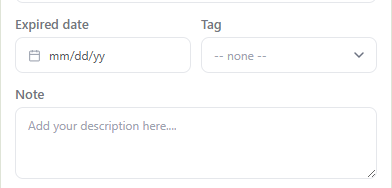
Add expired date date or note
Step 6: Click “Add Proxy”
Once all information is entered correctly, click: Add Proxy

Select “Add proxy”
The proxy will now appear inside your proxy list and can be enabled with a single click. At this stage, your browser traffic should already be routed through the new proxy. However, adding a proxy is only half the process. You still need to verify whether the connection is working correctly.
3. Checking your IP after connecting a proxy
Adding a proxy is only half the battle. You must verify that the connection is active and that your ip trust score is high enough for your specific tasks. After enabling a proxy, you should always verify whether:
-
Your IP address has actually changed
-
The proxy is functioning properly
-
Your connection leaks any real information
-
The IP quality is good enough for your intended use case
This step is extremely important because not all proxies are clean or reliable. Once you activate a proxy in the extension, immediately visit ipfighter.com. This site provides a deep dive into your current connection health.
For example, as the image below shows, after successfully attaching and connecting the proxy on Chrome, checking with IPFighter will display some of the following notable results:
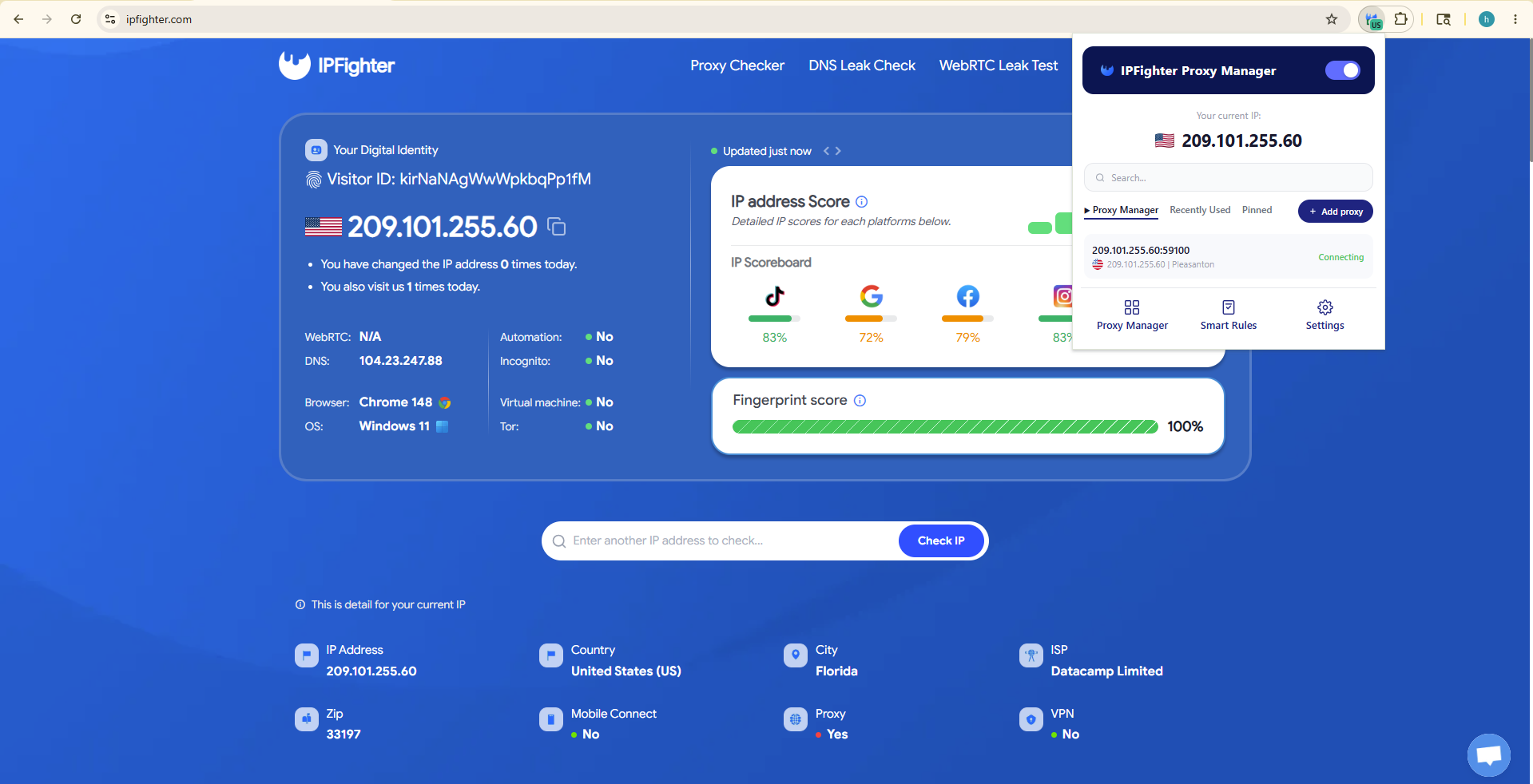
IP check on IPFighter
You can see the IP score on major platforms to see if that IP is suitable for that platform. And as you can see the red warning about proxy detection, it means the system has detected that you are using a proxy server, meaning this proxy is not secure for long-term use.
By verifying these metrics, you ensure that you don't start your project at a disadvantage due to an easily detectable or low-quality IP address. Always aim for a stable, high-quality IP address to ensure maximum security.
4. Advanced features inside IPFighter Proxy Manager
Beyond simple proxy switching, the extension also includes several advanced features designed to improve both usability and privacy.
4.1. Proxy manager
The Proxy Manager dashboard allows users to organize and monitor all active proxies in one place. You can view proxy details, status, and manage large proxy lists more effectively
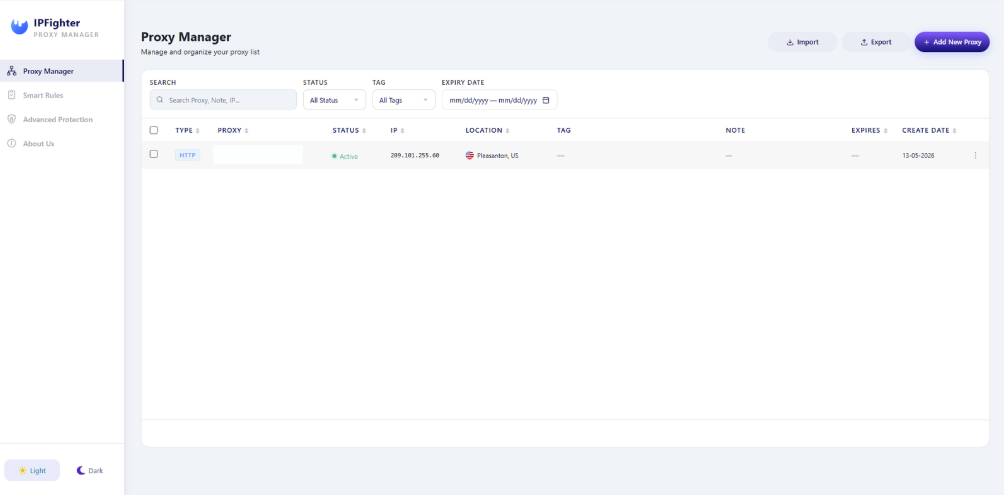
Proxy manager feature
4.2. Smart rules (Bypass Domain List)
There are times when you don't want to use your proxy, for example, when logging into your bank or a local government site. The Smart Rules feature allows you to create a "Bypass List". Any domain added here will automatically use your original local IP, saving your proxy bandwidth and preventing security alerts from your sensitive accounts.
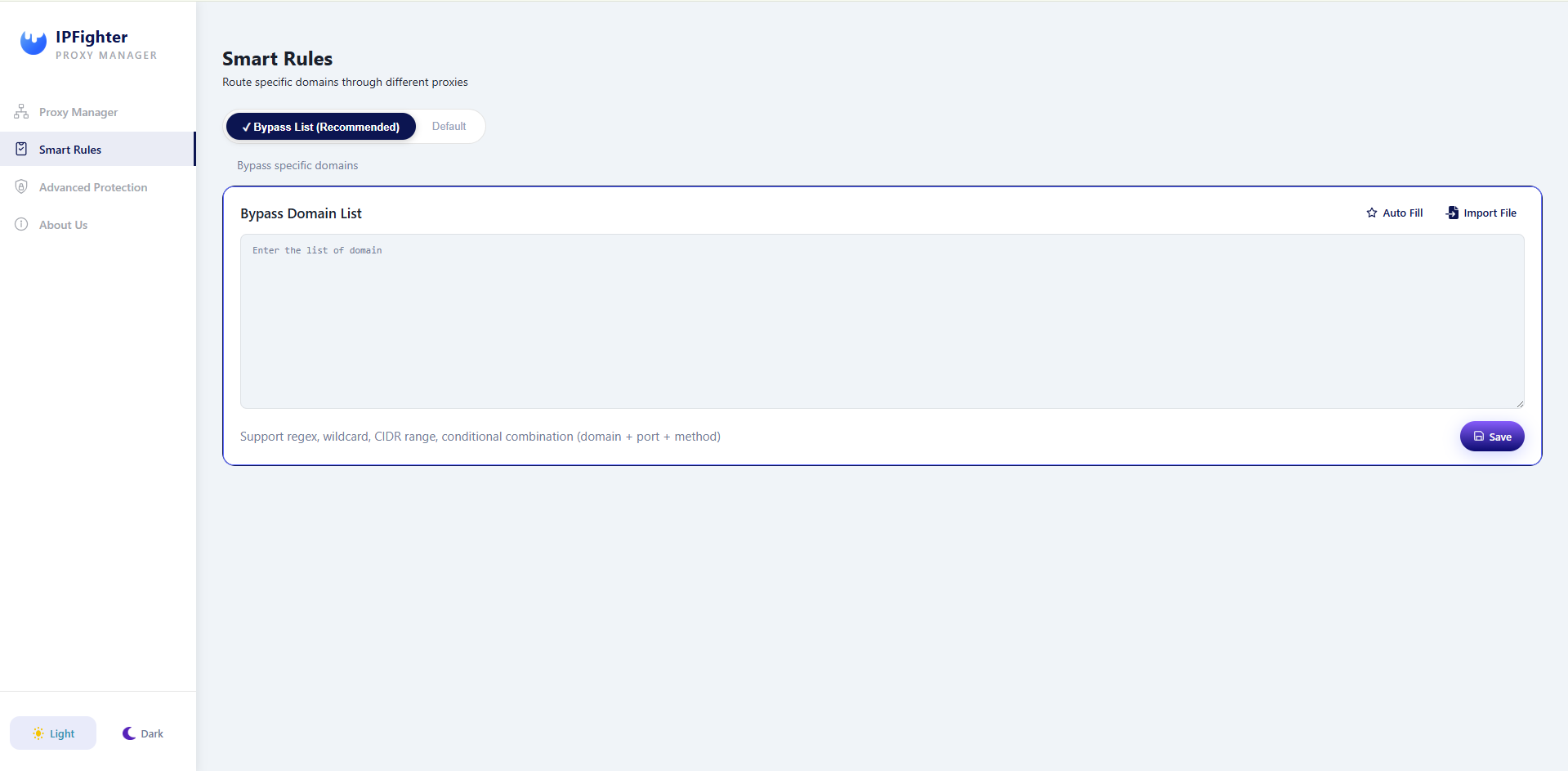
Smart rules feature
4.3. Advanced protection
One of the most powerful parts of the extension is its Advanced protection system. These features help minimize identity mismatches that platforms often use for detection. Some available protections include:
-
Disable WebRTC leak: WebRTC is a common browser feature that can reveal your real IP address even if a proxy is active. This feature prevents WebRTC from exposing your real IP address even when using a proxy.
-
Fake timezone: If you are using a US proxy but your computer is set to Vietnam time, websites will flag you. This tool automatically adjusts your browser's time to match the proxy location.
-
Fake language: Sets browser language to match the proxy server's region.
-
Fake location: Returns proxy server coordinates when websites request your geolocation.
Highly recommended: enable all features in Advanced Protection to better sync your browser settings with the proxy. This helps prevent mismatches such as timezone or language conflicts after switching proxies, reducing the risk of detection and keeping your browsing setup more secure.
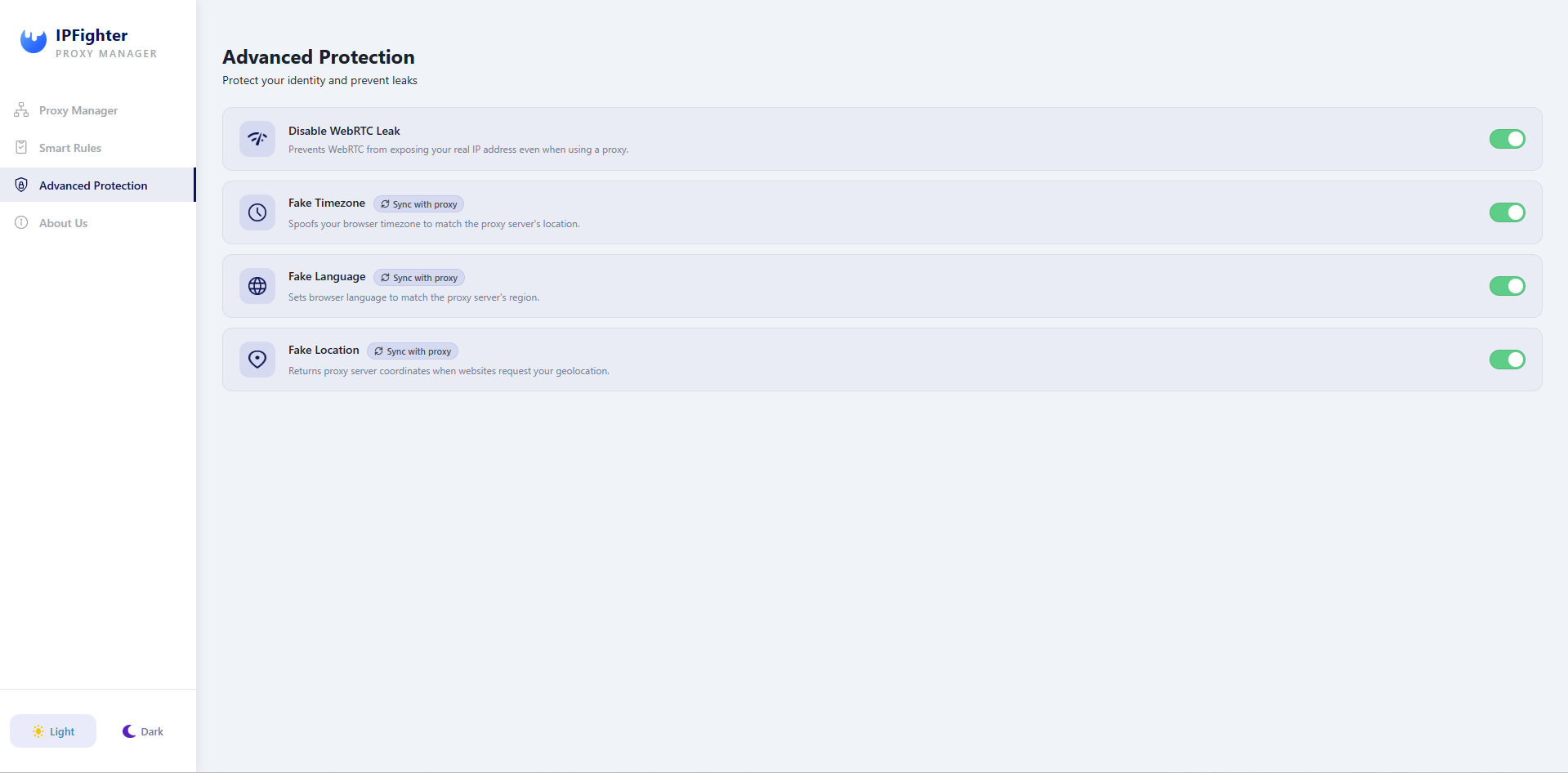
Advanced protection feature
The extension also supports interface customization options, including light and dark themes. While this may seem minor, it improves usability for users who spend long hours managing proxies daily. Whether you prefer working in the late hours or a bright office, you can toggle between Light and Dark modes to reduce eye strain while managing your network. A cleaner interface can significantly improve workflow efficiency over time.
5. Conclusion
The IPFighter Proxy Manager extension is more than just a convenience; it is a necessity for anyone serious about online privacy. By combining a step-by-step proxy setup with advanced features like WebRTC protection and timezone faking, you create an impenetrable shield for your digital operations.
To ensure your projects run smoothly without technical bottlenecks, always prioritize quality by choosing reputable proxy sources. Don't forget to visit our Coupons Partners section to discover exclusive proxy promo codes and special offers from top-tier providers, helping you secure premium, high-reputation IPs while significantly saving on your operational costs.
6. FAQ
Is the IPFighter Proxy Manager extension free to use?
Yes, the extension is completely free to download and use. It is designed to provide professional-grade proxy management and ip reputation protection for all users without any hidden costs.
Can I use multiple proxies at the same time with this extension?
While you can add a large list of proxies to the manager, the extension applies one active proxy to your current browser profile at a time. However, you can use different proxies simultaneously by installing the extension on multiple Chrome profiles.
Does IPFighter protect me from all types of data leaks?
IPFighter includes advanced features like WebRTC leak prevention and geographic spoofing (timezone, language, and location) to block common leaks. For maximum safety, always verify your status on ipfighter.com to ensure no "red flags" are detected.
What should I do if my proxy shows a red "Yes" in the Proxy detection field?
A red "Yes" means the IP is recognized as a proxy by anti-fraud systems. In this case, you should consider switching to a higher-quality residential or ISP proxy to avoid being blocked by strict platforms.
Where can I find affordable high-quality proxies to use with the extension?
To help our users scale their operations effectively, we maintain a curated list of trusted providers. You can explore our Coupons Partners section to find exclusive proxy promo codes that offer significant discounts on premium residential and ISP proxies.
Read more
How to use web proxy safely: A practical guide

Explaining how to know if you have a DNS leak
How to know if you have a WebRTC leak: Reading your results

How to check browser fingerprint for spoofing signs with IPFighter

How to check if a proxy is working and read your results

How to pass bot detection test and avoid getting flagged