

Your IP address is essential for keeping your devices connected to the internet and communicating effectively. It acts like a unique identifier, ensuring smooth data exchange and reliable connections.
If you’ve ever wondered how to find IP address, this guide will walk you through simple steps for Windows, Mac, iPhone, and Android devices. Whether you’re solving network issues or setting up new gadgets, you’ll find the process easier than you think.
What is an IP address?
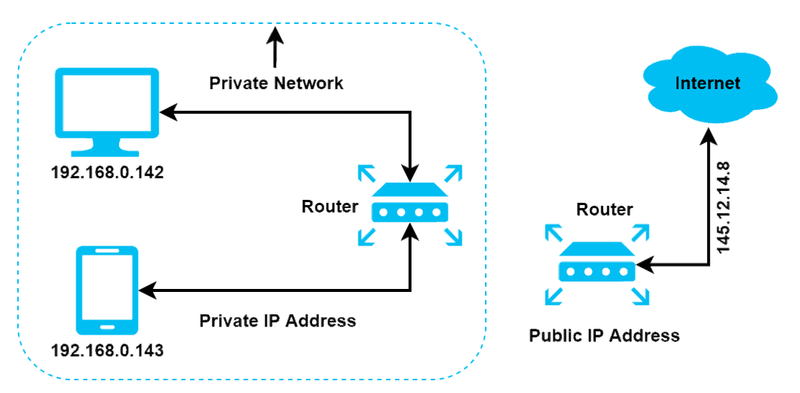
An IP address is like a digital home address for your device, allowing it to send and receive information across the internet. There are two main types of IP addresses:
- Private IP address: Assigned to devices within your home or local network. Examples include 192.168.x.x or 10.x.x.x.
- Public IP address: Assigned by your Internet Service Provider (ISP) and used to identify your network on the internet.
Private IP addresses are safe from external access unless explicitly shared. Public IP addresses, however, expose your network’s entry point to the internet, making it crucial to secure your router with strong passwords and firewalls.
Knowing where to find your IP address makes it easier to fix network issues, add new devices, or take charge of your network settings. Let’s first explore how to find your public IP address.
How to find your public IP address
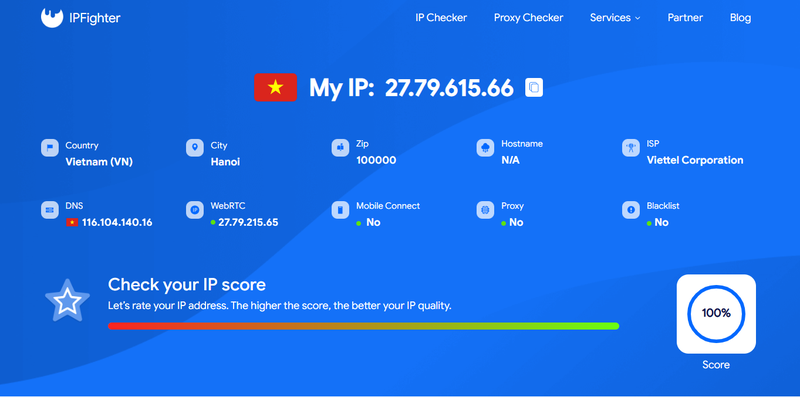
Finding your public IP address is simple and requires just a web browser. Here’s how to do it:
- Open your preferred web browser on any device.
- Visit a website like ipfighter.com.
- Your public IP address will be displayed prominently on the homepage.
This address identifies your network on the internet and is essential for activities like configuring remote access or understanding network activity.
How to find your local IP address
Now let’s look at how to find your private (local) IP address, which is used for devices within your home or office network.
1. How to find IP address on Windows
Finding your IP address on a Windows device is straightforward and can be done through multiple methods, whether you prefer using the graphical interface or the command line.
Using settings
- Step 1: Click the Start Menu, then select Settings.
- Step 2: Navigate to Network & Internet.
- Step 3: Choose Wi-Fi if you’re connected wirelessly or Ethernet if you’re on a wired connection.
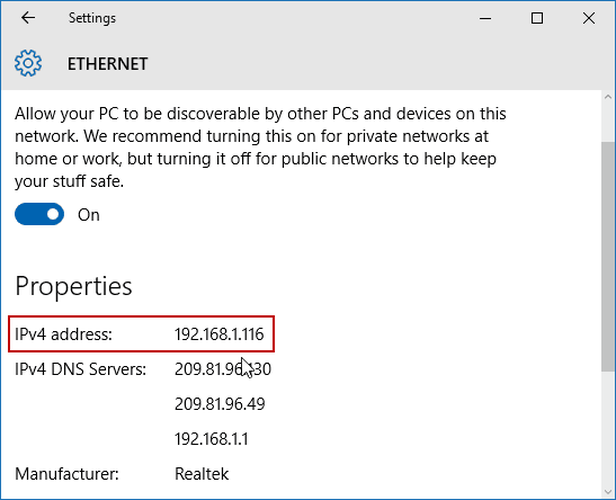
- Step 4: Select the network you’re connected to, and scroll down to find the section labeled Properties. Your IP address will be listed under IPv4 Address.
Using Command Prompt
- Step 1: Press
Windows + R, typecmd, and hit Enter. - Step 2: In the Command Prompt window, type
ipconfigand press Enter. - Step 3: Look for the line labeled IPv4 Address under your active network connection.
2. How to find IP address on Mac
Finding your IP address on a Mac is quick and easy, with options to use either the system settings or the Terminal.
Using System Preferences
- Step 1: Click the Apple Menu in the top-left corner and select System Preferences.
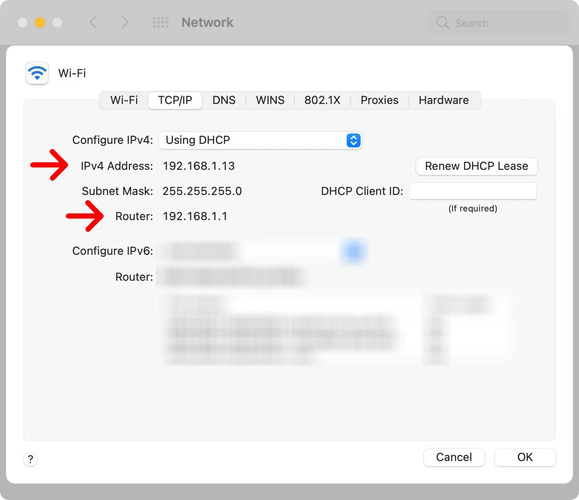
- Step 2: Open Network.
- Step 3: Select your active connection (Wi-Fi or Ethernet) from the list on the left.
- Step 4: Your IP address will appear in the right-hand panel under Status.
Using Terminal
- Step 1: Open the Terminal app (found in Applications > Utilities).
- Step 2: Type
ifconfigand press Enter. - Step 3: Locate the section labeled
inetunder your active network. The number next to it is your IP address.
3. How to find IP address on iPhone
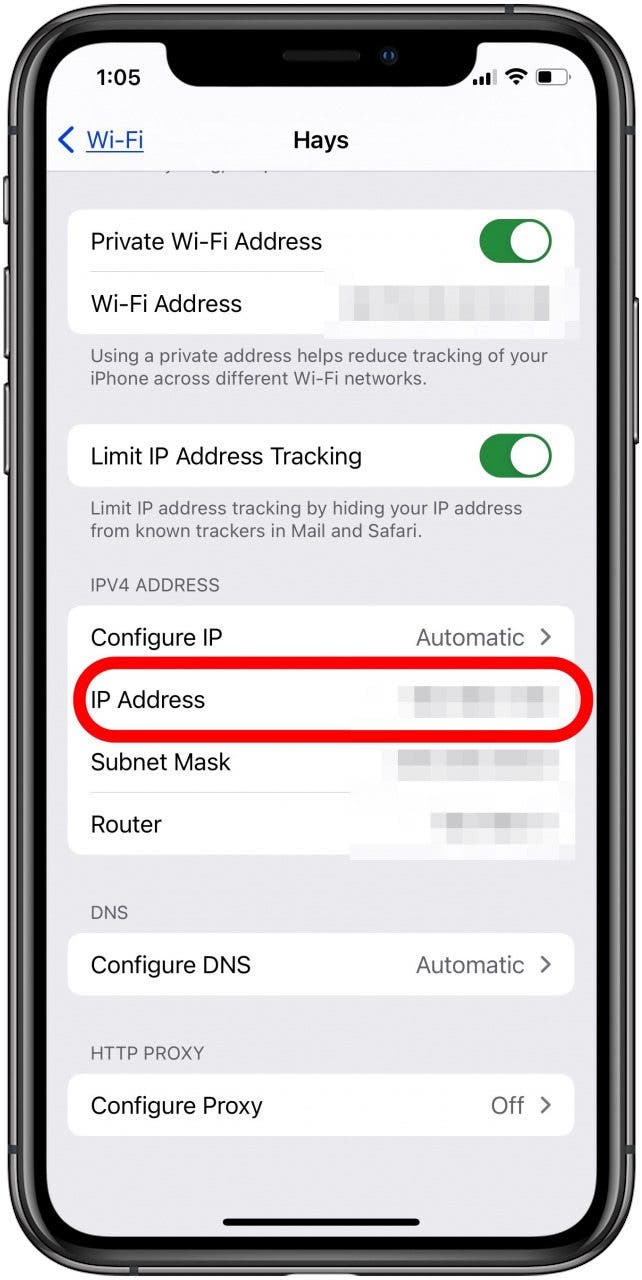
Checking your IP address on an iPhone is straightforward and only takes a few taps.
- Step 1: Open Settings and tap Wi-Fi.
- Step 2: Tap the info icon (i) next to your connected network.
- Step 3: Your IP address will be listed under IP Address.
4. How to find IP address on Android
Locating your IP address on an Android device is simple and can vary slightly depending on the device model and Android version.
- Open Settings and go to Network & Internet (or a similar option, depending on your device).
- Tap Wi-Fi, then select your connected network.
- Scroll down to find the section labeled IP Address.

Conclusion
Learning how to find your IP address on Windows, Mac, iPhone, or Android can feel daunting at first, but it’s actually a straightforward process. Whether you need to troubleshoot a network issue, enhance security, or simply satisfy your curiosity, this guide equips you with the tools to locate your private or public IP address effortlessly.
We hope this article has empowered you to navigate your devices with confidence. Ready to take control of your connections? Give it a try now and see how easy it can be!
Frequently asked questions (FAQs)
1. Why doesn’t my IP address appear in network settings?
This can happen due to network glitches or device misconfigurations. Restart your router or device and try again.
2. How can I check my public IP without internet access?
If you can’t access the internet to check your public IP, use mobile data or another device to visit an IP lookup site.
3. What’s the difference between IPv4 and IPv6?
IPv4 addresses are the most commonly used for home and small business networks. IPv6 is the newer standard designed to support more devices and provide better security.
Read more

What is a CAPTCHA? The check that separates people from bots


What is a mesh network and when should you use one?

What is an IP2 network? How it works, uses, and benefits

Explaining how to know if you have a DNS leak


How to know if you have a WebRTC leak: Reading your results
How to improve IP score: A complete guide