

Have you encountered a message saying “Before we continue… Press & Hold to confirm you are a human (and not a bot)” while trying to access a website? This press and hold CAPTCHA asks you to hold a button until the verification process finishes, but sometimes the challenge fails or keeps appearing even after you complete it.
In this guide, IPFighter explains what the check means, how to troubleshoot common failures, and how to recognize fake CAPTCHA pages.
1. What does "Before We Continue… Press & Hold" mean?
“Before we continue… Press & Hold” is a human verification prompt designed to help a website distinguish legitimate visitors from automated activity. Rather than asking you to select images or tick a checkbox, it requires you to press and hold a button until the challenge confirms completion.
HUMAN Security's documentation identifies “Before we continue…” and “Press & Hold to confirm you are a human (and not a bot)” as the default text for its Human Challenge. Websites can customize the wording and appearance, so the message alone does not identify every security system a website might use. You can see examples in the official HUMAN challenge customization documentation.
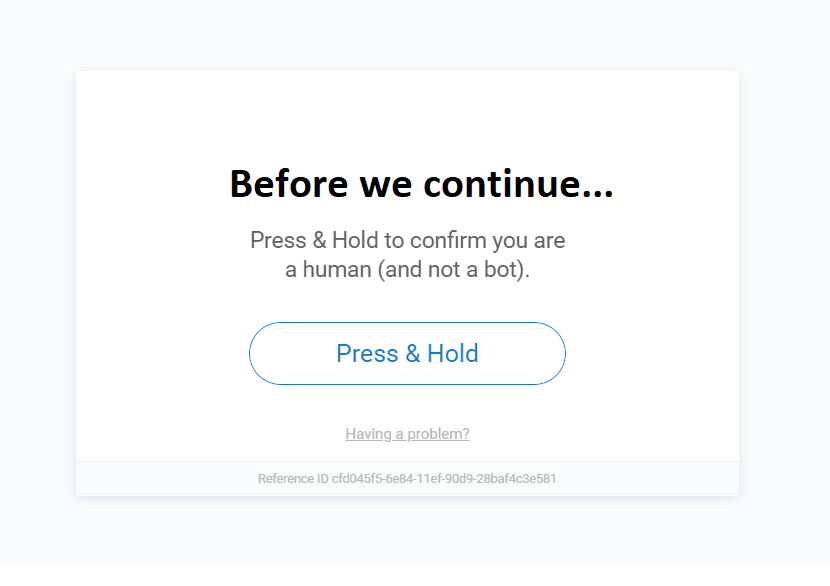
What does "Before We Continue… Press & Hold" mean
Discover more:
-
Cloudflare human verification bypass extension: What to know
-
What is a CAPTCHA? The check that separates people from bots
-
Why do I keep getting CAPTCHA? Here's what may be triggering it
2. How does a press and hold CAPTCHA work?
The interaction is one part of a website's anti-bot verification process. The user follows the on-screen instruction, while the security system evaluates the session to determine whether it can proceed.
Unlike a simple checkbox, a press-and-hold interaction requires continuous input for a period of time. However, the exact signals and decision rules used by a particular security system are not necessarily public. It would be inaccurate to assume that every challenge uses the same mouse, touch, or behavioral measurements.
Seeing the challenge does not automatically mean you are a bot. Legitimate visitors may be asked to complete additional verification, and technical problems can prevent a challenge from finishing successfully.
3. Why does the press and hold CAPTCHA keep appearing?
If the challenge repeatedly fails or returns after you complete it, the problem may be related to the interaction, browser settings, or network signals. The following are common areas to check, although the screen alone cannot reveal the exact cause.
3.1. The press-and-hold interaction did not complete
The most straightforward possibility is that the button was released before the progress indicator finished. Moving the pointer or finger away from the button, interrupting the interaction, or clicking repeatedly instead of holding continuously may also prevent completion.
Automation tools such as auto-clickers and macros can interfere with how a page receives user input. If you use one, turn it off before trying the challenge again. Repeatedly simulating clicks is not a reliable fix for a verification process that expects a continuous interaction.
If the button completes its progress but the page still displays an error, the issue may lie elsewhere rather than with how long you held the button.
3.2. Browser or session issues are interfering with verification
The challenge may not load or finish correctly if JavaScript is blocked, cookies are restricted, or a browser extension interferes with the page. Outdated browsers and strict privacy settings can also affect website functionality.
Ad blockers and anti-tracking extensions are worth checking first, particularly if the challenge appears incomplete or the button does not respond. These problems can occur even when the rest of the website loads normally.
3.3. Your IP address or browser signals may affect verification
Security systems may consider both network and browser signals when evaluating a session. A shared IP address, VPN or proxy connection, or unusual browser configuration may be relevant to the assessment, but none of these factors alone confirms why a Press & Hold challenge appears.
If you suspect an IP reputation issue, use the IPFighter IP Score tool to review available IP trust and reputation indicators. This can help you investigate your connection, but the score does not reproduce a website's complete anti-bot assessment or guarantee that the challenge will disappear.
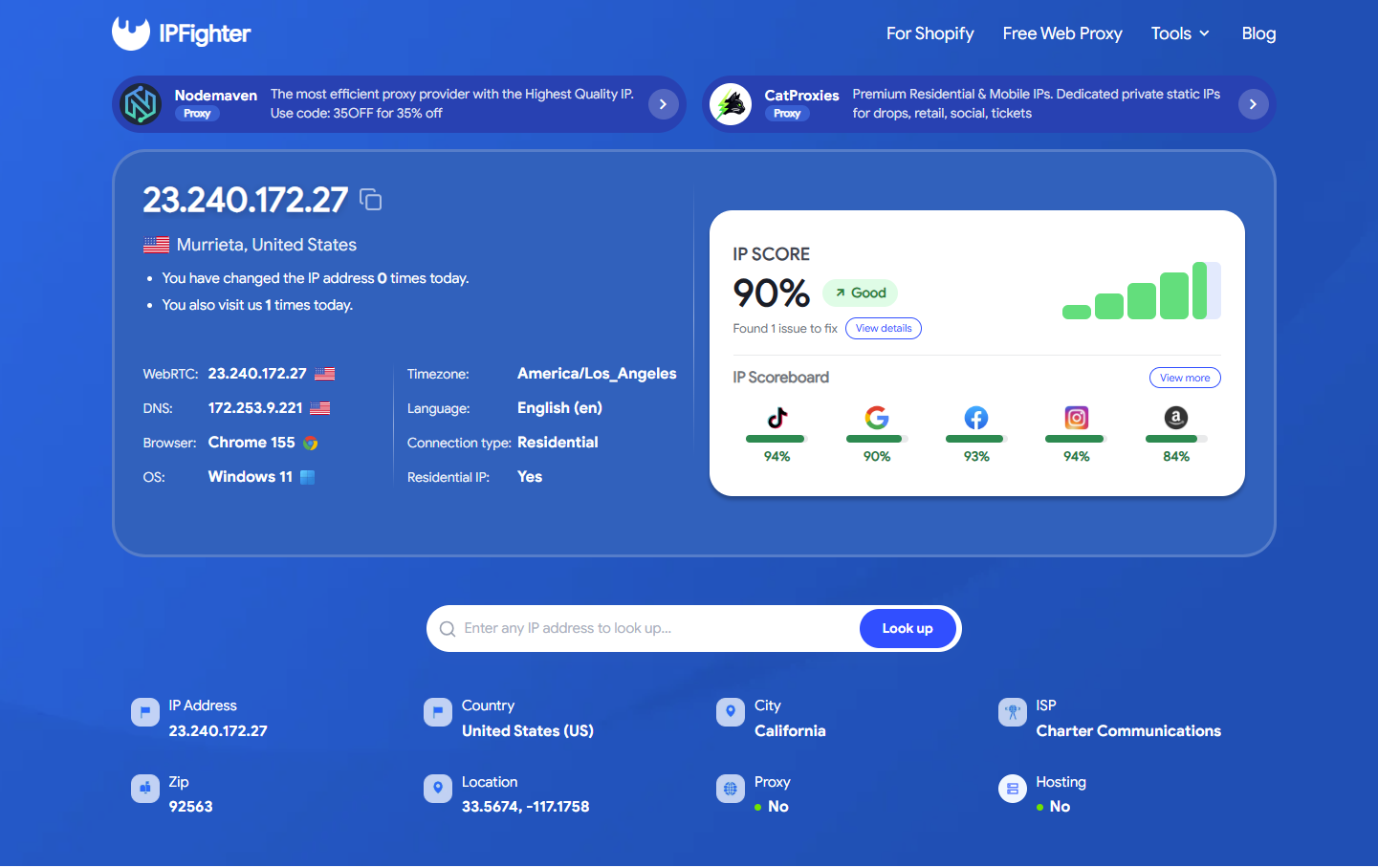
Quickly check your IP address on IPFighter
Your browser fingerprint may also contribute to how a website evaluates a session. Signals such as your browser version, operating system, screen settings, and Canvas or WebGL data can help security systems identify unusual configurations. Use IPFighter's Browser Fingerprint to inspect these signals and look for inconsistencies. Neither check can confirm the exact reason a Press & Hold challenge appears or guarantee that it will stop.
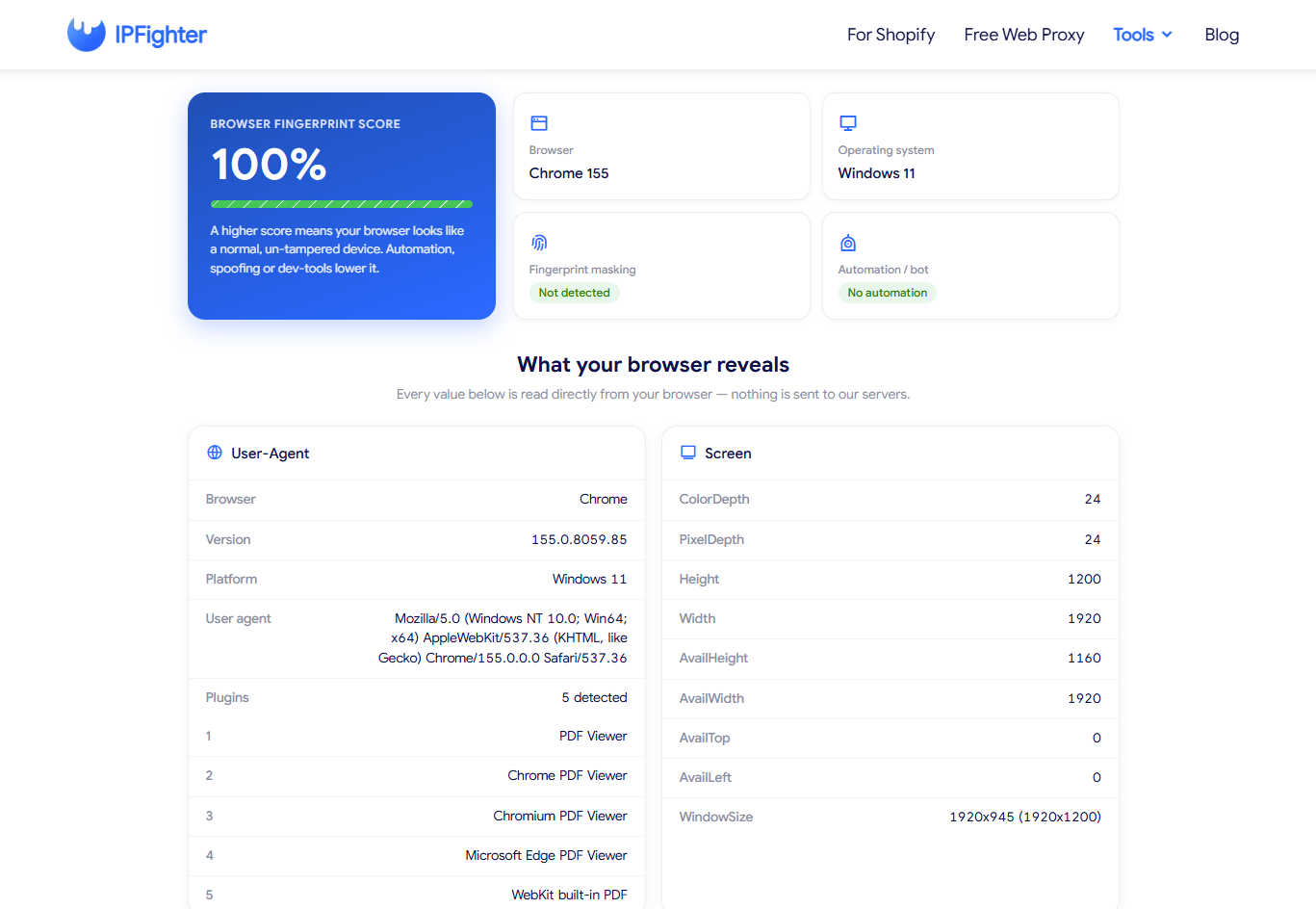
Quickly check your browser fingerprint on IPFighter
4. How do you fix a press and hold CAPTCHA that keeps failing?
Start with the simplest checks and retry the challenge after each change. This makes it easier to identify the cause without unnecessarily changing multiple browser or network settings at once.
Step 1: Hold the button until verification completes
Press the button and keep holding it until the progress indicator finishes or the page confirms that verification is complete. Avoid releasing it early, moving away from the button, or repeatedly clicking while the challenge is running.
If the challenge fails despite a continuous hold, do not keep repeating the same action indefinitely. Move on to checking your browser and connection.
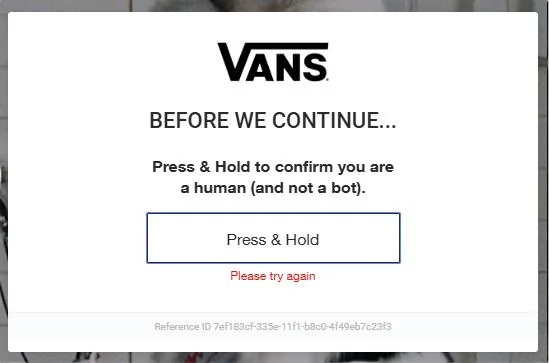
Hold the button until verification completes
Step 2: Disable conflicting click tools and browser extensions
Turn off any auto-clicker, mouse macro, or similar tool that may interfere with normal input. If you use browser extensions that block scripts, advertisements, or tracking, temporarily disable nonessential ones for the affected website.
Reload the page and try again. If the challenge works, re-enable extensions one at a time to identify the likely conflict rather than permanently disabling every privacy tool.
Step 3: Clear the website's cookies and cache
Stored site data or temporary browser files may contribute to session problems. Clear the affected website's cookies and cache, reopen it, and attempt verification again.
Start with the specific site's data rather than clearing everything unnecessarily. Keep in mind that deleting cookies may sign you out, so make sure you can access your account again before proceeding.
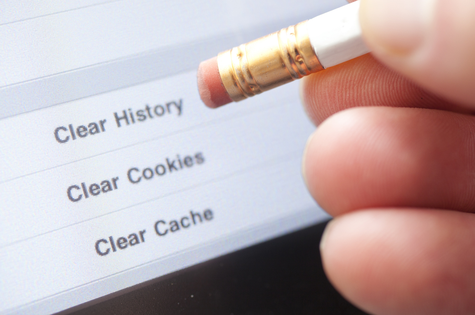
Clear the website's cookies and cache
Step 4: Try a clean browser session or another device
If the challenge works in a clean session, the original browser's extensions, settings, or stored data may be involved. Browser fingerprint signals can also differ across browser configurations and devices, so testing another standard browser may help narrow down the issue. However, this test cannot identify the exact signal that triggered verification. If the same problem occurs across different browsers, the issue may be related to your connection or the website's security configuration.
Step 5: Check your connection and contact support
If the previous steps do not help, test a trusted network if one is available. If you use a VPN, proxy, or privacy relay, temporarily test without it only when doing so is safe and appropriate for your situation.
For TextNow users, the official Press and Hold CAPTCHA troubleshooting guide recommends checking extensions, VPN or IP-hiding services, browser updates, cookies, and firewall or proxy settings. Follow the guidance for your specific service, since requirements can vary between websites.
If the challenge continues failing, contact the website's support team. Include the error message, the steps you have tried, and any reference ID displayed on the page. Support may be able to investigate issues that cannot be diagnosed from your browser alone.
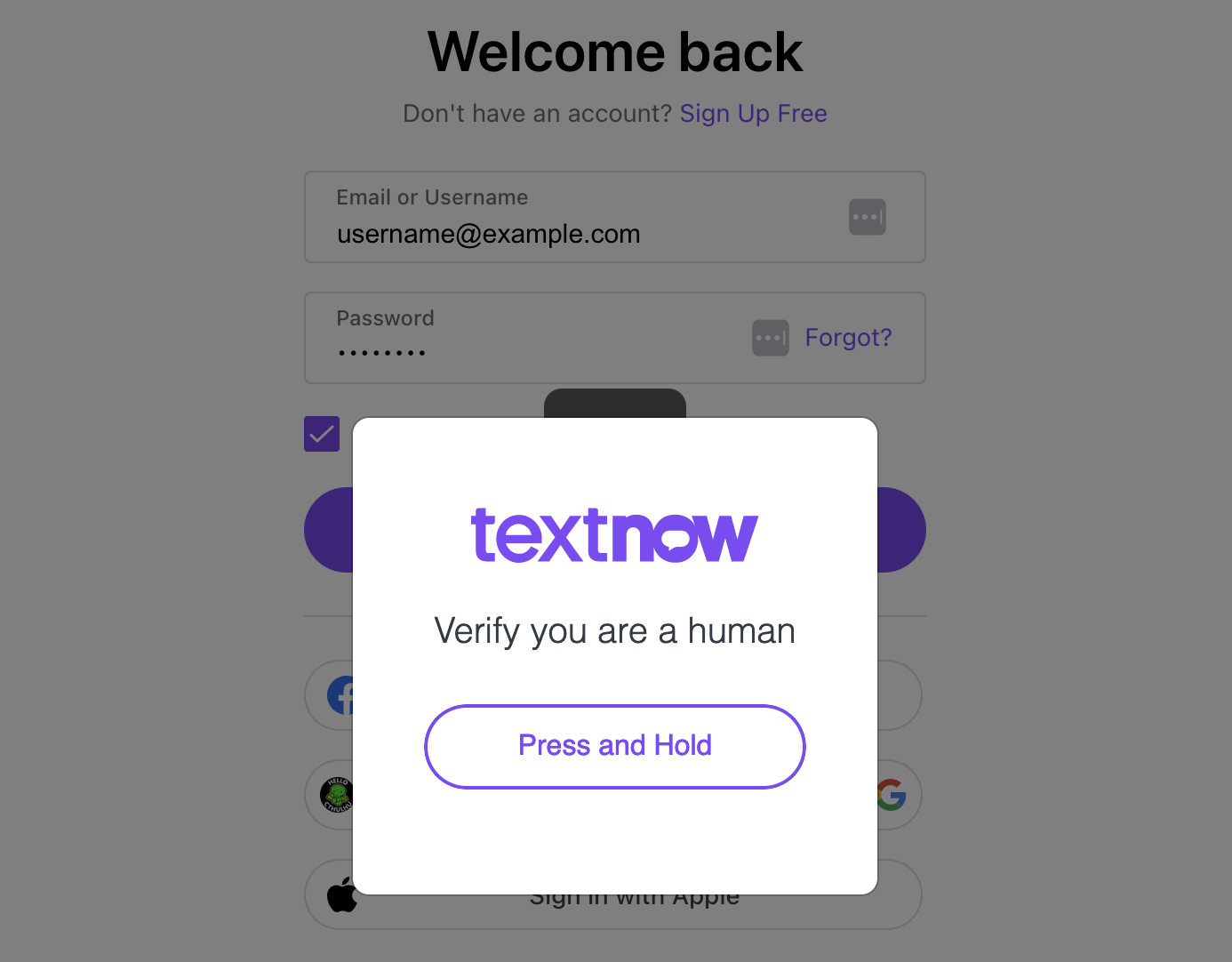
TextNow login screen with "Press and Hold" human verification.
5. How can you tell a real press and hold CAPTCHA from a fake one?
As security measures evolve, malicious actors have begun imitating legitimate verification screens to trick users into executing harmful code on their devices. It is vital to know the difference between a real challenge and a scam.
-
The real check: A genuine Press and Hold verification runs entirely inside your browser window. It only requires you to click, touch, or hold your input device on the designated visual element.
-
The fake check (Red flags): If a verification page prompts you to press Win + R, open PowerShell or Terminal, or paste an unfamiliar script or command into your system to "prove you are human," stop immediately. This is a well-known social engineering tactic designed to install malware or compromise your system. Never run terminal commands given by a web verification prompt.
Never run commands or paste unknown code into your operating system just to complete a CAPTCHA. If a page asks you to do this, stop and verify the website through a trusted route. If you have already executed a suspicious command, disconnect from sensitive accounts where appropriate and use a trusted security tool to investigate your device.
Read more:
-
CAPTCHA vs reCAPTCHA: What’s the difference?
-
How to improve IP score: A complete guide
-
How to check browser fingerprint for spoofing signs with IPFighter
6. Conclusion
The “Before we continue… Press & Hold” message is a human verification challenge, not proof that you have been identified as a bot. If the press and hold CAPTCHA keeps failing, start by completing the interaction correctly, then check browser extensions, cookies, JavaScript, and your network connection.
IP reputation and browser fingerprint signals may both contribute to how a website evaluates a session, alongside other factors such as browser settings and interaction behavior. IPFighter's IP Score can help you inspect available IP trust indicators, but neither an IP score nor a browser fingerprint check can guarantee that a Press & Hold CAPTCHA will pass. If the challenge continues to fail, contact the website's support team for further investigation.
Finally, avoid untrusted bypass tools and fake verification pages. A legitimate troubleshooting process should never require you to run unknown commands or scripts on your device.
7. FAQ
Why am I being asked to confirm I'm not a robot via Press & Hold?
Platforms use this interaction to verify that a human user is operating the browser, protecting the website from automated scrapers, credential stuffing, and bot attacks.
Why is my TextNow account stuck at the Press and Hold CAPTCHA?
TextNow and similar communication apps employ strict automated traffic filters. If your network connection, IP reputation, or browser environment triggers a security flag, you will be required to pass the verification challenge before accessing your account.
Why does TextNow keep asking me to confirm even after I hold the button?
If the loop persists, it is often due to an incomplete hold interaction, strict browser cookie blocking, or an IP address flagged by shared network activity. Try clearing your browser cookies, switching networks, or using a clean browser profile.
How do I fix a Press and Hold CAPTCHA that keeps failing repeatedly?
Ensure you hold the button continuously until the progress circle completes. If it still fails, disable nonessential extensions, clear the site cache, test a private window, or check your network connection.
Does using an auto-clicker or script help bypass the Press & Hold CAPTCHA?
No. Automated scripts and auto-clickers fail to replicate the natural timing, duration, and micro-movements required by modern hold challenges. Using them will typically cause the security system to reject your session faster.
Read more
"Before we continue… Press & Hold": Why you see this check

Cloudflare human verification bypass extension: What to know
CAPTCHA vs reCAPTCHA: What’s the difference?

Why do I keep getting CAPTCHA? Here's what may be triggering it
What is a CAPTCHA? The check that separates people from bots
What is a mesh network and when should you use one?