

Running into Google's "Our systems have detected unusual traffic from your computer network" alert can instantly halt your workflow - even when you are simply conducting routine web searches. Contrary to common belief, this warning rarely means your device is compromised; instead, it signals that Google's anti-bot algorithms are flagging high-volume requests from your shared connection, proxy, or active VPN node.
In this guide, IPFighter breaks down the underlying triggers behind this network alert and provides actionable steps to resolve it. You will learn how to troubleshoot flagged IP addresses, audit browser configuration issues, and restore uninterrupted access to Google Search.
1. What does “Unusual traffic from your computer network” mean?
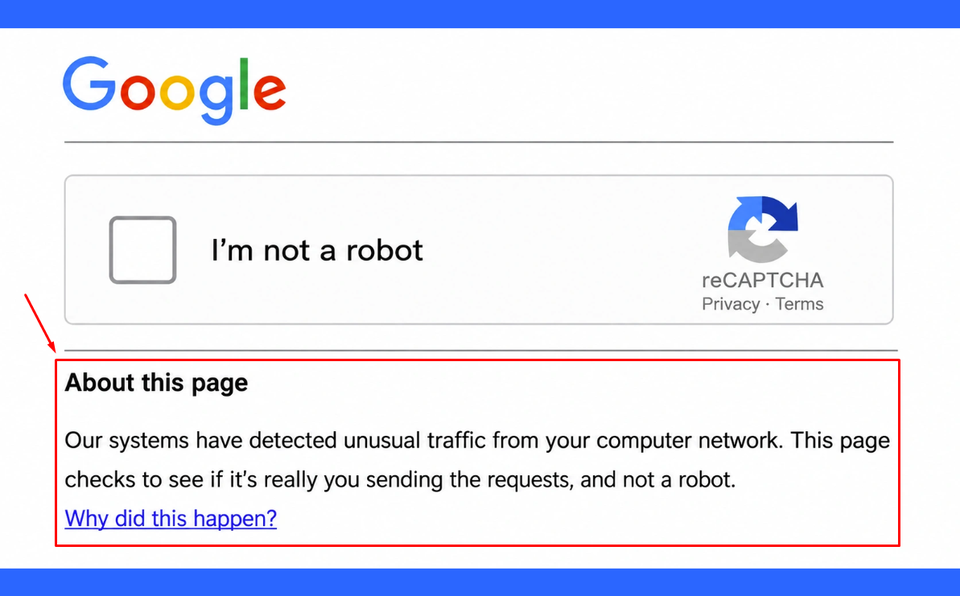
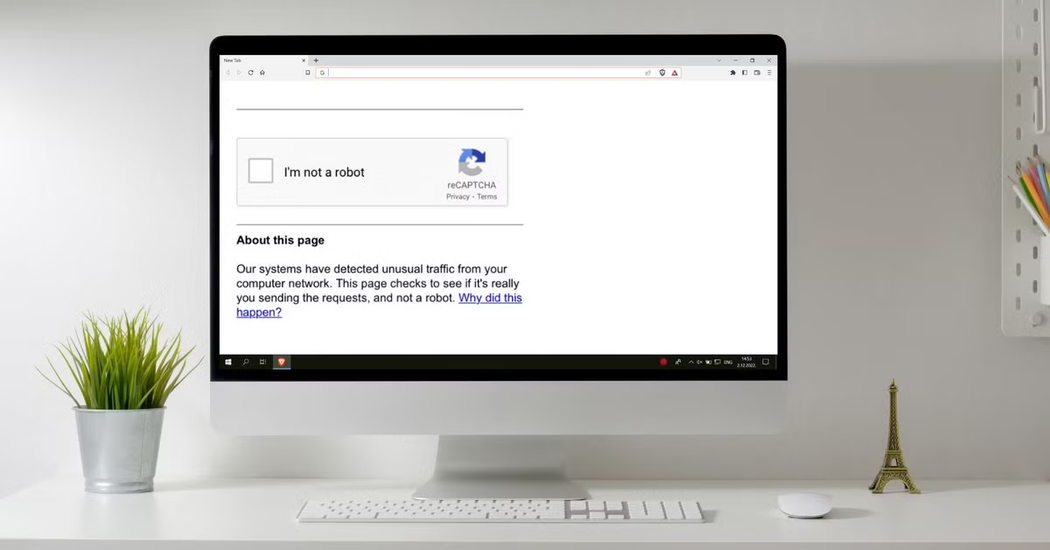
The message “Our systems have detected unusual traffic from your computer network” means Google has detected search requests from your network that appear to be automated or otherwise unusual. Google uses this type of detection to help prevent automated activity from interfering with Search.
When the warning appears, Google will typically ask you to complete a reCAPTCHA challenge. This helps verify that a person is making the search request rather than an automated program. Once you successfully complete the verification, you can usually continue using Google Search.
If you are unfamiliar with the difference between these verification methods, read our guide to CAPTCHA vs reCAPTCHA to understand how they work.
What does “Unusual traffic from your computer network” mean
Despite the phrasing pointing to "your computer network," the issue rarely stems from your specific device. Instead, it targets the shared public IP address powering your current connection. If another device on your local network, a shared VPN server, or a proxy endpoint generates repetitive requests, every user sharing that same public IP will trigger the warning.
Google classifies automated traffic as any search activity executed by scripts or software rather than manual human browsing. Common culprits include web scrapers, SEO rank-tracking tools, automated query bots, or background applications. When total request volume from a single IP exceeds security thresholds, Google automatically deploys anti-bot verification checks to protect its infrastructure.
Discover more:
-
What is a CAPTCHA? The check that separates people from bots
-
Cloudflare human verification bypass extension: What to know
-
"Before we continue… Press & Hold": Why you see this check
2. Why does Google keep detecting unusual traffic?
There are several reasons you may repeatedly encounter this warning. Some involve activity on your own device, while others are related to your public IP address or other users sharing the same internet connection.
Understanding the possible source can help you choose the right troubleshooting method instead of changing settings unnecessarily.
2.1. Multiple users sharing the same public IP address
Your public IP address is the address websites and online services generally see when your devices connect to the internet. However, it does not always belong exclusively to one person or one device. Many internet connections allow multiple users to share the same public IP address. This is common in places such as:
-
Public Wi-Fi networks in cafes, hotels, airports, and libraries.
-
Office networks used by multiple employees.
-
School and university networks.
-
Dormitories and shared accommodation.
-
Mobile networks where many subscribers access the internet through shared infrastructure.
Another example is Carrier-Grade Network Address Translation (CGNAT). Some internet service providers (ISPs) use CGNAT to allow multiple subscribers to share a public IPv4 address instead of assigning each subscriber a unique public IPv4 address.
This shared arrangement can affect how Google evaluates incoming search requests. If another person using the same public IP sends a large number of automated queries, your own searches may also encounter the unusual traffic warning.
In other words, you do not necessarily need to be responsible for the activity that caused the warning. The issue may be associated with the shared IP address rather than your individual browsing behavior.
2.2. VPN or proxy connections with shared IPs
VPNs and proxy services route your internet traffic through another server before it reaches the destination website. Depending on the service, multiple users may share the same exit IP address.
This can create a situation similar to public Wi-Fi or a shared office network. If Google detects automated searches coming from an IP address used by multiple people, other users connected through that IP may also be asked to complete a CAPTCHA.
However, this does not mean all VPNs or proxies cause unusual traffic warnings. The outcome depends on the specific connection and the activity associated with its IP address. If you are using a VPN or proxy when the message appears, try these steps:
-
Temporarily disconnect the VPN or proxy and search Google again.
-
If the warning disappears, reconnect and try a different server or IP address.
-
Compare the results across different connections to see whether the issue is limited to one IP.
You do not need to uninstall your VPN or proxy immediately. First, check whether changing the connection makes a difference.
VPN or proxy connections with shared IPs
2.3. Automated searches, scraping tools, or browser extensions
Some software can send search requests to Google automatically, even when you are not manually searching. Examples include rank-tracking applications, search scraping tools, automated browser scripts, and other software that repeatedly collects information from search results. These tools may be used for SEO research, website monitoring, or data collection.
Browser extensions can also be worth checking. An extension that interacts with search pages or performs background requests may contribute to unusual activity, particularly if it is configured to automate searches.
If you use SEO tools or browser automation software, review their settings and check whether they are sending repeated requests to Google. Also consider whether any recently installed extension could be responsible.
Normal manual searches are different from automated search activity. Simply using Google frequently does not prove that you are running a scraper or bot, and there is no publicly documented search-frequency threshold that guarantees the warning will appear.
2.4. Malware or unwanted software running in the background
Malware is another possible explanation. Certain malicious programs can run in the background, communicate with external servers, or generate automated requests without the device owner's knowledge.
However, seeing the unusual traffic warning does not automatically mean your computer has a virus. Google also identifies shared networks, VPNs, and automated searches from other users as possible reasons for this message. Malware becomes a more relevant possibility when you notice additional suspicious behavior, such as:
-
Browser redirects to unfamiliar websites.
-
Unknown extensions appearing in your browser.
-
Unexpected pop-ups or advertisements.
-
Unfamiliar programs running in the background.
-
Unusual network activity when you are not actively using the device.
If you notice these signs alongside repeated Google warnings, inspect your installed applications and browser extensions, then run a security scan with a trusted antivirus or security tool.
2.5. Repeated or unusual search behavior
Your own search activity may also contribute to the warning, particularly if it involves automated or repeated requests. For example, you may encounter the message while:
-
Sending many search queries within a short period.
-
Repeatedly refreshing Google Search pages.
-
Running scripts that perform searches automatically.
-
Using software to monitor keyword rankings or collect search results.
It is important to distinguish between repeated manual searches and automated requests. Google does not publish an exact number of searches or a specific request rate that triggers this warning, so there is no reliable threshold to use as a rule.
If you encounter the message after repeatedly refreshing or submitting searches, stop sending requests for a while. Complete the verification challenge if one is provided, then try searching again normally.
Repeated or unusual search behavior
3. How to fix “Unusual traffic from your computer network”
The right solution depends on what is causing the unusual traffic. In many cases, you can continue using Google after completing its verification challenge. If the message keeps returning, work through the following steps to narrow down the problem.
3.1. Complete the Google reCAPTCHA challenge
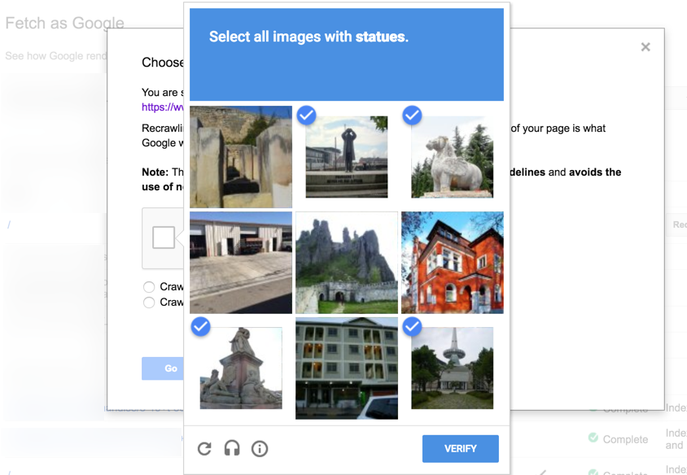
When Google displays the unusual traffic warning, the first thing to do is check whether it provides a reCAPTCHA challenge. If the page is an official Google verification page, follow the instructions to confirm that you are a real person. After successful verification, the warning should disappear and you should be able to continue searching.
Before interacting with the challenge, check that you are on a legitimate Google website rather than an unfamiliar page imitating Google's design. A genuine verification process should not require you to download unknown software or run commands on your computer. If the CAPTCHA does not appear or fails to load, check the following:
-
Make sure JavaScript is enabled in your browser.
-
Confirm that your browser is supported by reCAPTCHA.
-
Temporarily check whether script-blocking or privacy extensions are preventing the challenge from loading.
Google specifically recommends checking browser compatibility and JavaScript when a reCAPTCHA challenge does not appear.
Complete the Google reCAPTCHA challenge
3.2. Disconnect your VPN or proxy temporarily
If you are connected through a VPN or proxy, temporarily disable it and try accessing Google Search through your regular internet connection. If the warning disappears, the VPN or proxy connection may be related to the issue. This could be because other users share the same exit IP or because Google is having difficulty distinguishing normal traffic from automated activity coming through that connection.
You can then reconnect to your VPN or proxy and try a different server. If the warning only appears on one server, consider avoiding that particular connection for Google searches. Keep in mind that switching servers does not guarantee the issue will be resolved. The new IP may also be shared or have its own history of unusual activity.
3.3. Switch to another network
Changing networks is a useful way to determine whether the warning is associated with your current internet connection. For example, if you normally use home Wi-Fi, try connecting through your mobile data or a mobile hotspot. Then open Google Search using the same device and browser. Compare the results:
-
The warning disappears on mobile data: Your original Wi-Fi network or its public IP may be involved.
-
The warning appears on both networks: The issue may also involve your browser, device, or search activity.
-
The warning appears only on a particular shared network: Other users or devices using that connection may be contributing to the traffic.
This test does not identify the exact cause, but it helps determine whether you should investigate the network or focus on your device.
3.4. Disable suspicious browser extensions and automation tools
Browser extensions can modify website behavior, interact with search pages, or perform background tasks. If an extension is generating repeated requests or interfering with Google's verification process, temporarily disabling it can help isolate the issue. Start by reviewing your installed extensions, especially those related to:
-
Search automation or scraping.
-
SEO and keyword rank tracking.
-
Browser automation.
-
Unfamiliar tools with permission to read or modify website content.
Disable extensions you do not recognize or currently need, then reload Google Search. If the warning stops appearing, enable the extensions one at a time to identify which one may be involved.
You can also temporarily stop any search automation scripts or rank-tracking applications running on your computer. If you rely on these tools for work, review their request settings and make sure they are being used in accordance with Google's policies.
3.5. Enable JavaScript and check browser compatibility
Google's reCAPTCHA may not work correctly if JavaScript is disabled or if your browser does not support the verification process. If the CAPTCHA is missing, stuck, or repeatedly failing to load, check your browser settings before assuming that your network is blocked. Try the following:
-
Open your browser's settings and confirm that JavaScript is enabled.
-
Check whether script-blocking extensions or strict privacy settings are preventing Google or reCAPTCHA resources from loading.
-
Temporarily disable relevant extensions and reload the verification page.
-
Update your browser if you are using an outdated version.
-
Try another supported browser to see whether the challenge works there.
If reCAPTCHA works in another browser but not your usual one, the issue may be related to the original browser's settings or extensions.
3.6. Scan your device for malware
If the warning keeps appearing and you notice other suspicious behavior, check your device for malware or unwanted software.
Start with a review of recently installed applications and browser extensions. Remove anything you do not recognize or no longer need, especially if it appeared around the time the unusual traffic warning started. Next, run a full scan using a reputable antivirus or built-in security solution. Follow the security tool's recommendations if it identifies a threat.
Avoid downloading unfamiliar applications that claim to remove the Google warning. A legitimate CAPTCHA challenge should not ask you to install an unknown program, execute a script, or change system settings to prove you are human.
3.7. Contact your network administrator or ISP
If the previous steps do not resolve the problem, the source may be outside your individual device. For office, school, or public networks, contact the network administrator or IT team. They can investigate whether other devices on the same network are generating automated search requests.
If you are using a home internet connection, contact your ISP and explain that Google Search repeatedly displays an unusual traffic warning. Ask whether your public IP is shared with other subscribers through CGNAT or whether there are any known issues with your connection.
Google also recommends contacting your network administrator, VPN provider, or internet provider when the warning continues to appear.
4. How to identify the source of unusual traffic
Trying different fixes can help, but it is more efficient to identify whether the problem is associated with your network, device, or browser first. You can do this with a few simple comparison tests.
The following checks are useful because they change one variable at a time, making it easier to narrow down the possible source.
4.1. Test the same device on a different network
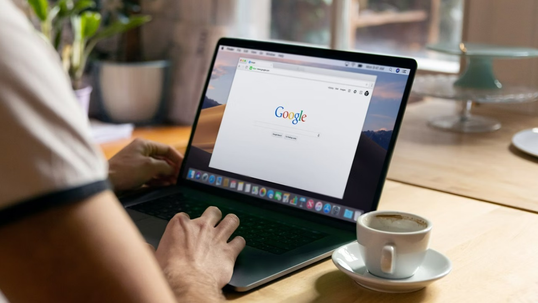
Start by keeping your device and browser unchanged, but connect to another network. For example, if you normally use your laptop on home Wi-Fi, connect it to your phone's mobile hotspot and search Google again. Avoid changing browser extensions or other settings during this test so that the network is the main variable.
If the warning disappears on the alternative network, your original connection or public IP becomes a reasonable place to investigate. If it continues to appear, check the browser and device next.
Test the same device on a different network
4.2. Test another device on the same network
Next, connect another device to the same Wi-Fi network and try using Google Search. For example, if your laptop displays the warning, connect your phone to the same Wi-Fi and perform a search. Keep in mind that using mobile data on the phone would not count as the same-network test. Compare the results:
-
If multiple devices encounter the warning on the same Wi-Fi, investigate the shared network, public IP, router, or ISP.
-
If only one device encounters it, check that device's browser settings, extensions, proxy configuration, and installed software.
-
If the warning appears only in one browser, investigate its extensions, JavaScript settings, and other browser-specific configurations.
These results help prioritize what to check, but they do not prove the exact source of the traffic.
4.3. Check your IP address and browser environment
If your tests suggest that the connection or browser environment may be involved, checking the information exposed by your device can provide additional context.
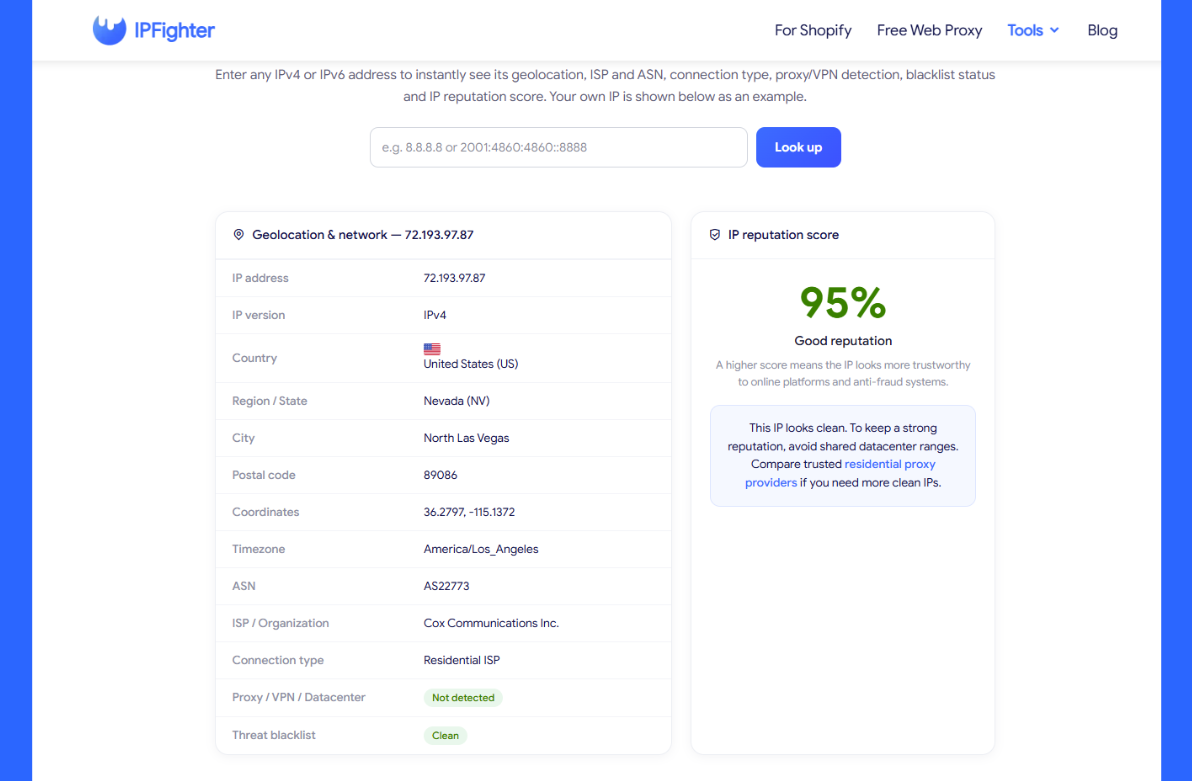
For network-related checks, IPFighter's IP Lookup and IP Score tools let you inspect your public IP address, ISP, detected location, and available IP trust indicators. These results can help you review your network environment, particularly if you suspect that you are using a shared VPN or proxy IP.
You can also use a Browser Fingerprint Checker to review browser signals such as browser information, operating system, screen settings, Canvas, and WebGL data. This can help you understand what information your browser exposes and identify inconsistencies in its configuration.
However, these checks are diagnostic references, not direct tests for Google's unusual traffic warning. An IP reputation score or browser fingerprint result cannot confirm why Google flagged a particular connection.
Check your IP address and browser environment on IPFighter
Read more:
-
How to improve IP score: A complete guide
-
How to know if you have a WebRTC leak: Reading your results
-
Explaining how to know if you have a DNS leak
After testing different devices, browsers, and networks, compare your results using the table below:
|
Test result |
What to investigate |
|
Multiple devices on the same Wi-Fi encounter the warning |
Router, public IP, ISP, or traffic from other users sharing the network |
|
Only one device encounters the warning |
Installed software, proxy settings, browser configuration, or possible |
|
Only one browser encounters the warning |
After testing different devices, browsers, and networks, compare your results using the table below. |
|
Wi-Fi encounters the warning, but mobile data does not |
The original network or its public IP |
|
Multiple devices and networks encounter the warning |
Browser and device configurations, search activity, and whether the issue is temporary or service-wide |
Use this table as a troubleshooting guide rather than a definitive diagnosis. For example, switching to a different network does not guarantee that you will receive an IP address with a different reputation, especially if the alternative connection also uses shared infrastructure.
If the results remain unclear, repeat the comparison after some time and contact your network administrator or ISP when appropriate.
5. Is the Google unusual traffic warning a virus or a fake CAPTCHA?
Seeing the unusual traffic warning does not automatically mean your computer is infected with a virus. Google may display it because of automated requests from your network, activity from other users sharing the same IP, or a VPN connection associated with unusual traffic.
However, you should distinguish between a genuine Google verification challenge and a fake CAPTCHA designed to trick you into running malicious commands. A legitimate CAPTCHA asks you to complete a verification task, such as selecting images or confirming that you are human. Be cautious if a page claiming to be a CAPTCHA asks you to:
-
Press Win + R to open the Windows Run dialog.
-
Open PowerShell, Command Prompt, or Terminal.
-
Copy and paste a command or script into your computer.
-
Download or install an unfamiliar application or browser extension.
-
Change system settings to complete the verification.
These are not normal steps for completing a Google CAPTCHA. Do not follow them, and close the suspicious page. If you have already run a command or installed something at the page's request, disconnect from the suspicious website and use a trusted security tool to check your device. You may also need to remove unfamiliar applications or extensions and review any changes made to your browser.
For more information about recurring verification challenges and why websites keep asking users to prove they are human, see our guide on why you keep getting CAPTCHA challenges.
6. Conclusion
The “Our systems have detected unusual traffic from your computer network” warning means Google has identified search requests from your network that appear automated or unusual. It does not necessarily mean your computer is infected or that you personally caused the activity.
Shared public IP addresses, VPNs and proxies, automated search tools, browser extensions, and malware are all possible factors worth investigating. Start by completing Google's reCAPTCHA challenge, then compare your results across different networks, devices, and browsers to narrow down the source.
If the problem appears to be related to your connection, checking your public IP and browser environment can provide useful context. Tools such as IPFighter can help you review these details, but the results should be treated as diagnostic information rather than proof of why Google displayed the warning.
7. FAQ
Why does Google always say it detects unusual traffic?
Google may repeatedly display this warning when it detects automated-looking search requests from your network. A shared public IP, VPN or proxy connection, automated search software, or activity from another device on the same network may contribute to the issue. If it keeps happening, compare your connection across different networks and check for unwanted software or browser extensions.
How do I remove unusual traffic from my computer network?
First, complete the Google reCAPTCHA challenge if one appears. If the warning continues, temporarily disconnect your VPN or proxy, switch to another network, review browser extensions and automation tools, and scan your device for malware if you notice suspicious activity. Contact your network administrator or ISP if multiple users on the same connection are affected.
Why does Safari keep saying it detects unusual traffic?
Safari may display Google's unusual traffic warning when Google detects automated-looking requests from the network being used. The cause may be a shared public IP, VPN connection, or activity from another device on the same network rather than Safari itself. If the warning only appears in Safari, check its JavaScript settings, content blockers, and other browser-related configurations.
Can a VPN or proxy cause the unusual traffic warning?
Yes. Google explains that users of VPN networks may encounter the warning if other people using the same VPN connection send automated searches. However, not every VPN or proxy will trigger the message. If you suspect your connection is involved, disconnect it temporarily or try another server and compare the results.
Does unusual traffic mean my computer has a virus?
No. The warning alone does not prove that your computer is infected. Malware can generate automated requests, but shared IP addresses, VPNs, and other users on the same network can also contribute to the warning. Consider running a security scan if you notice additional signs such as unfamiliar extensions, unexpected redirects, or suspicious background activity.
Read more

Why Google says "Unusual traffic from your computer network"


Anonymous proxy detected: Causes and how to fix it

"Before we continue… Press & Hold": Why you see this check
Cloudflare human verification bypass extension: What to know
CAPTCHA vs reCAPTCHA: What’s the difference?

Why do I keep getting CAPTCHA? Here's what may be triggering it