

Running the Bot Detection Test and seeing a number of flagged checks can be confusing if you don't know what each category actually means. This guide walks you through how to read your results in detail, what each group of checks is testing for, and what to do depending on which parts of your browser are getting flagged.
1. How to pass bot detection test?
To pass the bot detection test, your browser's Navigator properties, Webdriver signals, CDP traces, and core APIs all need to behave the way a normal, unmodified browser would. Most failed checks come from one of two sources: leftover traces from an automation framework that was never fully removed, or a browser automation tool (such as an antidetect browser or stealth plugin) that hasn't patched every signal correctly.
2. When should you use this bot detection tool?
There are a few situations where running this test is especially useful:
-
Before automation work: Ahead of running multi account management, scraping, or automated testing.
-
After changing your setup: Right after installing a new antidetect browser or stealth plugin, to confirm it's actually working.
-
When something feels off: As soon as your browser or account keeps getting hit with CAPTCHAs or unexplained blocks.
-
Before going to production: Right before rolling out a new automation configuration at scale.
Running the check in any of these moments gives you a clear baseline before you commit to a setup.
3. How to run bot detection tests
Getting your results only takes a moment, since the test runs automatically as soon as the page loads.
Step 1: Visit the bot detection page
Go to Bot Detection and the tool immediately begins scanning your browser across 50+ checks. Nothing needs to be configured first.
Step 2: Review the overview numbers
Once scanning finishes, you'll see three numbers at the top: Total checks, passed, and flagged.
Step 3: Use Restart after making changes
If you adjust your browser, extensions, or automation setup, click Restart to run the scan again and confirm whether the change actually helped.
The tool page already explains what bot detection is and which frameworks and API checks it looks for, so the next section focuses entirely on how to actually interpret the numbers and categories you'll see.
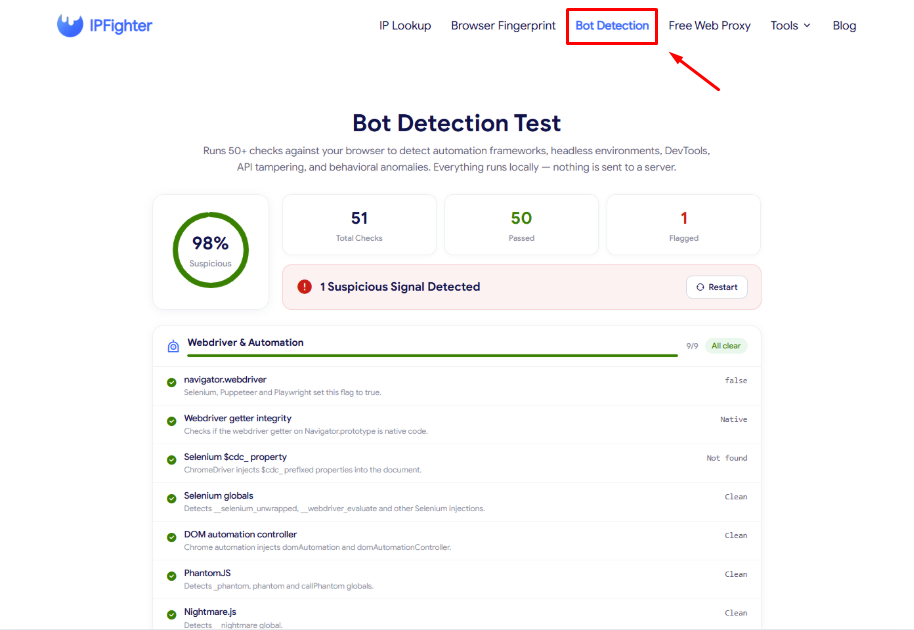
Check for quick bot detection on IPFighter
Discover more:
-
What is a browser fingerprint? How websites identify you online
-
Is Tor browser safe? The biggest myths about Tor privacy
-
Best free antidetect browsers: Are they worth using?
4. Understanding your bot detection results
This is the part that matters most once you already have a result in front of you: what does a flagged check in each category actually mean for you?
4.1. Reading the Total checks, passed, and flagged numbers
A Passed count that sits close to your total checks number generally means your browser looks close to a normal, human operated browser (for example, passing nearly all of the 50+ checks). A small number of flagged checks isn't automatically a red flag on its own; what matters more is which category those flagged checks fall into, since some categories carry far more weight than others.
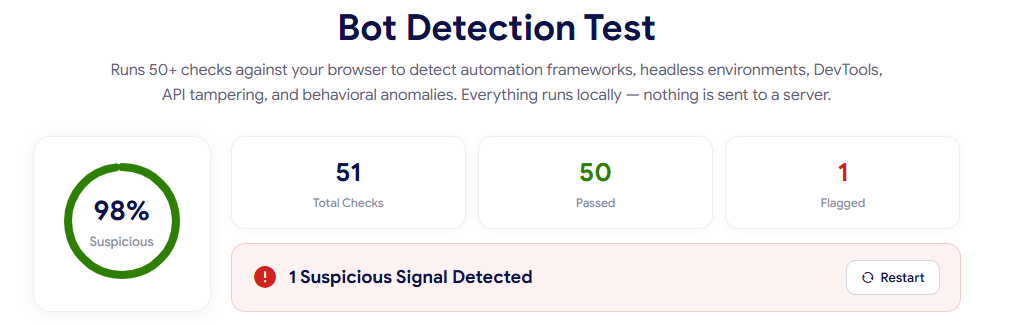
Total checks, passed, and flagged numbers
4.2. Understanding each check category
The 50+ checks are grouped into six categories, and each one is testing a different part of your browser environment:
-
Webdriver & automation (9 tests): Checks for direct traces left by automation tools, such as the navigator.webdriver flag or Selenium/Puppeteer specific properties. A flag here is one of the strongest signals of automation, since these markers rarely appear on a normal browser by accident.
-
Headless & environment (12 tests): Checks whether your browser is running in a headless or otherwise non standard environment, including missing rendering features, unusual window properties, and headless specific user agents. Flags here often point to running a headless browser instance rather than a full, visible browser.
-
DevTools & debugging (5 tests): Checks for signs that browser developer tools are open or that debugging behavior is being detected, such as timing differences or window size mismatches. This category is more prone to false positives, since simply having DevTools open while testing can trigger a flag even for a real human user.
-
API integrity (11 tests): Checks whether core browser APIs, such as Function.prototype.toString or Navigator property getters, have been modified. This is the category most commonly flagged by antidetect browsers and stealth plugins, since they intentionally alter these APIs to mask automation, sometimes imperfectly.
-
Browser consistency (9 tests): Checks whether different browser properties agree with each other, for example whether your user agent matches your actual rendering engine behavior. A flag here usually means something in your browser configuration doesn't line up internally.
-
Behavior & timing (5 tests): Checks for patterns in timing and interaction that differ from typical human behavior. Flags here are more situational and often depend on how the browser session was used during the test, not just its configuration.
Knowing which category a flag falls into tells you a lot more than the raw flagged count alone. A flag in Webdriver & Automation or API Integrity is worth investigating directly, while a flag in DevTools & Debugging may simply reflect how you were using the browser at the time.
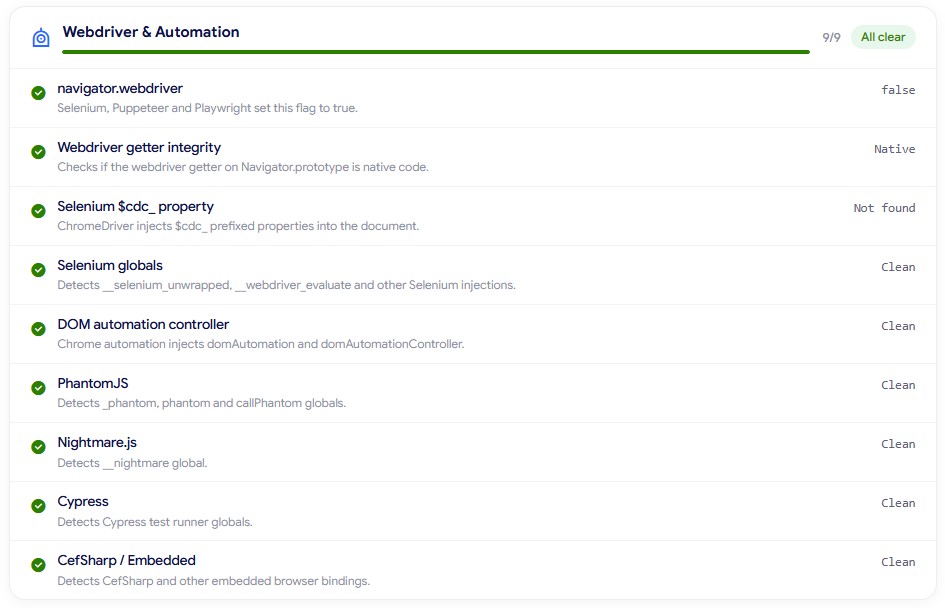
Webdriver & automation is one of the tests
4.3. Finding exactly which check failed
Each category expands into a list of individual checks, so you don't have to guess which specific test is causing a flag. For example, the Headless & Environment category might show 11/12 passed with 1 issue. Expanding it shows the other checks (like HeadlessChrome in UA, window.chrome object, and chrome.csi()),... coming back clean, while the single issue is isolated to the chrome.runtime check, marked Missing.
Full Chrome exposes chrome.runtime, but headless Chrome may omit it, which is exactly why this one check is dragging the category down to 11/12. On its own, this flag is unlikely to get you blocked immediately, but it's a real signal that a detection system can combine with other flags to raise its confidence that the browser is automated, so it's still worth fixing rather than ignoring.
That's the level of detail you get from expanding a category instead of only seeing "11/12, 1 issue," you can see exactly which property is missing and read the plain explanation next to it, which is what actually tells you what to fix.
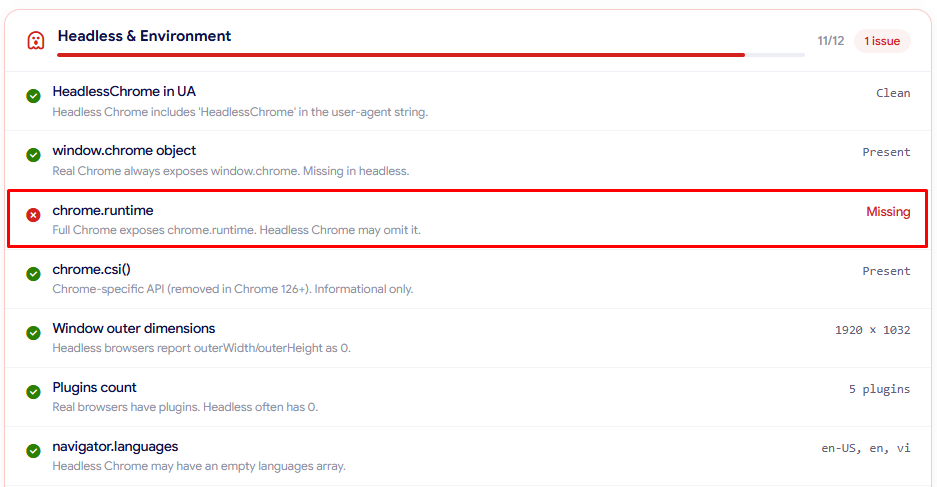
Bot detection test result example
5. Common bot detection results and what they mean
A single result rarely tells the whole story, since the same numbers can mean different things depending on your setup. A few patterns come up often enough among IPFighter users that they're worth calling out on their own.
-
Mostly passed but one or two API Integrity flags: Usually caused by an antidetect browser or stealth plugin that patches most, but not all, of the relevant Navigator properties.
-
Different results between runs: Often caused by DevTools being open, a browser extension loading inconsistently, or switching between browser profiles between tests.
-
Webdriver flagged despite not running automation: Frequently caused by a leftover automation extension or tool that was installed previously and never fully removed.
-
100% passed but still blocked by a website: This means the block is coming from something outside of bot detection entirely, most commonly IP reputation or a fingerprint that looks unusual.
Each of these points to a different underlying cause, which means the right next step also looks different depending on which one matches your result. Rather than treating every flagged check the same way, it helps to first figure out which of these patterns you're actually seeing. The next section walks through exactly what to do for each one.
6. What should you do next?
Once you know which category is causing the issue, here's how to respond to each one:
-
If flagged under API Integrity: This usually points to your antidetect browser or stealth plugin configuration. Review its settings to make sure it's patching the specific property being flagged, since partial patching is a common cause of this category being flagged.
-
After any change: Click Restart on the Bot Detection page to confirm whether your fix actually resolved the flagged check, rather than assuming it worked.
-
If flagged under Webdriver & Automation or DevTools & Debugging: Check whether an automation tool like Selenium, Puppeteer, or Playwright is still running or was left partially installed, and remove or fully disable it. If DevTools was open during the test, close it and run the test again.
- If 100% passed but you're still being blocked: The issue is likely outside of bot detection. Check your IP reputation on IP Lookup and your fingerprint uniqueness on Browser Fingerprint to see whether either is contributing. If your IP is the problem, flagged as datacenter, VPN, or proxy, switching to clean mobile proxies on real 4G and 5G carrier IPs removes that signal, since carrier addresses read as genuine mobile users.
Whichever category applies to you, retesting after each change is the most reliable way to confirm you're actually making progress rather than guessing.
Read more:
-
Browser fingerprint testing tools: Which one should you use?
-
Mastering Selenium browser fingerprints to avoid anti-bot detection
-
What is a spoofer? How identity masking actually works
7. FAQ
Does failing the bot detection test mean I'll get banned right away?
Not necessarily. A failed check is a signal that a website's bot detection system may use, but most platforms combine it with other factors (account history, IP reputation, behavior) before taking action. A single flagged check rarely triggers an immediate ban on its own.
Can an antidetect browser actually pass this test?
Yes, a well configured antidetect browser can pass most or all checks, particularly in the API Integrity and Browser Consistency categories. Whether it fully passes depends on how thoroughly it patches each individual property being tested.
Why do my results change between runs even though I didn't change anything?
This is usually caused by something environmental rather than your core setup: an open DevTools panel, a browser extension loading at a different time, or a background process affecting timing based checks.
Does clearing cache or cookies affect the results?
Generally no, since these checks look at browser environment properties and APIs rather than stored site data. Cache and cookies are unlikely to change your Webdriver, API Integrity, or Headless & Environment results.
Should I worry if only 1 or 2 out of 50+ checks are flagged?
It depends more on which category they fall into than the raw count. One flagged check in Webdriver & Automation deserves attention, while a single flag in DevTools & Debugging may simply reflect how the browser was being used during the test.
Is there a safe number of flagged checks to aim for?
There's no universal threshold, since different websites weigh these signals differently. The safer approach is to review each flagged item by category, prioritize fixing anything under Webdriver & Automation or API Integrity, and use the Passed/Flagged ratio as a general trend to track over time rather than a strict pass or fail line.
Read more

Vision Browser review: A clear view of its fingerprint quality

Hidemyacc review 2026: Features, pricing and real fingerprint test results

What is anonymous browsing and how does it work?
Is Pixelscan any good? A full review and alternative
How to use web proxy safely: A practical guide

Explaining how to know if you have a DNS leak