

Running a browser fingerprint test and seeing a score, a few labels, and a long list of technical fields can be a lot to take in at once. This guide walks you through how to check browser fingerprint results in detail, how to spot signs of spoofing or automation, and what to do depending on what you find.
1. How to check browser fingerprints?
The quickest way to check your browser fingerprint is with IPFighter's Browser Fingerprint tool, which scans your browser automatically and returns a fingerprint score along with detailed signal breakdowns (User-agent, canvas, WebGL, audio, fonts, and more) you can use to spot spoofing or automation markers.
2. When should you check your browser fingerprint?
There are a few moments when this check is especially worth running:
-
Before multi account work: Ahead of using an antidetect browser like DICloak or Hidemyacc for multi-account management.
-
After changing a profile: Right after creating or adjusting a profile in your antidetect browser, to confirm it's actually working.
-
When something feels off: As soon as you start seeing repeated CAPTCHAs or unexplained blocks.
-
On a regular basis: To confirm your fingerprint stays consistent over time rather than drifting after updates or configuration changes.
Running the check at any of these points gives you a clear read on your setup before it becomes a problem elsewhere.
3. How to run a browser fingerprint check
Getting your results takes no setup, since the scan runs the moment the page loads. There's nothing to configure or paste in beforehand, and the whole process happens entirely in your browser rather than on IPFighter's servers. Within a few seconds of arriving on the page, you'll already have a full set of results to work through.
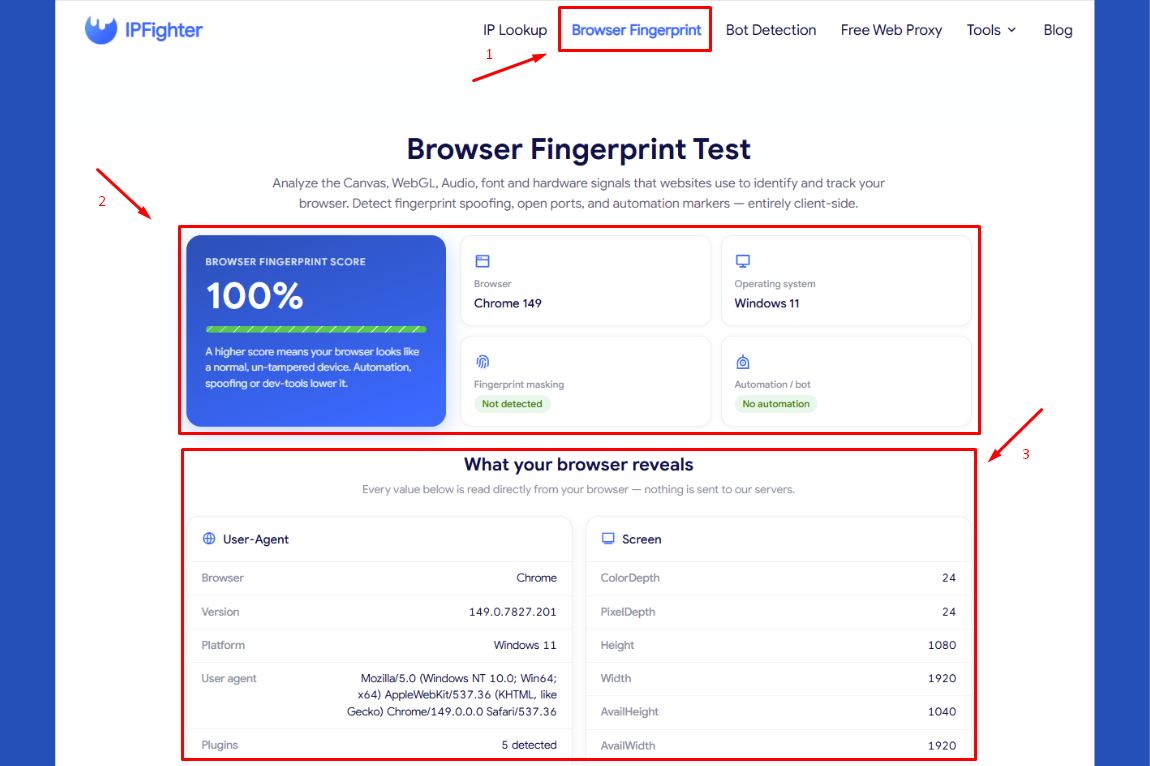
Step 1: Visit the Browser Fingerprint page
Go to Browser Fingerprint. The test runs entirely client side and starts scanning automatically.
Step 2: Review the four overview indicators
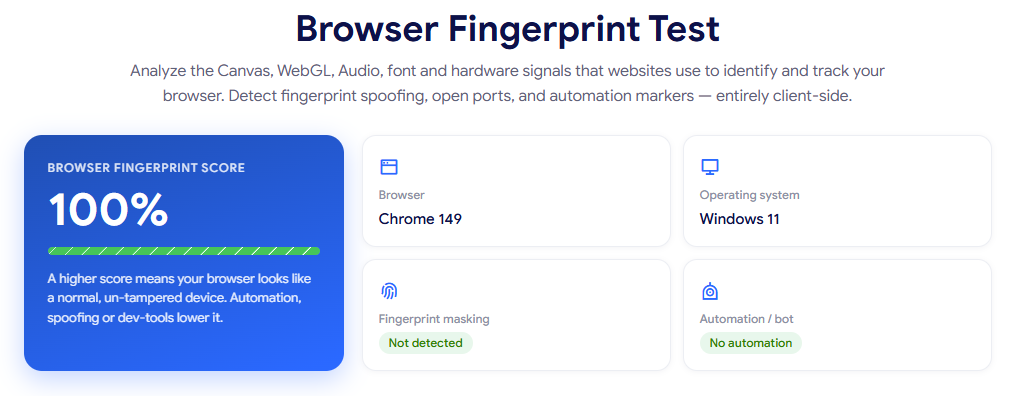
At the top, you'll see your fingerprint score, along with your detected browser, operating system, fingerprint masking status, and automation/bot status.
Step 3: Scroll down for the full breakdown
The "What your browser reveals" section lists every individual signal the test checked, grouped by category.
The tool page already explains what a browser fingerprint is and which signals it checks, so the next section focuses entirely on how to interpret the results you're actually looking at.
How to run a browser fingerprint check
Discover more:
-
What is a browser fingerprint? How websites identify you online
-
Mastering Selenium browser fingerprints to avoid anti-bot detection
4. Understanding your browser fingerprint results
This is the part that matters most once you have a result in front of you: what does each number, label, and signal group actually tell you?
4.1. Reading the fingerprint score
The score is a percentage that reflects how closely your fingerprint matches what's expected from a normal, unmodified browser. A score close to 100% means every individual signal, from Canvas rendering to hardware reporting, lines up the way a typical real device would. A lower score means one or more signals looked unusual enough to pull the overall assessment down, and the detailed groups covered later in this section are exactly where you go to find out which ones.
4.2. Reading the four overview indicators
Beyond the score itself, four labels give you a fast summary before you dig into specifics. Your Browser and Operating system fields confirm what the test detected your setup to be, which is worth a quick sanity check against what you're actually running. Fingerprint masking shows whether any tool is actively altering your fingerprint data, so a result of Detected means something (an extension, an antidetect browser, or a privacy tool) is intervening, whether you intended it to or not.
Automation/bot shows whether the test found markers commonly left by automation frameworks; a detection here is worth taking seriously even if you weren't intentionally running one, since it often points to a leftover tool or extension.ư
4.3. Reading each detailed signal group
The full breakdown groups every signal into eleven categories, and each one reveals a different part of your browser environment:
-
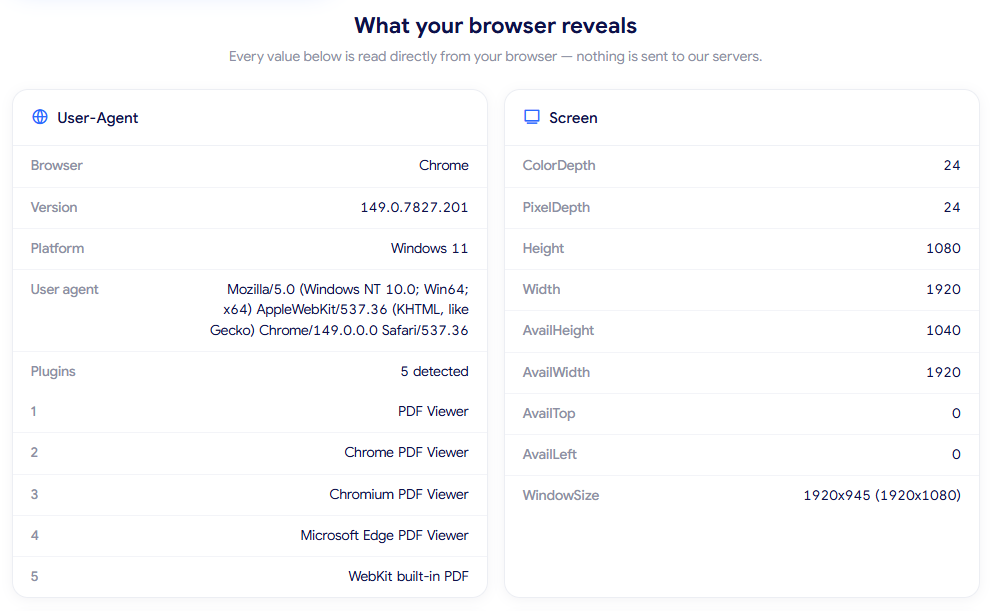
User-agent: Reveals your browser, version, platform, full user agent string, and any detected plugins (such as PDF viewers). A mismatch here, where your declared browser claims to be one thing but behaves like another, is one of the most common giveaways of a modified or spoofed setup.
-
Screen: Reveals your resolution, color depth, pixel depth, and available window space (Height, Width, AvailHeight, AvailWidth, AvailTop, AvailLeft, WindowSize). Values that don't correspond to any real device configuration can point to a virtual machine or headless environment.
-
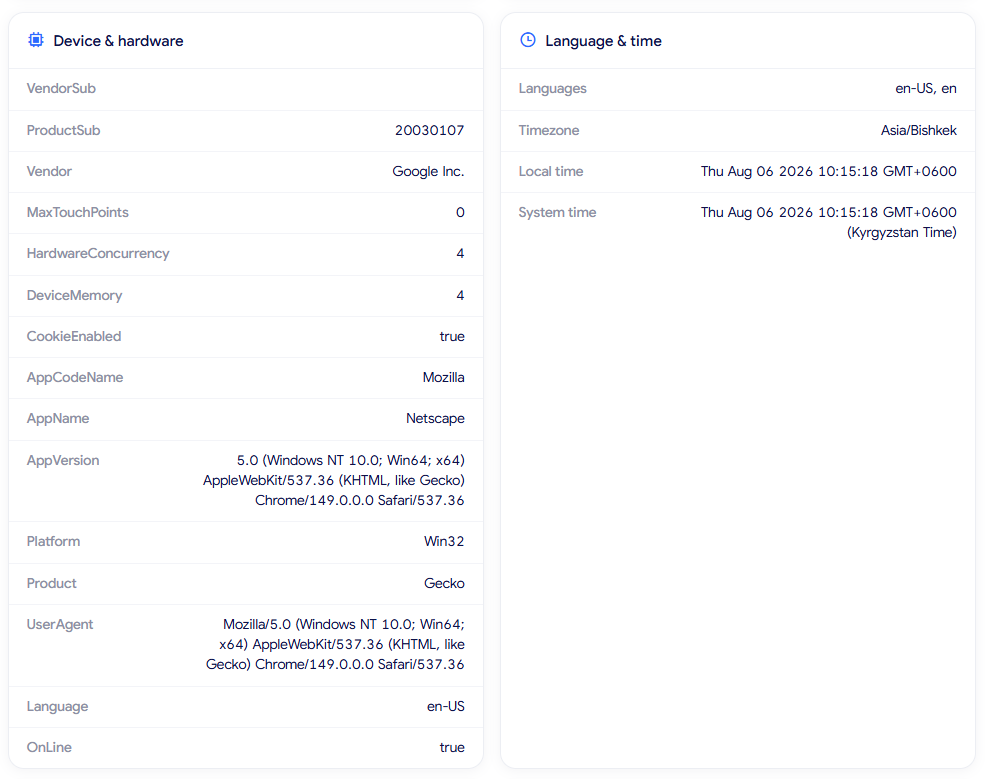
Device & hardware: Reveals hardware level details like HardwareConcurrency (CPU cores), DeviceMemory, MaxTouchPoints, Vendor, Platform, and related Navigator properties. Inconsistencies, such as touch points being present on a device reporting as a desktop, suggest spoofed hardware data.
-
Language & time: Reveals your browser's language list, timezone, and both local and system time. This is one of the easiest signals to cross check yourself, simply by comparing the reported timezone (for example, Asia/Bangkok) against your IP's actual location.
-
Fingerprint signals: Covers Canvas, WebGL, Audio, and Client Rects, each shown as a short hash generated from how your device renders graphics, audio, and layout. These hashes are normally very stable for the same device, so a hash that changes between test runs usually means a noise injection or spoofing tool is active.
-
Fonts: Shows a hash representing which fonts your browser can detect on the system, along with the Headers UA string. An unusually generic or inconsistent font hash can suggest a sandboxed or virtual environment rather than a personal device with its own installed fonts.
-
WebGL details: Breaks down your GPU Renderer, Vendor, Version, and Shading language specifically. A renderer string that doesn't match your reported operating system, for example a mobile GPU showing up on a desktop OS, is a strong signal of spoofing.
-
Media & permissions: Reveals available audio and video input/output devices along with Permissions API status. This mostly reflects natural hardware variation, though a complete absence of any devices at all can look unusual for a genuine user.
-
Storage & APIs: Confirms whether standard browser storage mechanisms, such as Cookies, localStorage, sessionStorage, IndexedDB, and Service Worker, are enabled. Automation tools and stripped down environments sometimes have these disabled by default.
-
Connection: Reveals your network Type, Downlink, RTT, and Save data setting. This is mostly informational and rarely a red flag on its own.
-
Open ports: Scans for locally open ports tied to remote access tools, SSH clients, or development servers. This doesn't affect your score directly, but it adds another data point that websites can combine with fingerprint data for a fuller picture of your setup.
Here's what a clean result looks like in practice, broken down by section:
-
Overview: Fingerprint score of 100%, with Fingerprint masking and Automation/bot both showing as not detected. This is the summary you'd want to see before digging any deeper.
Browser fingerprint score and overview result
-
User-Agent & screen: A fully populated, self consistent set of values, with the browser and version matching what's reported elsewhere in the results. Nothing here stands out as unusual on its own.
User-Agent and screen details result
-
Device & hardware and Language & time: Realistic hardware values, with the timezone lining up with both the local and system time shown. That alignment is a good sign, since a mismatch here is one of the easier things for a detection system to catch.
Device, hardware, and timezone details result
-
Fingerprint signals, Fonts, WebGL details, Media & permissions, Storage & APIs, and Connection: All fully populated, with the WebGL Renderer and Vendor corresponding to real, matching hardware, and Storage & APIs all reading as enabled or supported. A fully populated set like this suggests nothing is being blocked or spoofed at the API level.
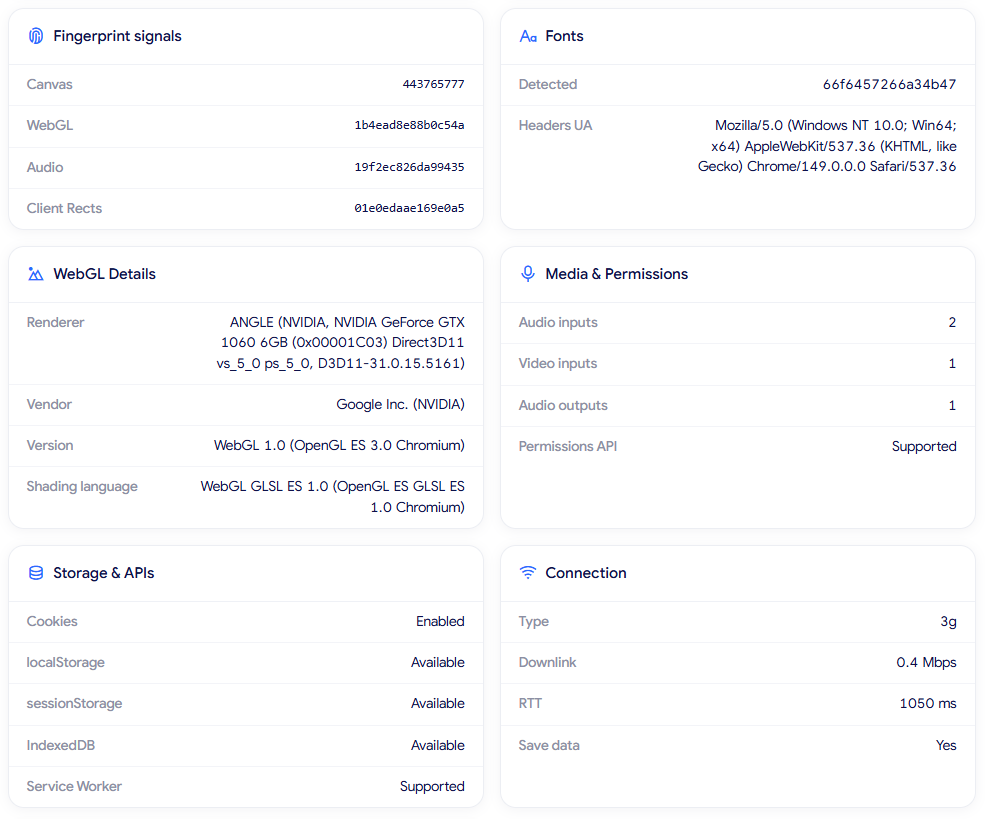
Fingerprint signals, WebGL, and storage details result
-
Open ports: Comes back Clean, with nothing detected. No background software is exposing a port that a site could use as an extra signal.
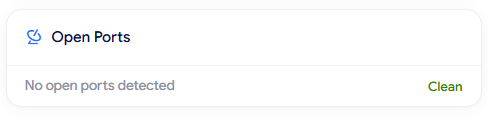
Open Ports scan result: Clean
Nothing here contradicts anything else, which is exactly what a natural, untampered browser is expected to look like.
Read more:
-
Best free antidetect browsers: Are they worth using?
-
Browser fingerprint testing tools: Which one should you use?
-
What is a virtual machine? How it works and when to use one
4.4. What fingerprint uniqueness means and why it matters
It's worth being clear on one point that trips people up: having a unique fingerprint isn't inherently a problem. Every real device is unique to some degree, since hardware, installed fonts, and configuration naturally vary from one user to the next.
What actually raises red flags is inconsistency, meaning signals that contradict each other in ways a genuine device wouldn't, such as a WebGL renderer that doesn't match the reported hardware, or a timezone that doesn't align with the connecting IP. Focusing on consistency between signals, rather than trying to look identical to every other user, is the more useful way to think about your fingerprint.
5. Common browser fingerprint results and what they mean
A few patterns show up often enough to be worth recognizing on their own:
-
Fingerprint masking Detected without intentional use: This shows up even though you weren't deliberately running an antidetect browser, which usually points to a privacy focused extension actively altering your signals in the background.
-
Timezone mismatched with IP location: Your browser's reported timezone doesn't line up with the location tied to your IP address, a gap that's easy to spot once you compare the two directly.
-
High score but a WebGL mismatch: The overall score looks good, but the WebGL Renderer or Vendor doesn't match your actual hardware, meaning a single signal is off even though the broader picture looks fine.
-
Unexpected Open Ports: The scan detects open ports you weren't expecting, usually caused by background software like remote access tools or a development server running without your attention.
Each of these calls for a different response, which the next section walks through.
6. What should you do next?
Once you know what your result is pointing to, here's how to respond to each situation
-
If Fingerprint masking is detected unintentionally: Review your installed extensions and privacy settings to find what's actively modifying your signals, then disable it if it wasn't a deliberate choice.
-
If Automation/bot is detected: Check your antidetect browser configuration, and cross reference the result with Bot Detection for a second, more detailed read on what's triggering it.
-
If your timezone doesn't match your IP: Use IP Lookup to confirm exactly where your IP is registered, then adjust your browser or device timezone to match.
-
If your IP and fingerprint don't feel aligned overall: Consider pairing your current setup with a residential proxy whose location actually matches your fingerprint's reported timezone and language, rather than treating IP and fingerprint as two separate concerns.
Whatever you change, running the test again afterward is the only way to confirm the fix actually worked rather than assuming it did.
Ready to see where your own setup stands? Head back to the browser fingerprint test and run a fresh scan now.
7. FAQ
Why does my fingerprint score change between test runs even though I haven't changed anything?
Small environmental factors, like a browser extension loading at a different time or a background update, can shift certain signals slightly. If the change is small, it usually isn't a cause for concern; a large swing is worth investigating.
Does using a VPN affect my fingerprint score?
Not directly. A VPN changes your IP and location, not the browser level signals (Canvas, WebGL, fonts, hardware) that make up your fingerprint. That said, a VPN location that doesn't match your browser's timezone can create the kind of inconsistency covered earlier.
Is having a unique fingerprint always a bad thing?
No. Every real device is naturally somewhat unique. The actual concern is inconsistency between signals, not uniqueness on its own.
Can an antidetect browser achieve a perfect fingerprint score?
Yes, a well configured one can, particularly when it patches every relevant signal consistently rather than leaving a few mismatched. How close it gets depends entirely on the quality of its configuration.
Does clearing cookies reset my browser fingerprint?
No. Most fingerprinting signals, like Canvas, WebGL, and hardware details, come from your browser and device rather than stored cookies, so clearing cookies has little to no effect on your fingerprint.
Read more

Vision Browser review: A clear view of its fingerprint quality


Hidemyacc review 2026: Features, pricing and real fingerprint test results

What is anonymous browsing and how does it work?
Is Pixelscan any good? A full review and alternative

How to use web proxy safely: A practical guide

Explaining how to know if you have a DNS leak