

When you use a VPN, websites may identify the IP address you are connecting from. This can lead to repeated CAPTCHA challenges, additional verification requests, or even account restrictions. However, seeing a "Detected" result on a VPN checker does not necessarily mean your real IP address has been exposed or your connection is insecure.
In this article, IPFighter explains the four criteria VPN checkers use to identify VPN connections and shows you how to use IP Lookup, IPFighter's free IP lookup tool, to find out whether your VPN is being detected.
1. Use IPFighter IP Lookup as a VPN checker
To find out whether your VPN is being detected, you can use IPFighter's IP Lookup tool. It displays detailed information, including connection type, ISP, detection status, and IP reputation score, helping you assess the origin and trustworthiness of the IP address you are using.
Follow these steps:
Step 1: Turn on your VPN and select the server location you want to check, such as the US, UK, or Japan.
Step 2: Visit IP Lookup, or go to IPFighter.com and select Tools → Detection → IP Lookup.
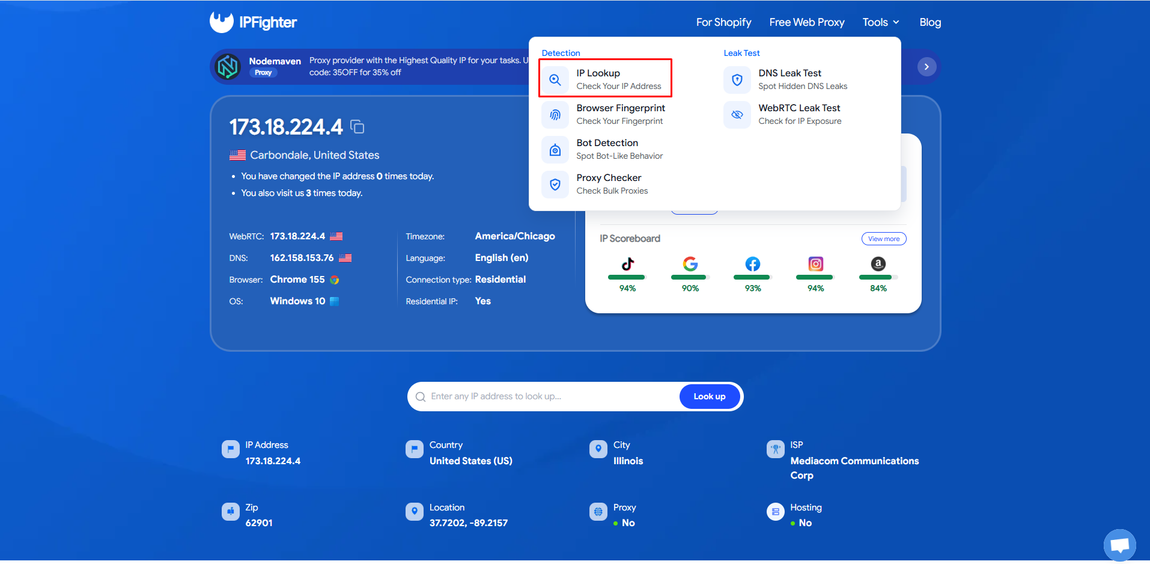
IPFighter IP Lookup tool
Step 3: Review the lookup results
Information about your current IP address will appear as soon as you open the page.
If you want to check a specific IP address, enter it in the search bar and click Look up.
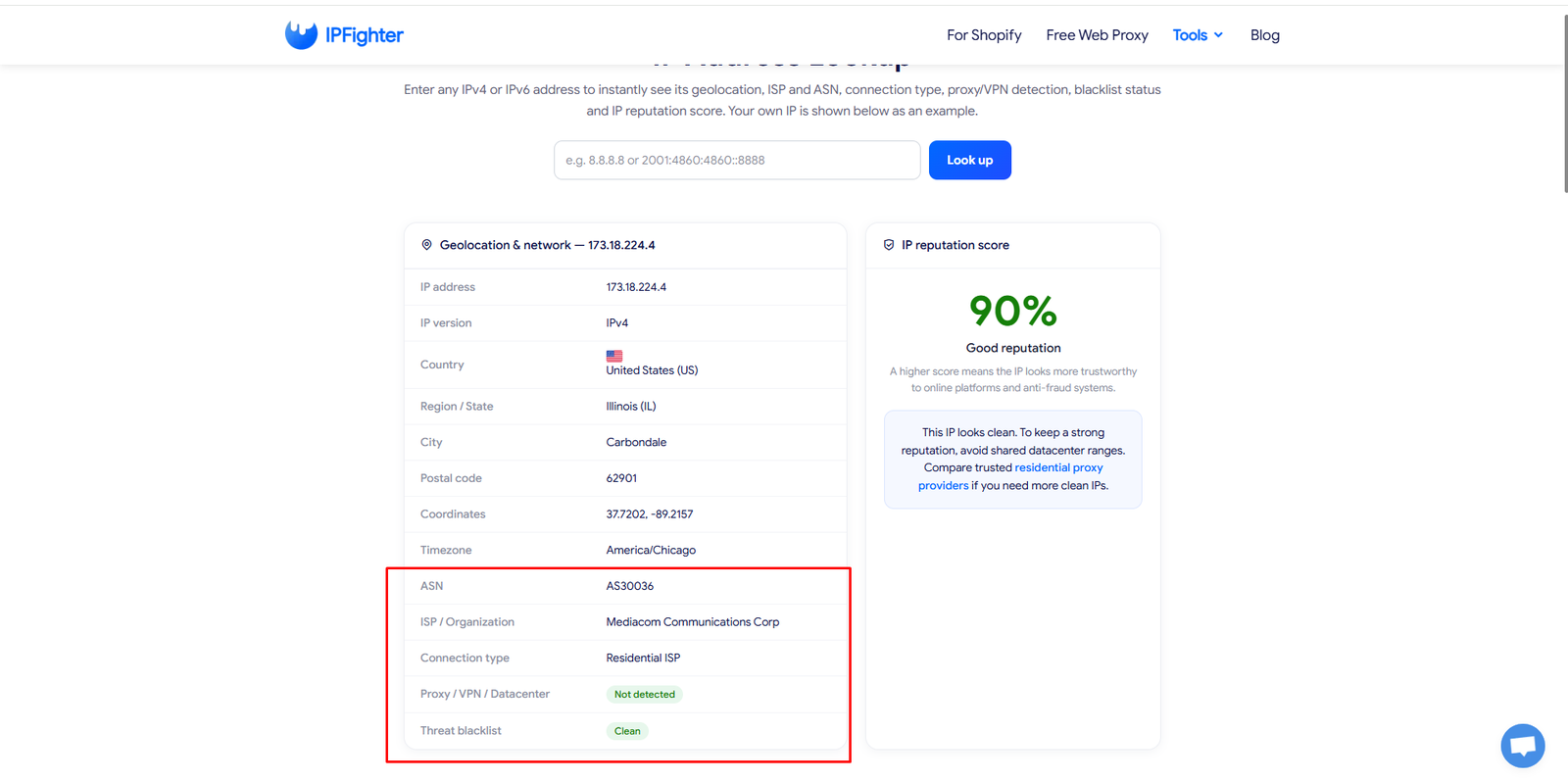
IP Lookup results showing the Proxy/VPN/Datacenter status, connection type, and IP reputation score.
When reviewing the results, pay attention to the Proxy/VPN/Datacenter field first. If it displays "Detected," your IP address has been identified as belonging to a VPN, proxy, or datacenter network. Section 4 below explains how to interpret each field in detail.
2. What signals indicate that a VPN has been detected?
Websites cannot directly see the contents of data transmitted through a VPN tunnel. Instead, they can collect your IP address and related network information. The following four signals are commonly used by VPN checkers and anti-fraud systems to identify VPN connections.
2.1. The IP belongs to a hosting or cloud network
Every IP address belongs to a network identified by an ASN (Autonomous System Number). This information indicates whether the IP is managed by a residential ISP, a hosting company, or a cloud service provider.
Most commercial VPN services operate on servers, so their IP addresses typically belong to hosting or datacenter networks. With IPFighter IP Lookup, if an IP's ASN belongs to a hosting or cloud network, the tool displays the Detected (non-residential) label under Proxy/VPN/Datacenter.
2.2. The IP appears on a list of known VPN servers
Some specialized IP intelligence providers track and collect information about VPN and proxy servers worldwide. These databases are regularly updated to maintain lists of IP addresses associated with VPN or proxy services.
When a connection is made, websites can compare the incoming IP address against these databases to determine whether it belongs to a previously identified VPN server.
However, each VPN checker uses its own data sources and detection criteria. As a result, the same IP address may be identified as a VPN by one tool but go undetected by another. This depends on each provider's data coverage, update frequency, and classification methods.
2.3. IP risk history and shared IP usage
Multiple users may share the same VPN IP address. If one user sends spam, engages in abusive activity, or generates suspicious traffic, the IP may end up on a blacklist. Other users sharing that address can then be affected as well.
IPFighter's IP Lookup tool reflects these signals through two fields: Threat blacklist and IP reputation score. These indicators help determine whether an IP address appears on blocklists or has a history of risky activity.
2.4. The IP location does not match the declared location
The country or city associated with an IP address may differ from the location declared by the user. This can indicate that traffic is being routed through a VPN, proxy, or another intermediary network gateway.
However, IP geolocation is only an estimate, not GPS data. An IP address showing a location different from the user's actual location is not sufficient evidence that the user is using a VPN.
In general, platforms combine multiple signals rather than relying on a single indicator. Therefore, you should not use a VPN checker's result alone to determine whether a connection is using a VPN.
3. How do VPN checker results differ with and without a VPN?
To illustrate the differences, IPFighter tested the same device using IP Lookup under two conditions: a regular internet connection without a VPN and a connection through a free VPN application. The results are shown below.
|
Information |
Without VPN |
With free VPN |
|
Geolocation |
Carbondale, US |
Paris, France |
|
ISP / Organization |
Charter Communications (AS20115) |
GTHost (AS63023) |
|
Connection type |
Residential ISP |
Datacenter / hosting |
|
Proxy / VPN / Datacenter |
Not detected |
Detected (non-residential) |
|
Threat blacklist |
Clean |
Listed |
|
IP reputation score |
100% |
30% |
When the VPN is enabled, your IP address changes from a residential ISP address to a datacenter server IP in another country. This is why the tool can identify the VPN connection.
In addition, free VPN IPs are often shared by multiple users, making them more likely to appear on blacklists and receive lower reputation scores.
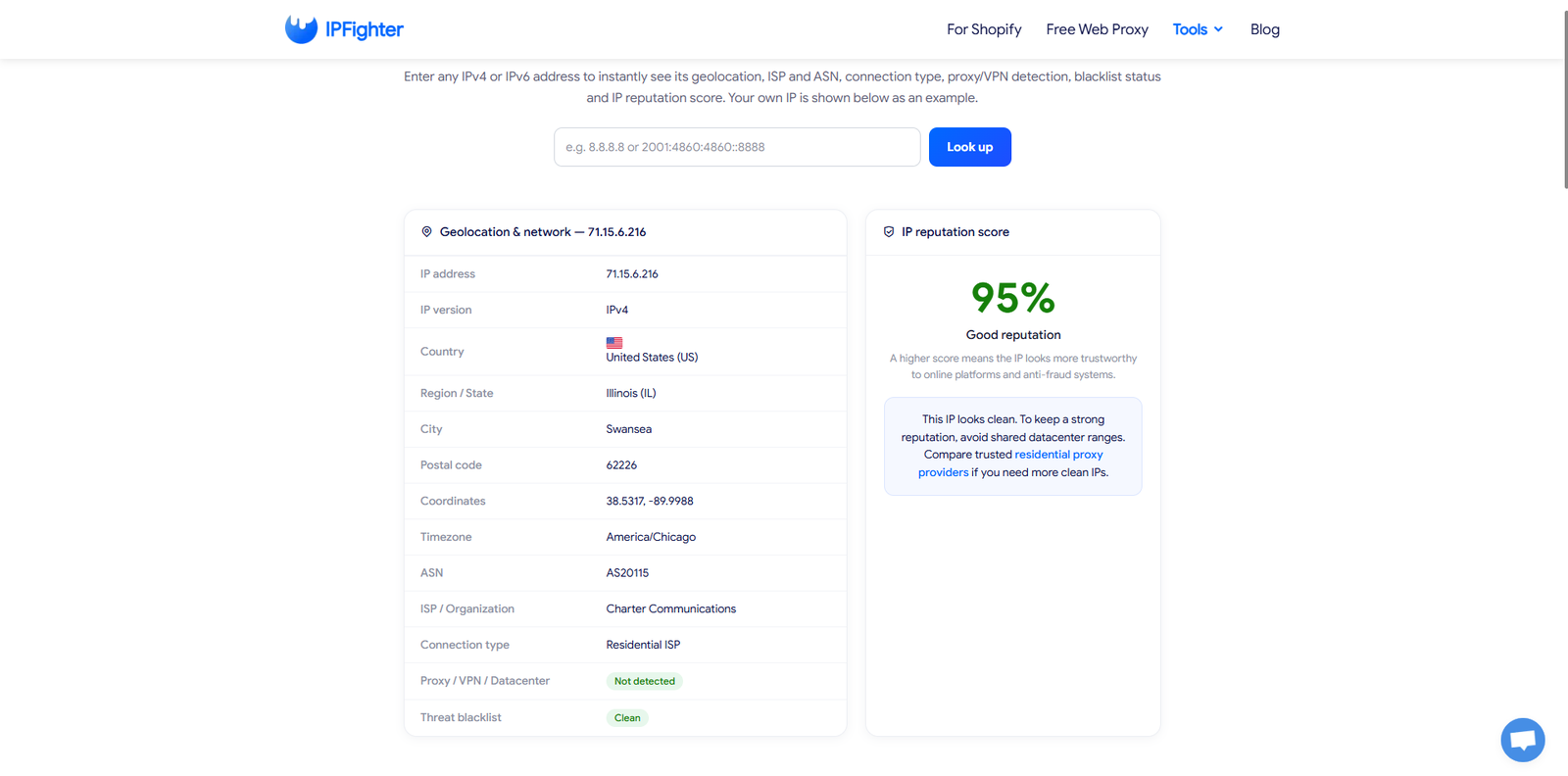
IP Lookup results without a VPN
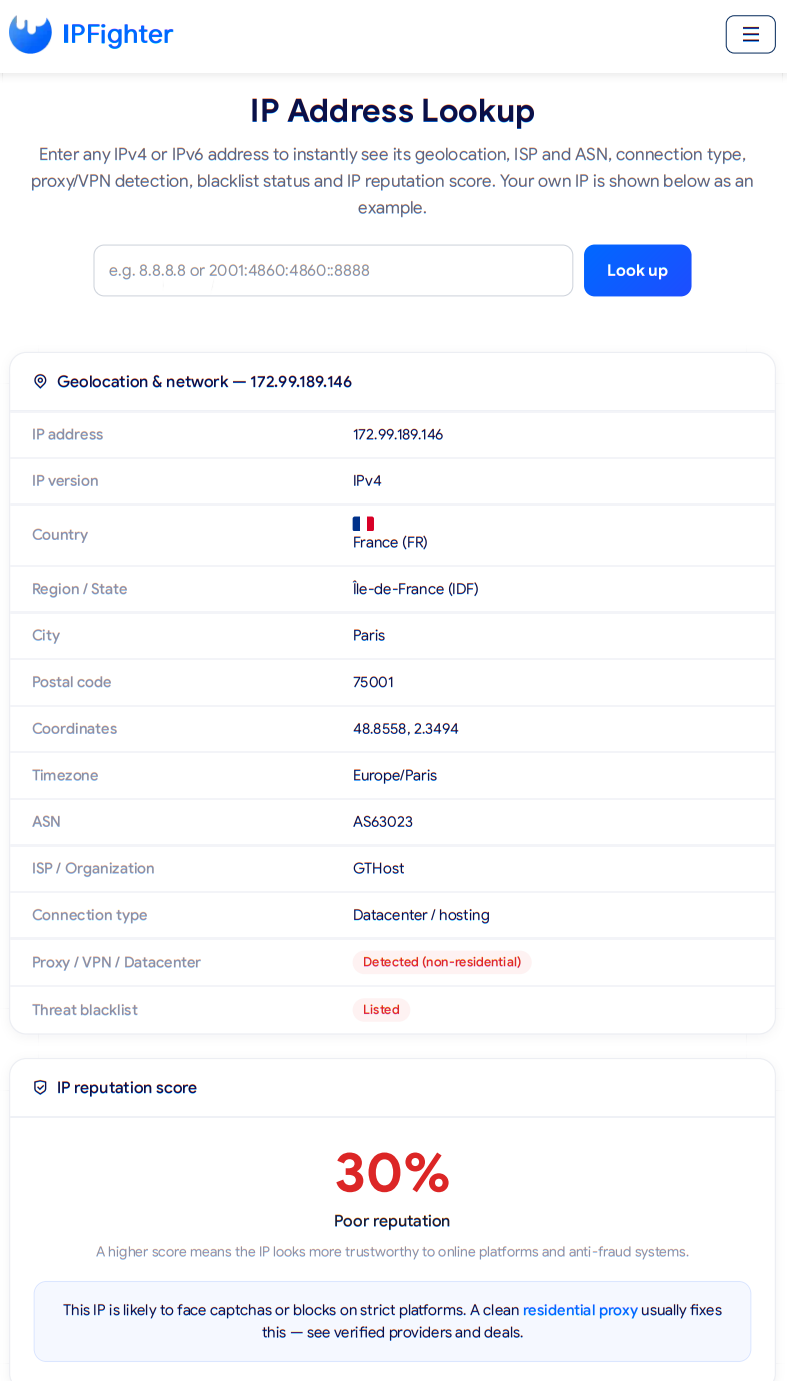
IP Lookup results with a free VPN
4. How to read and evaluate VPN checker results
When checking an IP address with IP Lookup, review the results in this order: start with the Proxy/VPN/Datacenter detection status, followed by the connection type, blacklist status, and finally the IP reputation score. The Proxy/VPN/Datacenter field indicates whether the IP has been identified as a VPN, while the other fields help explain why and assess the potential impact.
4.1. Detection status and connection type
To determine whether an IP address has been identified as a VPN, pay attention to the following three fields:
-
Proxy/VPN/Datacenter: "Detected (non-residential)" means the IP has been identified as belonging to a VPN, proxy, or datacenter network. "Not detected" means no such indicators have been identified.
-
Connection type: "Residential ISP" indicates an IP address provided by a residential internet service provider. "Datacenter/hosting" indicates a server IP, which is the type of address used by most VPN services.
-
Threat blacklist: "Clean" means the IP does not appear on a blacklist. "Listed" means it has been recorded on at least one blacklist.
If an IP is both marked as "Detected" and classified as "Datacenter/hosting," websites may find it easier to identify that you are using a VPN.
4.2. Understanding the IP reputation score
The IP reputation score indicates how trustworthy an IP address is on a scale from 0 to 100%. The score decreases when an IP belongs to a datacenter network, is identified as a VPN or proxy, or appears on a blacklist.
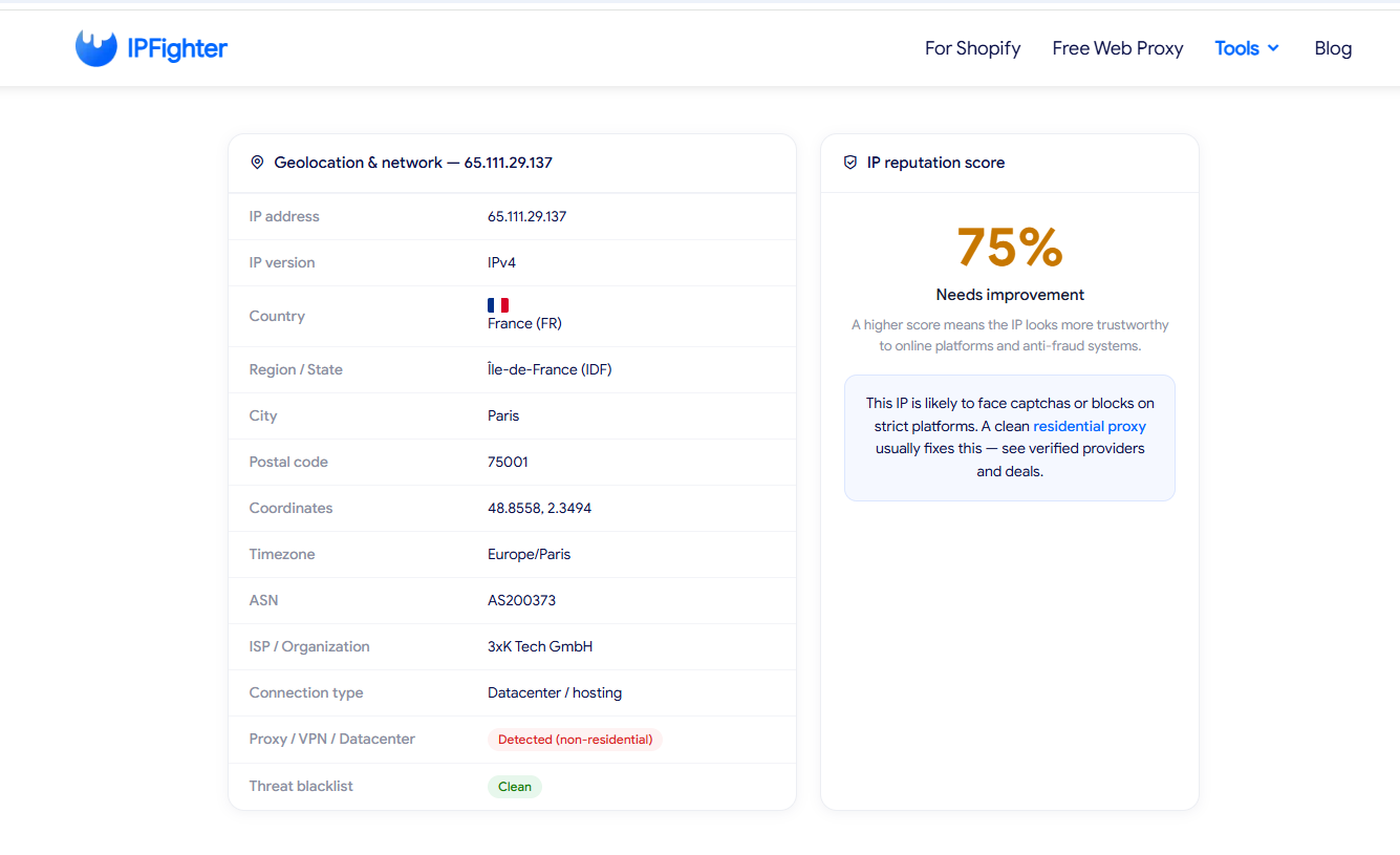
IP reputation score
You can use the following table as a quick reference:
|
Score range |
Label |
Meaning |
|
80–100% |
Good reputation |
Less likely to encounter issues on most platforms |
|
40–79% |
Needs improvement |
May encounter CAPTCHA challenges or additional verification |
|
Below 40% |
Poor reputation |
More likely to face CAPTCHA challenges or access restrictions on platforms with strict security controls |
Note that these IP Lookup score ranges are for reference only, as each website applies its own evaluation criteria.
4.3. What do Detected and Not detected actually mean?
A "Detected" label or a low reputation score is not sufficient grounds for blocking a user. These results describe the characteristics of an IP address rather than directly reflecting the user's intentions. There are four limitations to keep in mind:
-
VPNs using residential IPs: Some VPN and proxy services provide residential IP addresses. As a result, these addresses may still show "Not detected."
-
Detected does not mean fraudulent: Users may use VPNs for privacy, security, or work-related purposes. Corporate network gateways and cloud servers may also be classified as non-residential.
-
Shared IP addresses: The activities of other users on the same server can affect an IP's reputation score and blacklist status.
-
Different databases across tools: The same IP address may receive different labels across VPN checkers. Accuracy also depends on each provider's data sources and evaluation methods.
Therefore, VPN checker results should be treated as risk indicators rather than the sole basis for making a conclusion.
5. How to check whether your VPN is working?
If you use a VPN, the goal of checking your connection is to confirm that websites can see your VPN server's IP address instead of your real IP address.
A VPN checker helps you verify two things: whether your public IP address has changed and whether your connection location matches the selected VPN server.
5.1. Compare your IP address with the VPN off and on
You can complete this check in three simple steps:
-
Turn off your VPN: Open IP Lookup and note the IP address, country, and ISP displayed.
-
Turn on your VPN: Connect to any server, then run the VPN checker again.
-
Compare the results: Check the IP address, location, and ISP from both lookups.
When a VPN is working properly, these details will typically change according to the selected server. If your original IP address or ISP information still appears, you should check your connection status and VPN configuration.
5.2. How to test your VPN location
After enabling your VPN, compare the following three fields in the IP Lookup results with your selected server location:
-
Country: The country associated with the IP address. This information is generally more accurate than city-level geolocation.
-
City: The city estimated from IP geolocation data, not an exact GPS location.
-
Timezone: The time zone associated with the IP address location.
If the displayed city does not exactly match your VPN server's location, this does not necessarily indicate a problem because IP geolocation data can be inaccurate.
However, if the country or timezone differs significantly from your selected server, you should check your connection and VPN configuration before drawing any conclusions.
When your IP address and location change according to the selected server, you can confirm that the VPN is masking your public IP address. However, this does not guarantee that other network information is also protected.
6. Why can using a VPN trigger CAPTCHA challenges?
Even if your VPN does not leak your IP address, you may still encounter repeated CAPTCHA challenges when visiting websites. The cause may be the reputation of the IP address assigned by your VPN provider rather than your VPN configuration.
6.1. How can a low reputation score lead to CAPTCHA challenges?
Many platforms evaluate IP addresses before deciding what level of verification to require from users. IPs belonging to datacenter networks or with a history of suspicious activity are generally subject to more scrutiny than residential IPs.
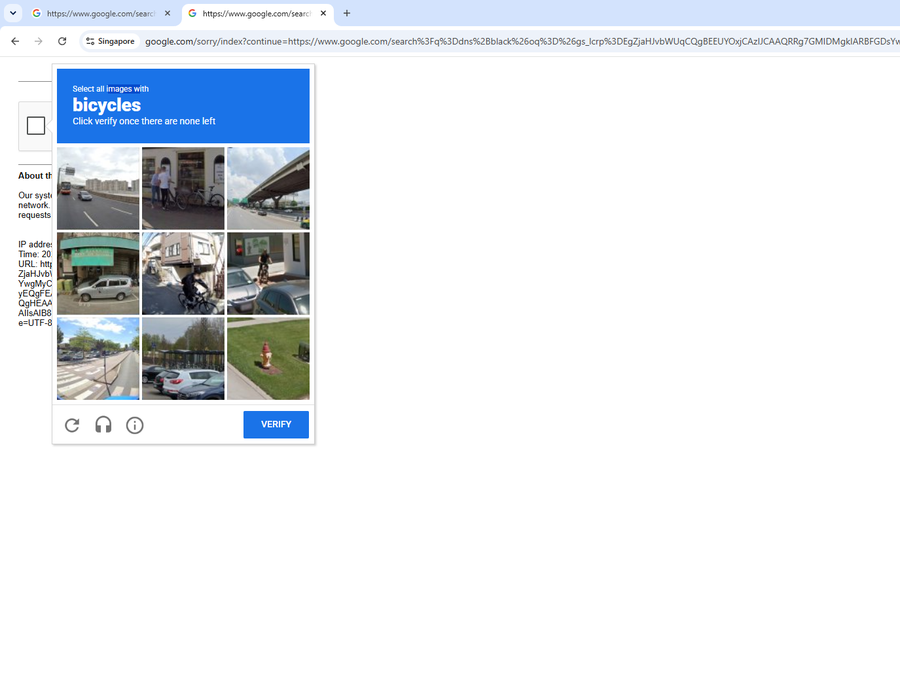
Low-reputation IP addresses increase the likelihood of encountering CAPTCHA challenges.
The IP address used with the VPN enabled has a reputation score of 30%, significantly lower than the 100% recorded when the VPN was turned off. In general, IP addresses with reputation scores below 40% are more likely to face access restrictions or CAPTCHA challenges.
6.2. Two IPs with the same reputation score but different underlying issues
An IP reputation score combines multiple signals, so two IP addresses with the same score do not necessarily share the same underlying issues:
-
Datacenter IP: Belongs to hosting or cloud infrastructure. This is a network characteristic and does not necessarily indicate malicious activity.
-
Blacklisted IP: May be associated with spam, abuse, or previous security incidents. Blacklist status can change as databases are updated.
An IP address may also belong to a datacenter network and appear on a blacklist at the same time. If you keep encountering CAPTCHA challenges, you can send the lookup results to your VPN provider so they can investigate the server quality.
In short, a low IP reputation score is one of the common reasons VPN users may encounter CAPTCHA challenges. However, you should examine the underlying factors rather than relying on a few numbers alone.
7. Conclusion
A VPN checker identifies potential VPN usage through connection type, ISP information, detection labels, and IP reputation scores. However, a "Detected" result alone does not mean your VPN is leaking or your IP address is unsafe.
Combine these signals and compare the results with your VPN turned on and off to get a more accurate assessment of your connection.
8. FAQ
How can I tell if an IP address belongs to a VPN?
To determine whether an IP address belongs to a VPN, open IP Lookup, enter the address you want to check, and review its connection type, ASN, Proxy/VPN/Datacenter label, and blacklist status. An IP belonging to a hosting or cloud network is one of the most important indicators to look for.
Can a VPN checker detect every VPN?
No. VPN checkers rely on IP data, network types, and ASN information. Therefore, VPNs using residential IP addresses may go undetected. Conversely, regular datacenter IPs may also receive a non-residential label even when they do not belong to a VPN.
Does Not detected mean I am not using a VPN?
No. The "Not detected" label only indicates that the IP does not show characteristics of a datacenter or hosting network according to the tool's criteria. It does not prove that you are not using a VPN or proxy.
How can I test my VPN and check my VPN location?
To test your VPN and verify its location, enable your VPN, run IP Lookup, and compare the Country, City, and Timezone fields with your selected server. Country information is generally more reliable than city-level geolocation because IP location data is only an estimate.
Read more

VPN checker: 4 signs your VPN is detected and how to check


What is a clean IP address and how does it work?
What is Scamalytics? 4 Fraud Score risk levels
DNS blacklist: How to check and remove your IP

Why Google says "Unusual traffic from your computer network"

Anonymous proxy detected: Causes and how to fix it