

IPv6 is the modern internet protocol designed to replace IPv4, offering a nearly limitless number of IP addresses. However, some users find that disabling IPv6 can help resolve network conflicts, improve security, or ensure compatibility with older applications and devices.
If you’re experiencing connectivity issues or want to make adjustments to your network settings, this guide will show you how to disable IPv6 on Windows, Mac, and Linux.
Introduction to IPv6
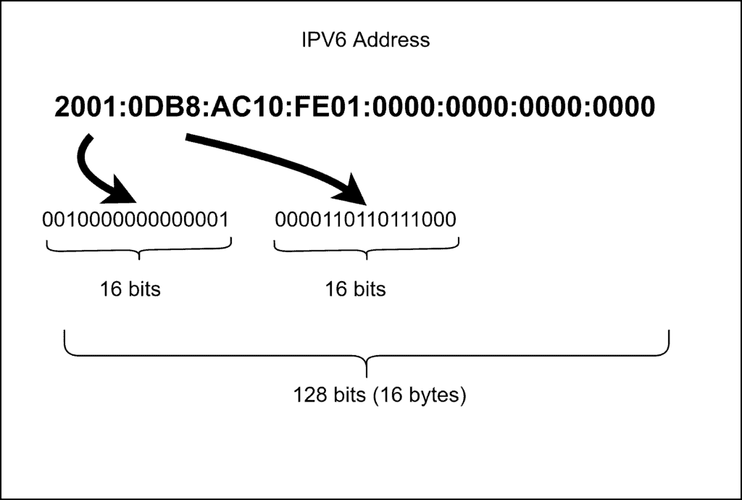
IPv6, or Internet Protocol version 6, is the successor to IPv4. While IPv4 uses a 32-bit address system, IPv6 expands this to 128 bits, enabling a vastly greater number of unique addresses. IPv6 was developed to handle the growing demand for internet-connected devices, improve security, and enhance network efficiency.
Unlike IPv4, which relies on NAT (Network Address Translation) to manage limited IP address availability, IPv6 enables direct device-to-device communication. Despite these advantages, some users prefer to disable IPv6 due to software compatibility issues or network troubleshooting needs.
Reasons to disable IPv6
While IPv6 offers many advantages, there are several reasons why you might choose to disable it:
- Application or VPN compatibility: Some older applications, enterprise software, and VPN services don’t fully support IPv6, which can lead to connection failures or unpredictable behavior.
- Website access issues: Not all websites and online services are IPv6-ready. In some cases, users may experience slow loading times or connectivity problems when accessing certain sites.
- Network stability: Running both IPv4 and IPv6 simultaneously can sometimes lead to inconsistencies, misconfigurations, or unexpected network behavior.
- Security concerns: Many security tools and firewalls are better optimized for IPv4. Some users choose to follow instructions from their internet service provider to reduce potential vulnerabilities and simplify network security management.
- Troubleshooting network issues: If you’re experiencing unstable or inconsistent network performance, disabling IPv6 is often a recommended troubleshooting step.
If any of these issues affect your network, disabling IPv6 might be a practical solution.
Preparing to disable IPv6
Before making any changes, follow these preparatory steps:
- Backup your settings: Save your current network configurations so you can revert any changes if needed.
- Check administrative access: Ensure you have administrator privileges, as modifying network settings requires elevated access.
- Check dependencies: Certain applications and services depend on IPv6. Test in a controlled environment before applying changes network-wide.
Once you’ve completed these preparations, you’re ready to disable IPv6 on your system.
How to disable IPv6 on Windows
You can disable IPv6 on Windows using different methods, from basic settings to advanced configurations
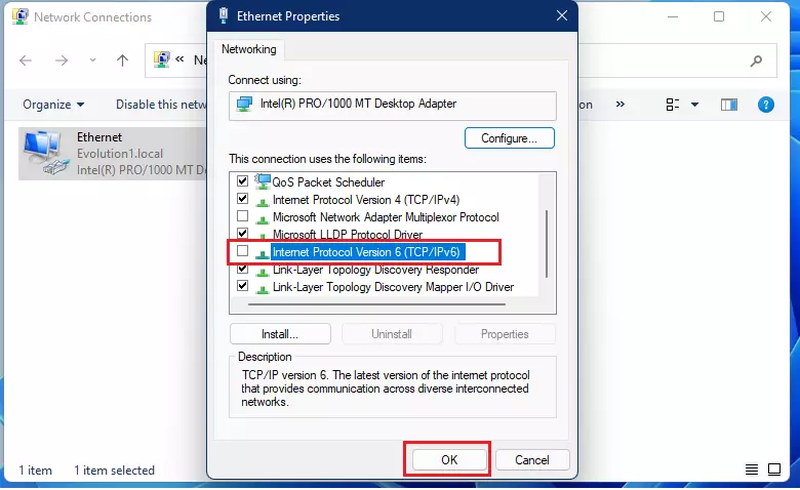
1. Using network settings
- Open the Control Panel and go to Network and Sharing Center.
- Click Change adapter settings on the left.
- Right-click on your active network connection and select Properties.
- Scroll down in the list and uncheck Internet Protocol Version 6 (TCP/IPv6).
- Click OK and restart your computer.
2. Using command prompt
- Press Win + X and select Command Prompt (Admin).
- At the command prompt, enter the following commands one by one to disable IPv6 across all interfaces. Press Enter after each command:
netsh interface teredo set state disabled
netsh interface ipv6 6to4 set state state=disabled undoonstop=disabled
netsh interface ipv6 isatap set state state=disabled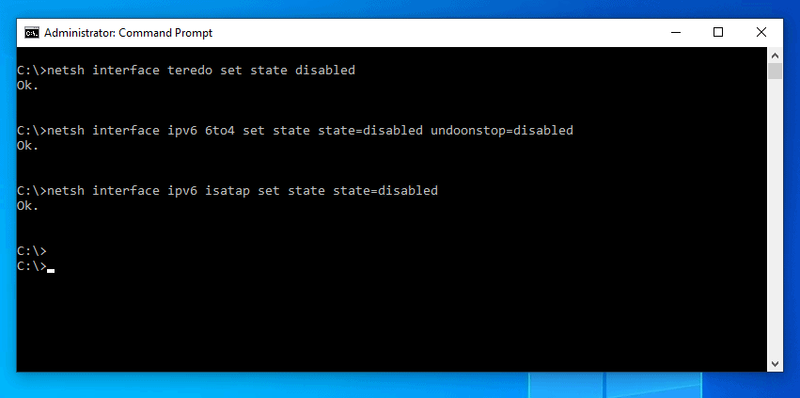
3. Using the Windows registry
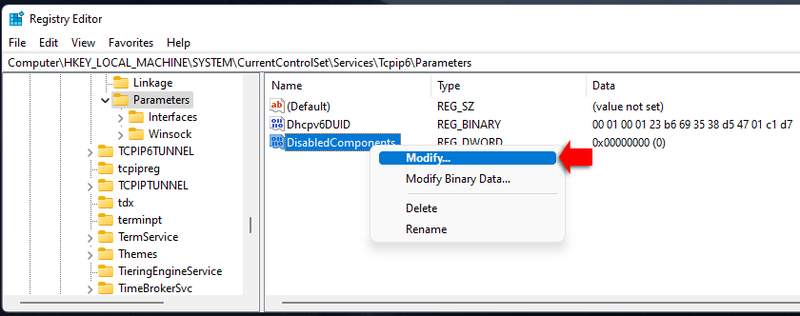
- Open Run (
Win + R), typeregedit, and press Enter. - Navigate to:
HKEY_LOCAL_MACHINE\SYSTEM\CurrentControlSet\Services\Tcpip6\Parameters - Right-click, create a new DWORD (32-bit) Value, name it DisabledComponents.
- Set its value to 0xFF and restart your computer.
How to disable IPv6 on Mac
On macOS, you can disable IPv6 through system settings or the Terminal, depending on your preference.
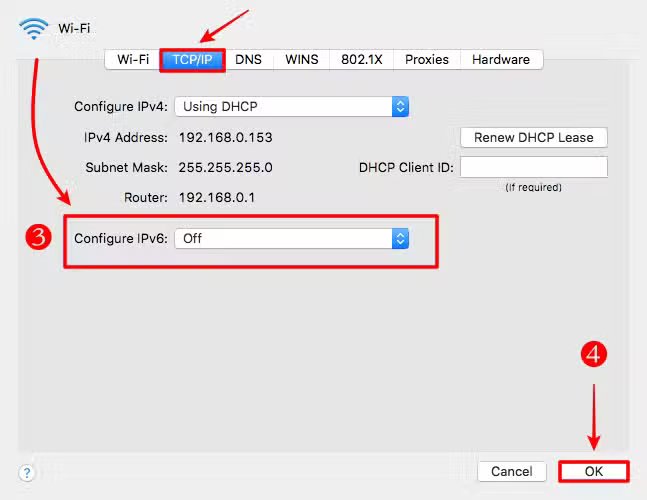
1. Disabling IPv6 via system settings (New macOS versions)
- Open System Settings and go to Network.
- Select your active connection (Wi-Fi or Ethernet).
- Click Advanced and navigate to the TCP/IP tab.
- Set Configure IPv6 to Off.
- Apply the changes and restart your Mac.
2. Using terminal
- Open Terminal (
Cmd + Space, typeTerminal, and press Enter). - Enter the following command for Wi-Fi:
networksetup -setv6off Wi-Fi - For Ethernet connections, use:
networksetup -setv6off Ethernet - Restart your Mac for changes to take effect.
How to disable IPv6 on Linux
On Linux, you can disable IPv6 temporarily or permanently using simple terminal commands.
1. Temporary disabling via Terminal
- Open Terminal.
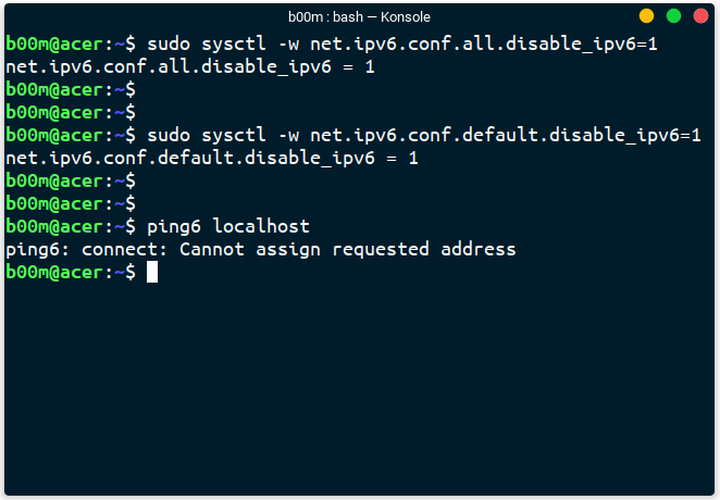
- Disable IPv6 on all network interfaces:
sudo sysctl -w net.ipv6.conf.all.disable_ipv6=1 - Verify the change:
cat /proc/sys/net/ipv6/conf/all/disable_ipv6A value of 1 confirms that IPv6 is disabled.
2. Permanently disabling IPv6
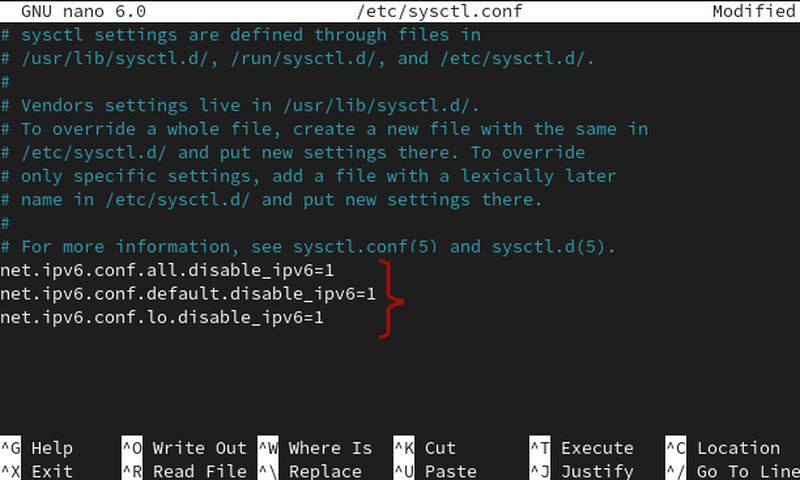
- Open Terminal and edit the sysctl configuration file:
sudo nano /etc/sysctl.conf - Add the following lines at the end of the file:
net.ipv6.conf.all.disable_ipv6 = 1 net.ipv6.conf.default.disable_ipv6 = 1 net.ipv6.conf.lo.disable_ipv6 = 1 - Save the file (
Ctrl + X, then Y, then Enter). - Apply the changes:
sudo sysctl -p - Restart your system.
Verifying IPv6 is disabled
After disabling IPv6, confirm the change:
- Windows: Open Command Prompt and run:
ipconfig /allIf IPv6 is disabled, no IPv6 addresses will be displayed.
- Mac: Open Terminal and type:
ifconfig | grep inet6If IPv6 is disabled, there will be no output.
- Linux: Use:
ip a | grep inet6If IPv6 is disabled, no IPv6 addresses will appear.
With IPv6 disabled, it’s important to understand the potential effects this change may have on your network and applications.
Potential implications of disabling IPv6
While disabling IPv6 can resolve specific issues, be aware of these considerations:
- Some websites and applications rely on IPv6: A few services may experience slower connectivity or fail to load properly.
- Network performance might be affected: IPv6 is optimized for modern networks, and disabling it could cause inefficiencies.
- Security risks: Disabling IPv6 might not inherently improve security; it’s better to configure firewalls properly instead.
If you need to restore IPv6, simply reverse the steps outlined above. Re-enable the settings in your OS’s network configuration, re-edit the registry/sysctl files, or re-enable IPv6 through the command line.
Conclusion
Knowing how to disable IPv6 can be helpful for troubleshooting and network optimization, but it’s important to be aware of the potential impact. Whether you’re on Windows, Mac, or Linux, following the right steps ensures a safe and effective transition. If any issues arise, you can always revert the changes or seek professional assistance. Best of luck with your network configuration!
Read more

Why do I keep getting CAPTCHA? Here's what may be triggering it


What is a CAPTCHA? The check that separates people from bots
What is a mesh network and when should you use one?

What is an IP2 network? How it works, uses, and benefits

Explaining how to know if you have a DNS leak


How to know if you have a WebRTC leak: Reading your results