

When it comes to accessing the internet, one often-overlooked component is the Domain Name System (DNS). A DNS functions like a translator, converting human-readable web addresses into IP addresses that computers can understand. Among the various DNS options available, Google Public DNS servers stand out as a free and reliable service. But what exactly are they, and how can they improve your online experience? Let’s break it down step by step.
What are DNS servers?
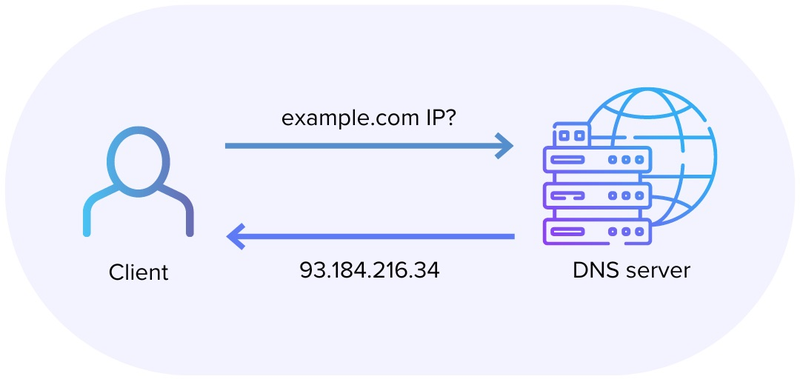
Whenever you type a URL into your browser, such as example.com, your computer needs to locate the server hosting that website. DNS servers handle this by converting the domain name into a numerical IP address, which directs your request to the right location. Without DNS, navigating the internet would involve remembering strings of numbers instead of simple web addresses.
Most people use the DNS servers provided by their Internet Service Provider (ISP), but these are not always the most efficient or secure. This is where third-party services like Google Public DNS servers come into play.
What are Google public DNS servers?
Google Public DNS servers are a global DNS resolution service launched by Google in 2009. Unlike ISP-provided DNS servers, Google’s service focuses on speed, security, and reliability. By using Google Public DNS servers, users can potentially experience faster website load times and enhanced online protection.
The IP addresses for Google Public DNS servers are simple to remember:
- 8.8.8.8
- 8.8.4.4
These addresses are accessible to anyone, offering an easy way to bypass potentially slower or less secure DNS servers. Google Public DNS servers aim to enhance your browsing experience by reducing delays and ensuring more consistent performance.

Why should you use Google public DNS servers?
Google Public DNS servers are a great alternative for improving the quality of your internet connection:
- Improved speed: Helps websites load faster by quickly finding the correct address for the site you want to visit.
- Enhanced security: Protects against threats like DNS spoofing, where hackers redirect you to fake websites, making your browsing more secure.
- Increased reliability: Minimizes connection problems by using Google’s worldwide network of servers, ensuring stable and consistent performance wherever you are.
- Unrestricted access: Lets you access any website without interference from your internet provider, ensuring nothing is blocked or filtered.
With these advantages, using Google Public DNS servers can significantly elevate your online experience.
Are there any drawbacks to Google public DNS servers?
While Google Public DNS servers offers many benefits, it’s important to consider some potential downsides:
- Privacy concerns: Google logs DNS queries temporarily for troubleshooting and improving the service. Although personal information is not stored, privacy-conscious users may prefer DNS services with stricter no-logging policies, such as Cloudflare’s 1.1.1.1.
- No content filtering: If you’re looking for parental controls or website filtering, Google Public DNS does not offer these features. Services like OpenDNS might be a better fit in such cases.
How to set up Google public DNS servers on your device
Configuring Google Public DNS servers is straightforward and can be done on almost any device. Below are step-by-step instructions for popular platforms.
1. On Windows
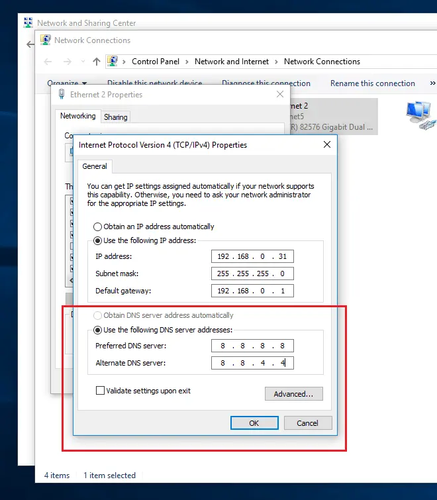
- Open the Control Panel and navigate to Network and Sharing Center.
- Click on Change adapter settings in the left-hand menu.
- Right-click on your active network connection and select Properties.
- Highlight Internet Protocol Version 4 (TCP/IPv4) and click Properties.
- Select Use the following DNS server addresses and enter:
- Preferred DNS server: 8.8.8.8
- Alternate DNS server: 8.8.4.4
- Click OK to save your changes.
2. On macOS
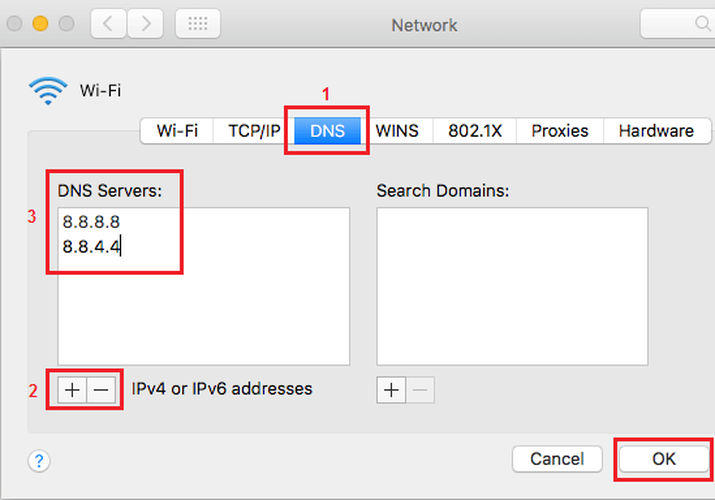
- Open System Preferences and go to Network.
- Select your active network connection and click Advanced.
- Navigate to the DNS tab.
- Click the + button and add the following addresses:
- 8.8.8.8
- 8.8.4.4
- Click OK, then Apply to save your settings.
3. On Android
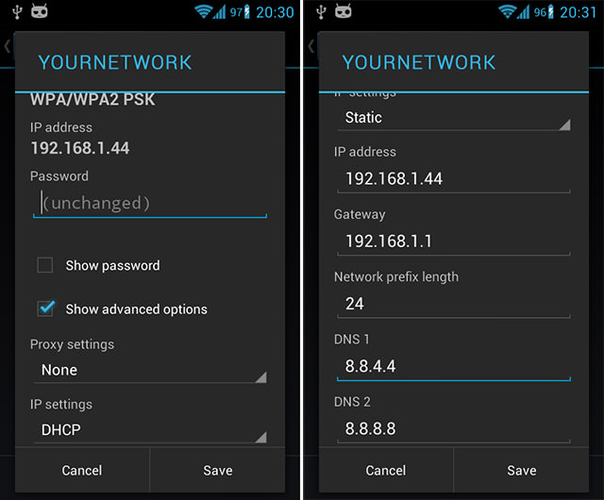
- Open Settings and navigate to Network & Internet.
- Select Wi-Fi, then tap on your active network.
- Tap Advanced and look for IP settings.
- Change the setting to Static and enter:
- DNS 1: 8.8.8.8
- DNS 2: 8.8.4.4
- Save your changes.
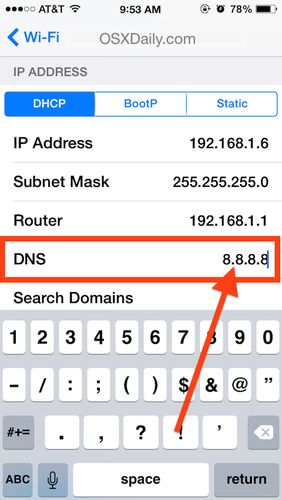
4. On iOS
- Open Settings and tap Wi-Fi.
- Select your active network and tap the i icon.
- Scroll to DNS and tap Configure DNS.
- Select Manual and add:
- 8.8.8.8
- 8.8.4.4
- Save your changes.
Verifying your configuration
Once you’ve set up Google Public DNS, you can verify that it’s working by visiting a DNS testing website, such as Google’s own diagnostic tool.
Alternatively, you can use the command prompt or terminal to test DNS resolution:
- On Windows: Open Command Prompt and type
nslookup www.google.com. The output should show Google’s DNS servers. - On macOS/Linux: Open Terminal and use the same
nslookupcommand.
Troubleshooting common issues
If you encounter problems while using Google Public DNS, here are some solutions:
- Connection Issues: Ensure you entered the correct DNS addresses. Double-check your network settings.
- No Improvement in Speed: Factors like your ISP’s infrastructure or distance to Google’s servers can affect performance.
- Website Access Problems: If certain websites are inaccessible, clear your DNS cache or reset your network settings.
Frequently asked questions
1. Is Google Public DNS free?
Yes, it’s completely free for anyone to use.
2. Does Google Public DNS work with all devices?
Yes, it’s compatible with virtually any internet-connected device.
3. Can Google Public DNS improve my gaming experience?
It can reduce latency in some cases, leading to a smoother gaming experience.
Conclusion
Google Public DNS servers offer a straightforward way to enhance your browsing experience with faster speeds, improved security, and reliable performance. Whether you’re looking to bypass slow ISP-provided DNS servers or safeguard your online activity, Google Public DNS is a solid choice. With simple setup instructions for various devices, you can start enjoying the benefits today. Give it a try and experience a noticeable difference in your internet performance!
Read more

IPFoxy review: Are its pure rotating residential proxies worth it?


CatProxies review: What do its five proxy types offer?
Hidemyacc review 2026: Features, pricing and real fingerprint test results

Whitecloakproxy review: What to know before you buy

Geonix review: What makes its proxy services stand out?

Floppydata review: A closer look at its proxy network