How to change the display language in Windows 10 and Google Chrome browser

avatar
|

Most websites can detect a lot of information about you once Javascript is enabled such as browser version, operating system, screen resolution,… even system timezone, and default system language.

Once they find out the language set in your operating system and/or browser doesn’t match the language of your IP address country, which makes your account easily gets suspended and banned because websites suspect you’re attempting to hide your real IP location.

The best solution to avoid being detected is to ensure all things above match with each other. In case you don’t know how to change the display language in your operating system and/or browser, follow our step-by-step guide below.

We will take Windows 10 and Google Chrome browser as an example in this guideline. If you’re using another OS and/or browser, search for how to change the display language in your OS and/or browser.

1. How to change the display language in Windows 10

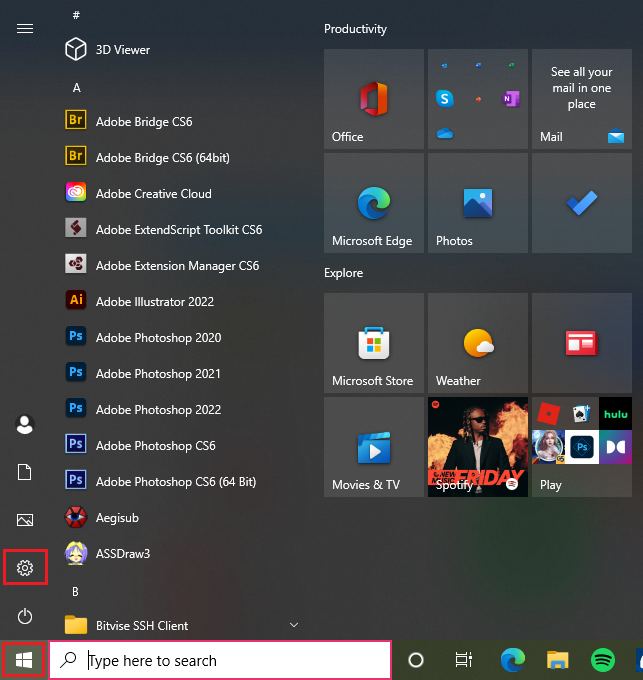
Step 1. Open Windows Start Menu

Step 2. Click Settings
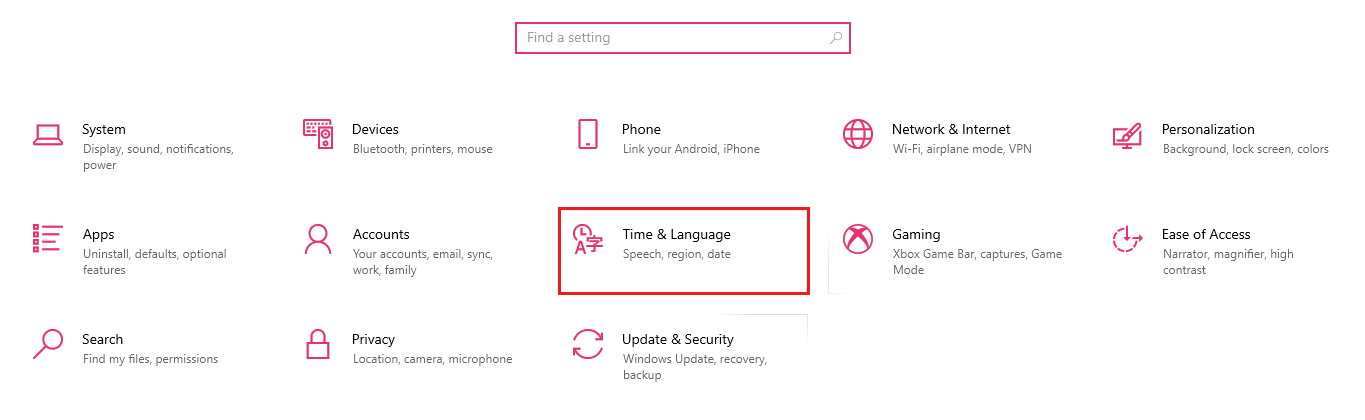
Step 3. Select Time & Language
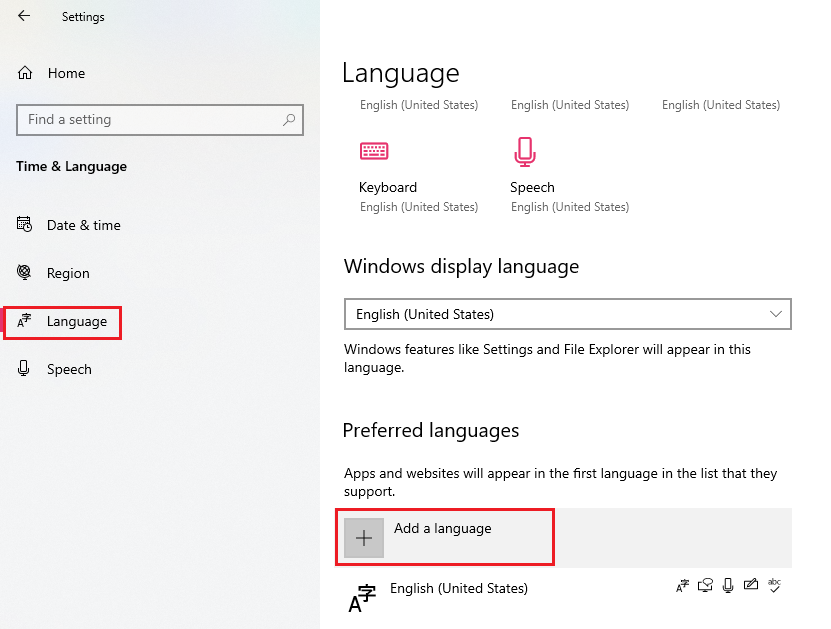
Step 4. Select Language on the left side and click on Add a language
Step 5. In the new window Choose a language to install, select the language you want to use.

Step 6. Click on it => Click Next => Click Install (Start downloading files) => Click the arrow Up if you want to set it as the display language on your operating system.
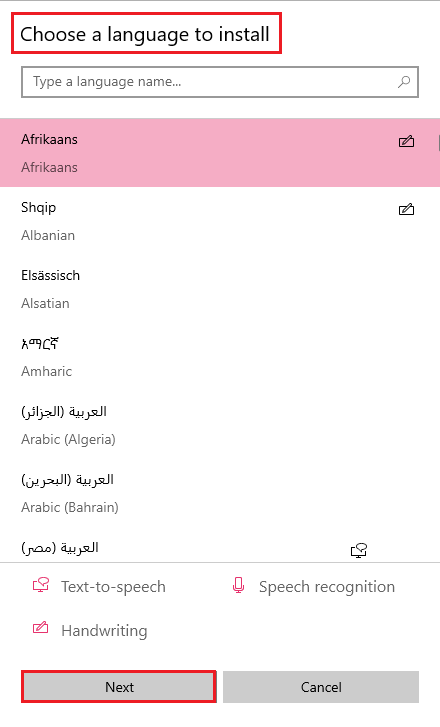
You’ve got this, haven’t you?

2. How to change the display language on Google Chrome browser

Step 1. Click on three dots button on the top right

Step 2. Choose Settings
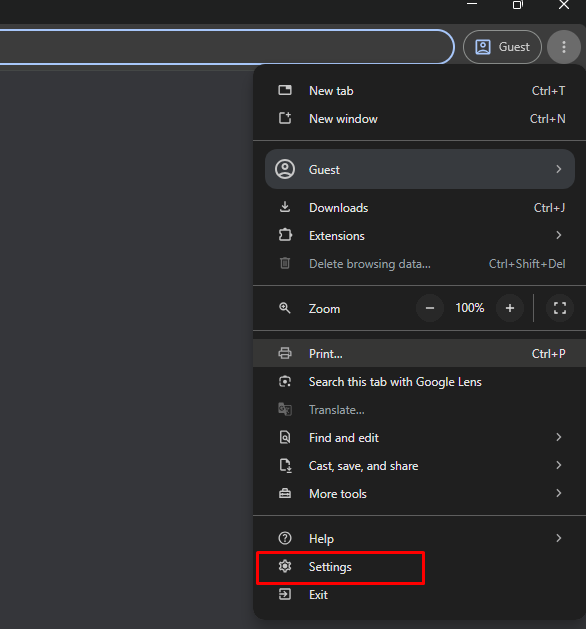
change the display language on Google Chrome browser

Step 3. Select Language section => Click Add languages
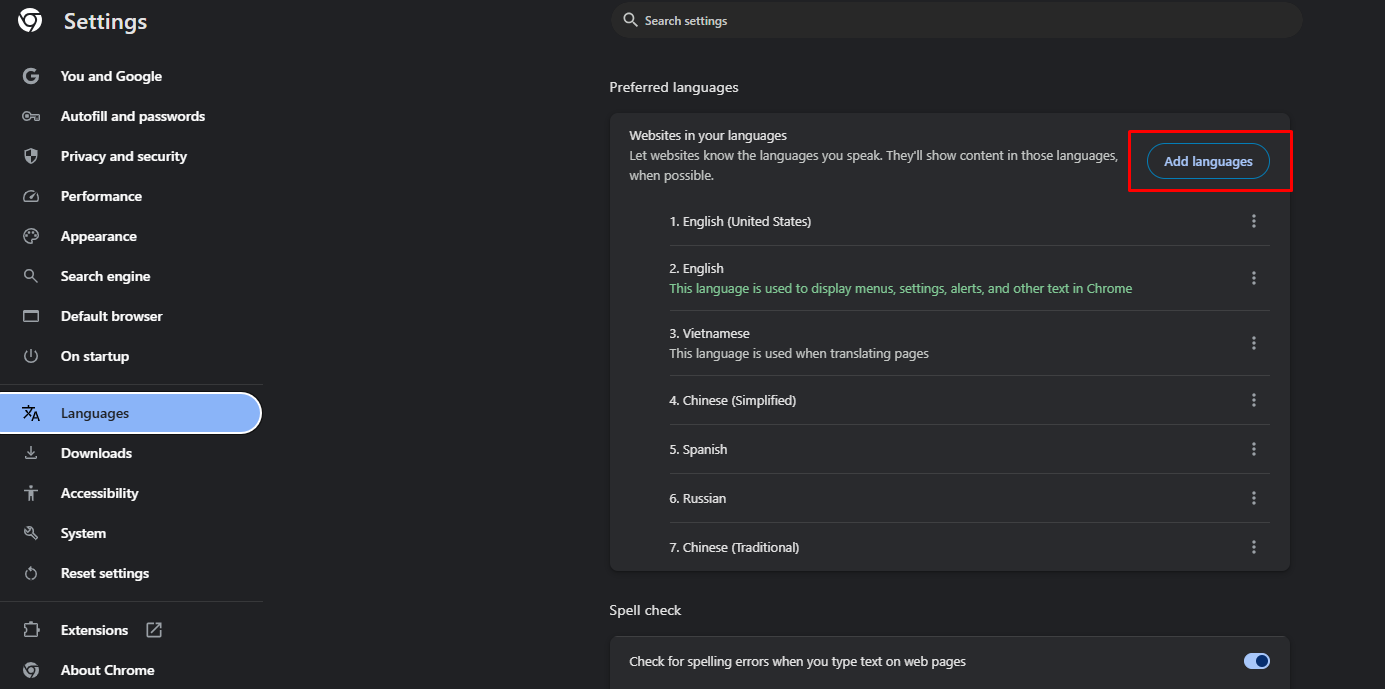
change the display language on Google Chrome browser

Step 4. Choose the language you want => Click Add

Step 5. Click on three dots button on the right side of the new language
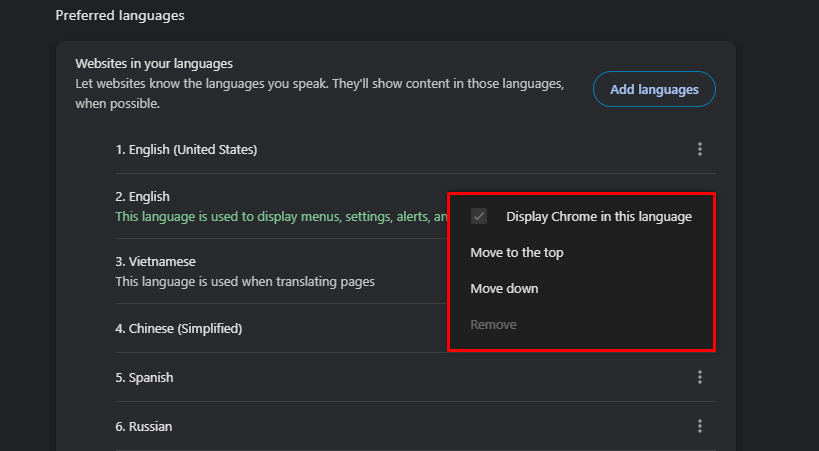
change the display language on Google Chrome browser

Step 6. Click Move to the top and tick Display Google Chrome in this language if you want to add it as your preferred language on your browser.

Easy to follow, right?

Note: IPFighter will not minus your point if you’re having the English language in your operating system and/or browser no matter where your IP is.

Read more

blog thumbnail

Browser fingerprint test: Best tools to check your anonymity

A browser fingerprint test allows you to verify how websites see your browser before you use it for privacy-sensitive tasks, multi-account management, or automation. By checking your browser fingerprint, you can quickly identify inconsistencies, privacy leaks, or unusual configurations that may increase the risk of detection. In this guide, IPFighter explains how to test your browser fingerprint, how to interpret the results, and compares some of the best browser fingerprint test tools available today.  Show more
Julian Vance avatar
Julian Vance
blog thumbnail

Mastering Selenium browser fingerprints to avoid anti-bot detection

Selenium is one of the most popular browser automation frameworks, widely used for web scraping, testing, and repetitive online tasks. However, many users discover that their automated browsers are still detected even when using proxies or changing the User-Agent. In many cases, the real issue isn't Selenium itself, but the browser fingerprint it exposes. In this guide, IPFighter explains what a Selenium browser fingerprint is, why anti-bot systems detect it so easily, and the best practices for making your automated browser sessions appear more natural.  Show more
Julian Vance avatar
Julian Vance
blog thumbnail

Best free antidetect browsers: Are they worth using?

Looking for a free antidetect browser before investing in a paid solution? While several reputable providers offer free plans or trials, others advertise 100% free software that may come with hidden risks.  In this guide, IPFighter reviews the best free antidetect browsers, compares their features, explains their limitations, and shows you how to choose a secure option for managing multiple accounts.  Show more
Julian Vance avatar
Julian Vance
blog thumbnail

Does using Tor with a VPN disable browser fingerprinting?

Think Tor and a VPN make you invisible online? Not quite. While they can hide your IP address, they do not automatically stop browser fingerprinting, which allows websites to recognize your browser through device and software characteristics. In this guide, IPFighter explains whether using Tor with a VPN can disable browser fingerprinting, what these tools actually protect against, and what websites can still see when you browse anonymously.  Show more
Julian Vance avatar
Julian Vance
blog thumbnail

Is Tor browser safe? The biggest myths about Tor privacy

Using Tor Browser but still getting CAPTCHAs, account restrictions, or login challenges? You're not alone. While Tor is designed to protect privacy and hide your IP address, many websites can still recognize Tor traffic and treat it as suspicious. In this guide, IPFighter explains why this happens, whether Tor Browser is truly safe, and what you can do to browse more privately without triggering unnecessary restrictions.  Show more
Julian Vance avatar
Julian Vance
blog thumbnail

What is a browser fingerprint? How websites identify you online

Every time you visit a website, your browser reveals far more information than most users realize. Beyond your IP address, websites can also collect dozens of technical details about your browser, operating system, device hardware, screen settings, and network environment. So specifically what is a browser fingerprint? How do websites use it to identify users? Explore with IPFighter in the article below.  Show more
Julian Vance avatar
Julian Vance