
How to change the date and time on Windows 10

avatar
|

Have you just got the minus point about the system date and time difference? Does this affect your attempt at your anonymity?

Yes, this does.

Some websites probably base on the date and time set in your operating system and your IP address time zone to compare. In case they detect any differences between them, there is a high risk of your accounts getting suspended.

That’s why you need to change the system date and time in your operating system as long as matches your IP address time zone.

You don’t know how to do it? Here’s a guide to help you change it on Windows 10. If you use another operating system, search for how to change the date and time on it.

Now, let’s find out.

1. Change the date and time on Windows 10 via taskbar

Step 1. Click the display date and time in the bottom right-hand corner of the taskbar with the left mouse button.

Step 2. Select Adjust date/time
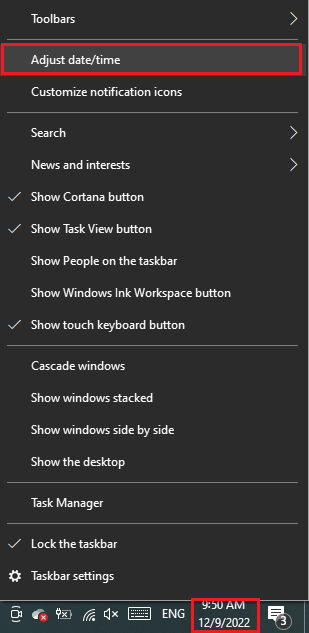

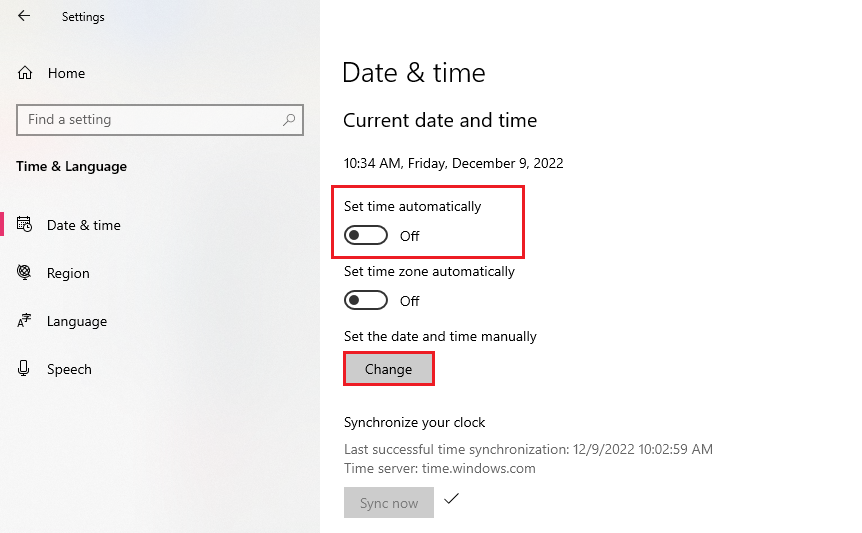
Step 3. In the Date & time section, turn off Set time automatically.

Step 4. Click Change to set the date and time manually

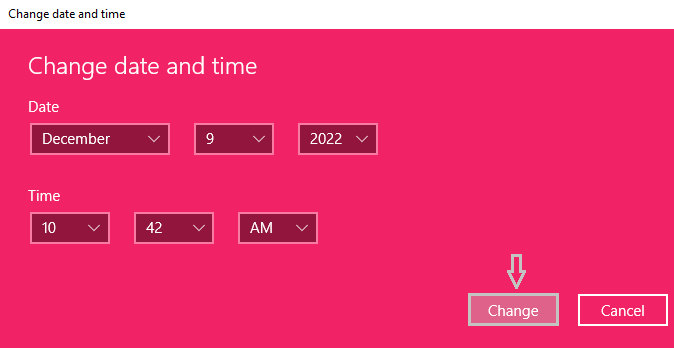
Step 5. In the pop-up window, change the date and time you want as long as it matches your IP address time zone.

Step 6. Click Change to confirm the changes

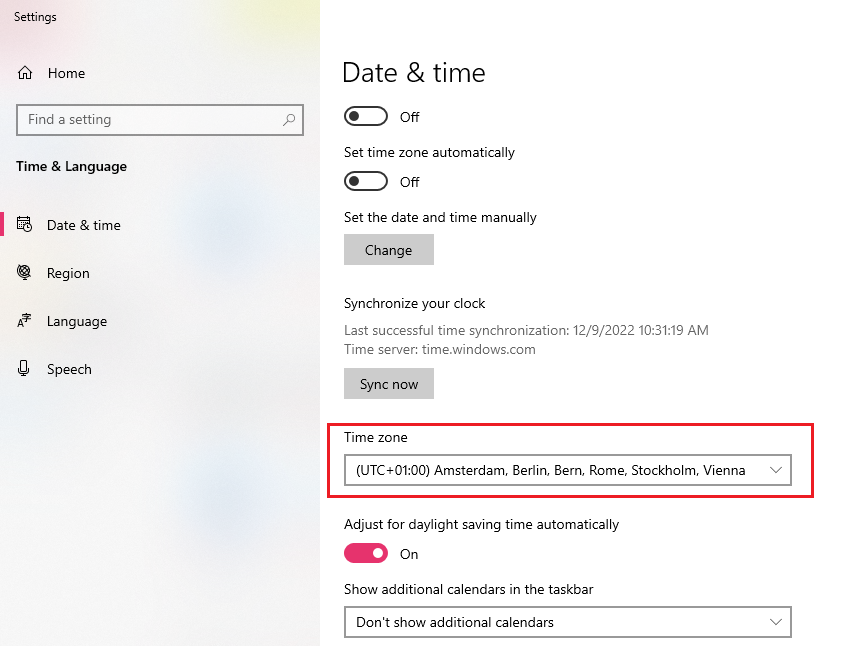
Step 7. Change your time zone to match your IP address time zone

2. Change the date and time on Windows 10 via settings

This is another way to access the date and time settings on Windows 10.

Step 1. Click Windows Start Menu

Step 2. Click Settings
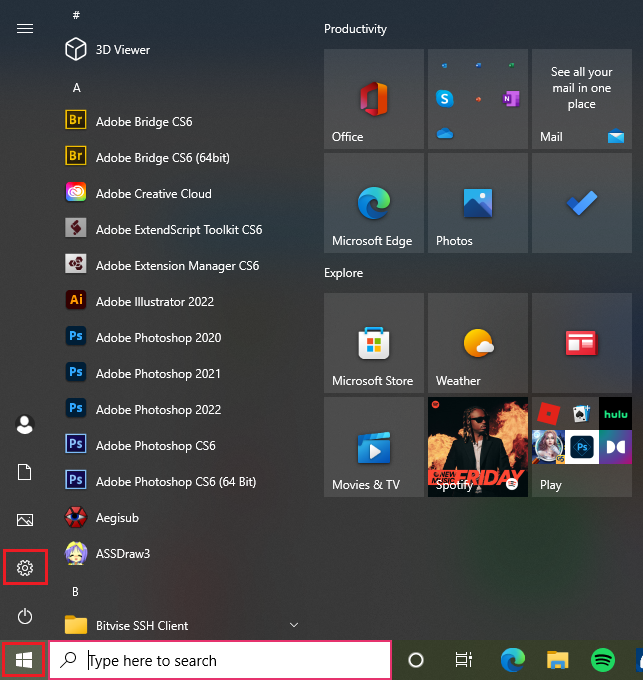

Step 3. Select Time & Language


Step 4. Do the same way above from step 3 to step 7.

3. Change the date and time on Windows 10 with the command line

You like coding? We recommend for you this quick way to change the date and time on Windows 10 using Command Line.

Step 1. Type cmd on the Search bar

Step 2. Select Run as administrator
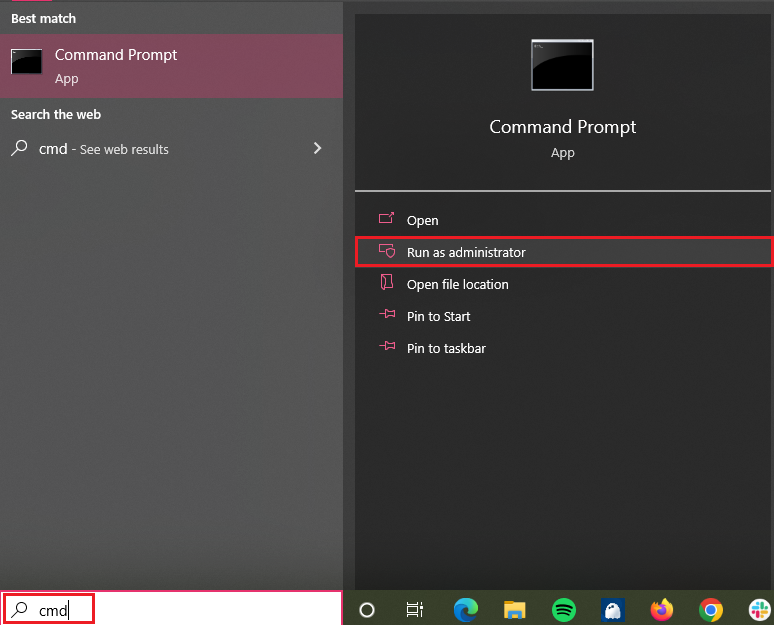

Step 3. A pop-up window User account control then appears and asks you to allow this app to make changes in your device > Click Yes

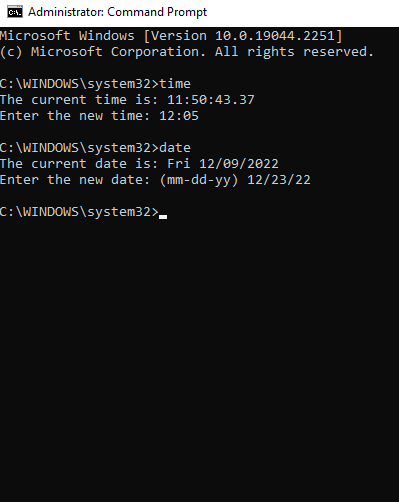
Step 4. Type the word time > Enter

Step 5. Enter the new time you want > Enter (You will see the time on your OS changes immediately.)

Step 6. Type the word date > Enter

Step 7. Enter the new date you want > Enter (You will see the date on your OS changes immediately.)

Conclusion

You’ve already got all 3 ways above, right? Now, it’s time to test. You can come back to our website to check your anonymity again after changing the date and time on your operating system. In case it doesn’t show any system time and date difference, congratulation, you’ve got rid of one factor to make your attempts at your anonymity successful as you want.

Read more

blog thumbnail

Browser fingerprint test: Best tools to check your anonymity

A browser fingerprint test allows you to verify how websites see your browser before you use it for privacy-sensitive tasks, multi-account management, or automation. By checking your browser fingerprint, you can quickly identify inconsistencies, privacy leaks, or unusual configurations that may increase the risk of detection. In this guide, IPFighter explains how to test your browser fingerprint, how to interpret the results, and compares some of the best browser fingerprint test tools available today.  Show more
Julian Vance avatar
Julian Vance
blog thumbnail

Mastering Selenium browser fingerprints to avoid anti-bot detection

Selenium is one of the most popular browser automation frameworks, widely used for web scraping, testing, and repetitive online tasks. However, many users discover that their automated browsers are still detected even when using proxies or changing the User-Agent. In many cases, the real issue isn't Selenium itself, but the browser fingerprint it exposes. In this guide, IPFighter explains what a Selenium browser fingerprint is, why anti-bot systems detect it so easily, and the best practices for making your automated browser sessions appear more natural.  Show more
Julian Vance avatar
Julian Vance
blog thumbnail

Best free antidetect browsers: Are they worth using?

Looking for a free antidetect browser before investing in a paid solution? While several reputable providers offer free plans or trials, others advertise 100% free software that may come with hidden risks.  In this guide, IPFighter reviews the best free antidetect browsers, compares their features, explains their limitations, and shows you how to choose a secure option for managing multiple accounts.  Show more
Julian Vance avatar
Julian Vance
blog thumbnail

Does using Tor with a VPN disable browser fingerprinting?

Think Tor and a VPN make you invisible online? Not quite. While they can hide your IP address, they do not automatically stop browser fingerprinting, which allows websites to recognize your browser through device and software characteristics. In this guide, IPFighter explains whether using Tor with a VPN can disable browser fingerprinting, what these tools actually protect against, and what websites can still see when you browse anonymously.  Show more
Julian Vance avatar
Julian Vance
blog thumbnail

Is Tor browser safe? The biggest myths about Tor privacy

Using Tor Browser but still getting CAPTCHAs, account restrictions, or login challenges? You're not alone. While Tor is designed to protect privacy and hide your IP address, many websites can still recognize Tor traffic and treat it as suspicious. In this guide, IPFighter explains why this happens, whether Tor Browser is truly safe, and what you can do to browse more privately without triggering unnecessary restrictions.  Show more
Julian Vance avatar
Julian Vance
blog thumbnail

What is a browser fingerprint? How websites identify you online

Every time you visit a website, your browser reveals far more information than most users realize. Beyond your IP address, websites can also collect dozens of technical details about your browser, operating system, device hardware, screen settings, and network environment. So specifically what is a browser fingerprint? How do websites use it to identify users? Explore with IPFighter in the article below.  Show more
Julian Vance avatar
Julian Vance