

Quick answer: To turn off a proxy on Windows 11, open Settings, go to Network & internet, then Proxy, turn off "Automatically detect settings" and turn off "Use a proxy server". On Mac, go to System Settings, Network, your connection, Details, Proxies, and switch every proxy off. On a phone, open the settings of your Wi-Fi network and set the proxy to None or Off. If you are on a work or school network, ask your administrator first, because the proxy may be required.
Proxies can be helpful in certain scenarios, but there are times when users prefer to access the internet using their real IP address. This article provides a comprehensive guide on how to disable proxy settings on various devices and browsers. This guide covers the latest methods to disable proxy on Windows, Mac, Linux, Android, iPhone, Chrome and Firefox, and shows how to confirm that the proxy is really off.
1. How does a Proxy work and why might you need to disable it?
A proxy server acts as an intermediary between your device and the internet, helping to mask your IP address while enhancing security and privacy. However, there are situations where using a proxy may not be necessary. Disabling the proxy can sometimes improve connection speeds or resolve issues related to restricted access or connectivity problems.
1.1 What is a proxy?
A proxy is a server that acts as an intermediary between your device and the internet, routing all traffic through it. When you send a request to a website, the request is first processed by the proxy server before reaching the website. This setup ensures that your IP address remains hidden from the website you are visiting.
There are various types of proxies, including residential proxies, datacenter proxies, and mobile proxies such as 3G and 4G proxies. Each type comes with its own advantages and limitations. Understanding the different types of proxies can help you decide when it’s appropriate to use them or when to disable proxies for better functionality.
1.2. When should you disable proxies?
There are several situations where you may need to disable proxies:
-
When having connection problems: If you’re having trouble accessing a certain website, turning off the proxy may help restore your connection.
-
When you need to increase Internet speed: Some proxies can slow down your connection, especially if they are located far from your geographical location.
-
When anonymity is not needed: If you are using the internet at home or in a safe place, you don’t need to worry about hiding your IP address.
-
When accessing services that do not support proxies: Some services require you not to use a proxy to ensure the feature functions properly.
Is it OK to disable a proxy? Yes, in most home setups. The exception is a work or school network that requires a proxy, where turning it off can cut your access or break the organization's rules.
Discover more:
-
How to set up Proxy Helper in chrome in 3 simple steps
-
What is a reverse proxy? A solution for website speed and security enhancement
-
How to use Shadowrocket to quickly change your IP address
2. How to turn off Proxy on computer (Windows & Mac)
Turning off proxies on your computer is straightforward, though the process varies based on your operating system. Below are detailed instructions to help you disable proxies on Windows, Mac, and Linux.
2.1. How to turn off proxy on Windows
The following steps apply to both Windows 10 and Windows 11**, although Windows 10 shows the "Use a proxy server" toggle directly on the Proxy page**. You can disable proxy settings either through the Windows Settings menu or the Control Panel:
Working through Settings on Windows
-
Open Settings: Press the Windows + I key combination to open the settings window.
-
Select Network & Internet: Here, you will see many network-related options.
-
Select Proxy: In the left menu, find and select “Proxy”.
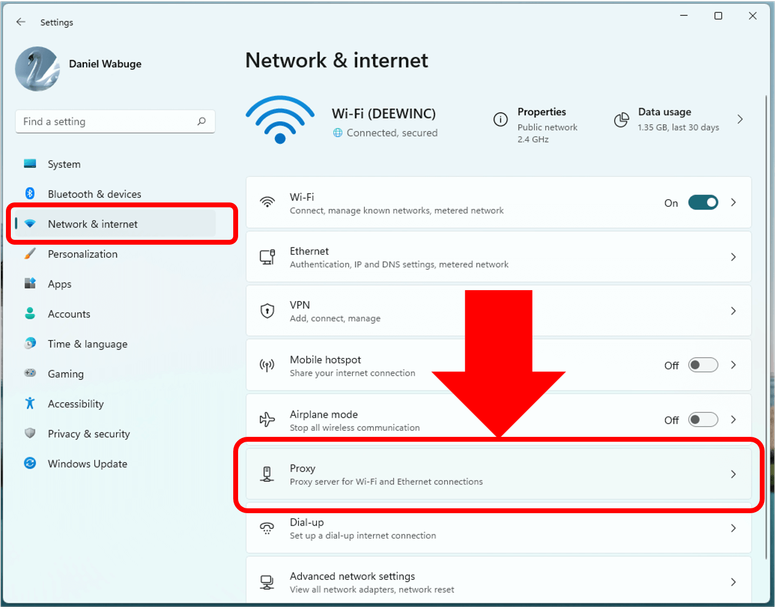
Select Proxy
-
Turn off options: Under "Automatic proxy setup", turn off "Automatically detect settings" and "Use setup script". Under "Manual proxy setup", click "Set up" next to "Use a proxy server", turn the toggle off and click "Save".
These steps switch off the system proxy that most apps and browsers on Windows rely on.
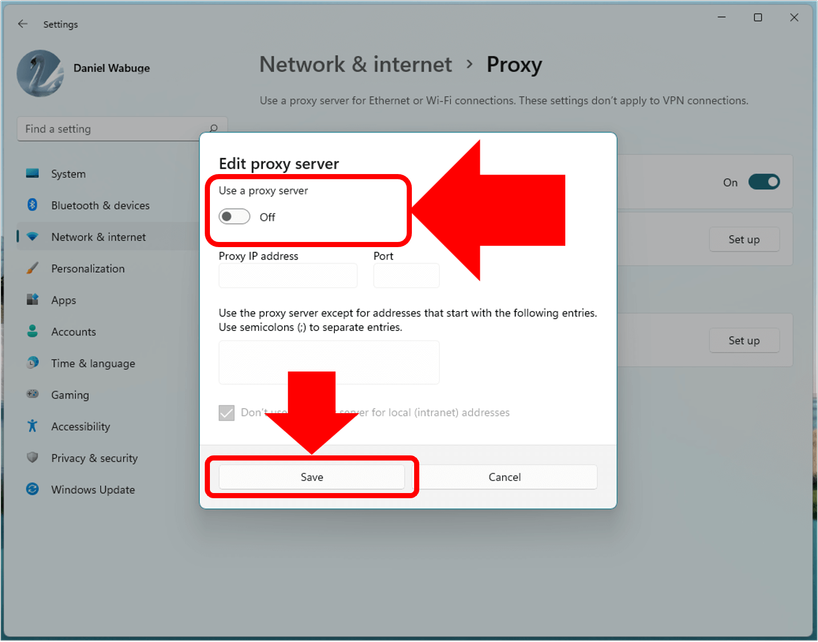
Turn off options
Operation via Control Panel
Open Control Panel
-
Type the Windows + R key combination to open the Run dialog box.
-
Type “control” into the dialog box and press Enter.
Access network settings
-
In the Control Panel window, find and select the item Network and Internet.
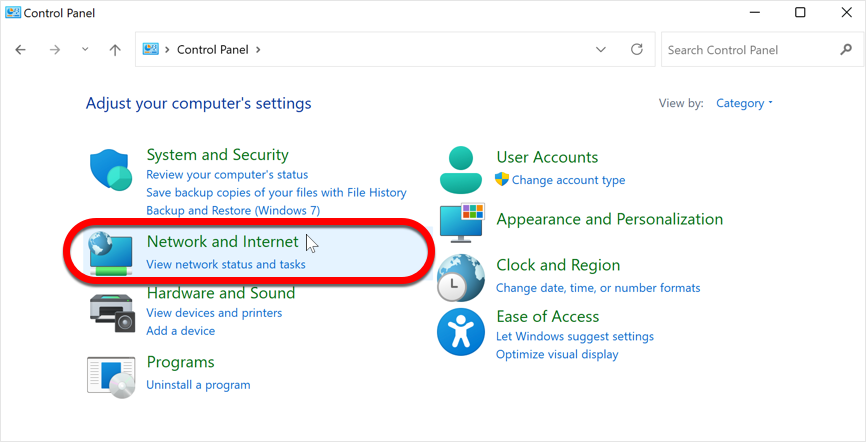
Access network settings
-
Next, choose Internet Options.
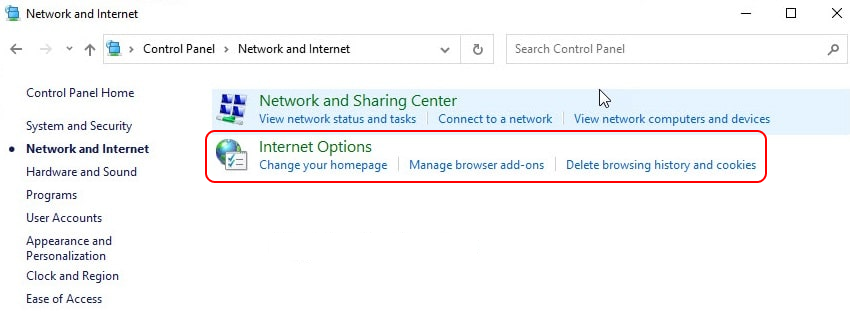
Choose Internet Options
Turn off proxies
-
In the Internet Properties window, switch to the tab Connections (Connect).
-
Click the button LAN settings (LAN settings).
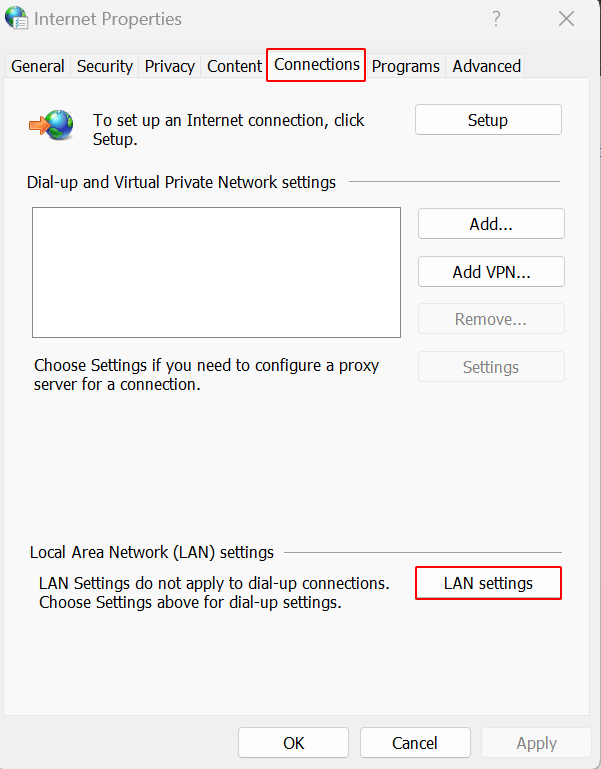
Turn off proxies
-
Deselect checkbox Use a proxy server for your LAN (Use a proxy server for your LAN).
-
Also untick "Automatically detect settings" and "Use automatic configuration script" so the result matches the Settings page, then click OK to save the changes.
Once the changes are saved, Windows stops routing your traffic through a proxy.
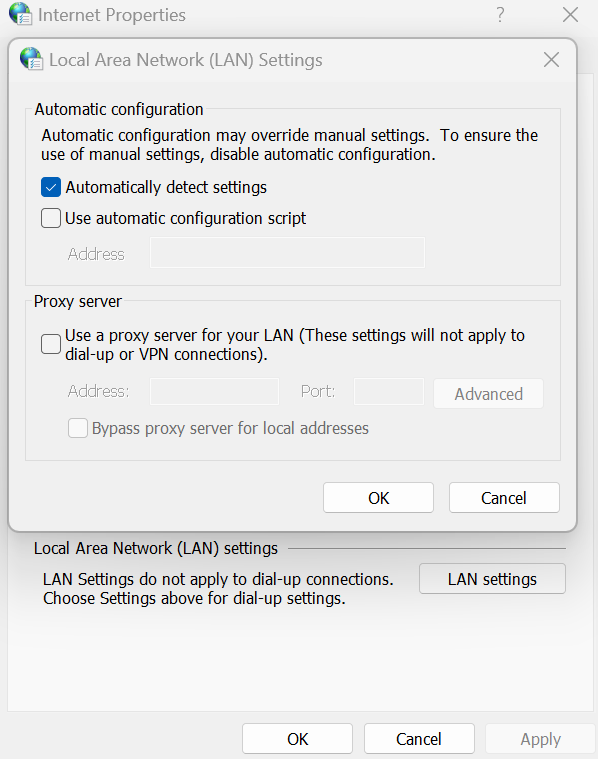
Automatically detect settings
2.2. How to turn off proxy on Mac
Similar to Windows, turning off proxy on Mac is also quite easy. You just need to follow these steps:
-
Open System Settings: Click the Apple icon in the upper left corner and select "System Settings" (called "System Preferences" on older macOS versions).
-
Select Network: Click "Network" in the sidebar.
-
Select the network you are using: Select Wi-Fi or Ethernet you are connecting to**, then click "Details" (called "Advanced" on older macOS versions)**.
-
Select the Proxies tab: Click "Proxies", turn off all options, then click OK to finish.
Safari and Chrome follow these macOS settings, so turning them off disables the proxy in both browsers.
2.3. How to turn off proxy on Linux
On Linux operating systems, turning off the proxy may vary depending on the desktop environment you use. However, you can refer to the following general guidance:
-
Open Terminal: Press Ctrl + Alt + T to open the command line window.
-
Check proxy settings: Type echo $http_proxy and echo $https_proxy to check how the proxy is being set up.
-
Turn off proxies: To turn off the proxy, type unset http_proxy and unset https_proxy.
-
Make it permanent: These commands only work in the current terminal session, so also remove any proxy lines from your shell profile or system environment file if you set them there. For desktop apps, open Settings, then Network, and turn off Network Proxy.
-
Quick test for Chrome: Start Chrome from the terminal with google-chrome --no-proxy-server to check whether a proxy is the cause of the problem.
After these steps, your terminal and desktop apps connect directly without a proxy.
2.4. Common problems when turning off proxy on the computer
While the process of disabling a proxy seems simple, there are a few issues that can arise:
-
Unable to connect to the Internet: Sometimes, turning off the proxy can cause connection problems. If this happens, try turning the proxy back on and test the connection.
-
Settings not saved: Make sure you save all changes before exiting the settings window. Otherwise, the changes will not take effect.
-
Managed networks: If you are using a school or office network, it’s possible that some settings are managed by the network administrator, and you won’t be able to turn off the proxy.
If none of these fixes the problem, check whether a VPN, an extension or a work policy sets the proxy again.
3. How to Turn Off Proxy on Phone: Android, Samsung and iPhone
The use of proxies takes place not only on computers but also on mobile phones. Depending on the operating system you use, the process to turn off the proxy is different.
3.1. Why do you need to turn off proxy on your phone?
Similar to your computer, there are many reasons why you should turn off proxy on your phone:
-
Remove forgotten settings: A proxy saved for one Wi-Fi network, for example at work or school, can keep blocking apps whenever you connect to that network again.
-
Increase page loading speed: Turning off proxies can help you load pages faster, especially when your network is weak.
-
Fix connection errors: Many connection issues on mobile apps can be resolved by disabling the proxy.
In short, a proxy you no longer need is best removed from your phone's network settings.
3.2. How to turn off proxy on Android
To turn off proxy on Android device, you need to do the following steps:
-
Open Settings: Go to the Settings icon on the home screen or in the apps menu.
-
Select Connection: Find “Connections” or “Network and Internet”.
-
Select Wi-Fi: Click Wi-Fi and select the network you are connecting to.
-
Tap Advanced options: Find and tap “Advanced options”.
-
Turn off proxies: In the Proxy section, select "None" (older versions say "Do not use proxy").
Android proxy settings belong to one Wi-Fi network at a time, so repeat the steps for every network where you set a proxy.
3.3. How to turn off proxy on Samsung
On Samsung Galaxy phones the menu names are slightly different:
-
Open Settings: Tap the Settings icon and choose "Connections".
-
Select Wi-Fi: Tap "Wi-Fi" and find the network you are connected to.
-
Open the network settings: Tap the gear icon next to the network name.
-
Show more options: Tap "View more" at the bottom of the screen.
-
Turn off the proxy: Scroll down to "Proxy", select "None" and save.
After saving, your Samsung phone connects to that Wi-Fi network without a proxy.
3.4. How to turn off proxy on iPhone
The process to turn off proxy on iPhone is also very simple:
-
Open Settings: Tap the Settings icon.
-
Select Wi-Fi: Click Wi-Fi and tap the info (i) icon next to the network you are connecting to.
-
Choose proxy configuration: Scroll down to the “HTTP Proxy” section.
-
Select Off: Tap "Configure Proxy" and select "Off" to stop using the proxy.
Your iPhone then uses a direct connection on that Wi-Fi network.
4. How to Turn Off Proxy in Web Browser (Chrome & Firefox)
Besides turning off proxies on your operating system, you should also pay attention to the proxy settings on the web browser you use. Below are specific instructions for both Chrome and Firefox.
4.1. Why do you need to turn off proxy in your browser?
There are many reasons to disable browser-specific proxies:
-
Page loading error: If the website doesn’t load, a proxy may be causing the problem.
-
Better browsing experience: By not using a proxy, you can experience faster and smoother web surfing speeds.
-
Avoid conflicts: If you use multiple browsers, disabling the proxy on each browser is necessary to avoid settings conflicts.
Check the browser settings first whenever one browser behaves differently from the others.
4.2. How to turn off proxy on Chrome
To turn off proxy on Chrome browser, follow these steps:
-
Open Chrome: Start Chrome browser on your computer.
-
Go to Settings: Tap the three-dot icon in the upper right corner and select “Settings”.
-
Select "System": In the left-hand menu, click "System" and then "Open your computer's proxy settings".
-
Turn off proxies: Follow the instructions given in the section on disabling proxies on Windows or Mac.
Microsoft Edge and Safari also use the proxy settings of your operating system, so the same system steps apply.
4.3. How to turn off proxy on Firefox
Firefox browser also has a similar way to turn off proxy:
-
Open Firefox: Start by opening the Firefox browser.
-
Go to Settings: Tap the three horizontal lines in the upper right corner and select "Settings" ("Options" in older versions).
-
Select “Network Settings”: Scroll down until you see “Network Settings” and tap “Settings.”
-
Turn off proxies: Select "No proxy" and then press OK to save changes.
Firefox will then connect directly instead of through a proxy.
4.4. How to disable a proxy or VPN extension in Chrome
Proxy and VPN extensions can control the browser's proxy and override your system settings, so a proxy that seems to come back may be set by an extension. To turn it off:
-
Open the extensions page: Type chrome://extensions in the address bar and press Enter.
-
Find the extension: Look for the proxy or VPN extension, for example IPFighter Proxy Manager or a VPN extension.
-
Turn it off: Switch the toggle off, or click "Remove" to delete it completely.
-
Check again: Reload the page and check your IP to make sure the proxy is no longer active.
Once the extension is off or removed, the browser falls back to your system proxy settings.
5. How to turn off proxy and firewall?
When disabling proxies, you should also pay attention to the firewall you are using. Firewalls help protect your network against outside threats, but can also sometimes cause connection problems when combined with proxies.
5.1. How do proxies and firewalls work?
Proxies and firewalls are two popular security tools, but they work differently. Proxies hide your IP address and can control network traffic, while firewalls monitor and manage all the connections your computer makes.
In some cases, firewalls can interfere with proxy use or vice versa. If you have problems combining the two, you will probably need to disable one of them to restore the connection.
5.2. Should you turn off the firewall too?
Generally no. A firewall protects your device, and turning it off leaves you exposed to threats. If you suspect it is blocking your connection, turn it off only for a short test, check whether the connection works, and turn it back on immediately. A safer option is to add an allow rule for the app or connection that is being blocked.
Follow these steps to test safely:
-
Turn off Proxy: Depending on different devices, there will be different ways to turn off the proxy. Exactly check whether your proxy is turned off or not.
-
Test with the firewall off only if needed: Do it briefly and avoid visiting unfamiliar websites during the test.
-
Check Connection: After performing the above steps, check your internet connection again to ensure that everything is working properly.
-
Turn the firewall back on: Re-enable it right after the test.
Keeping the firewall on whenever you are not testing is the safest way to troubleshoot.
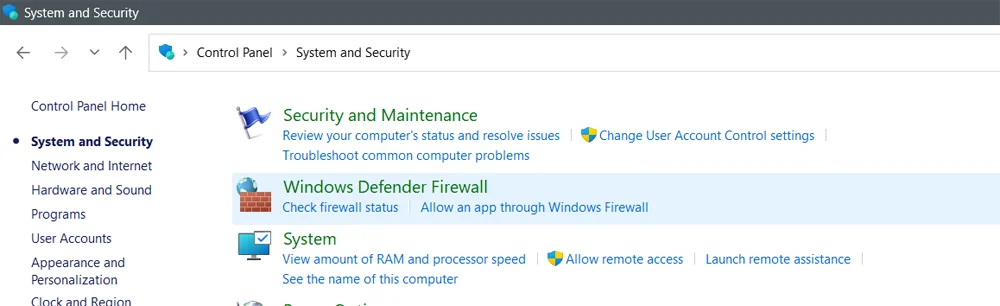
How to turn off proxy and firewall
6. Common errors after turning off Proxy and how to fix it
After disabling the proxy, you may experience some errors or connection problems. Below are some common errors and how to fix them.
6.1. Connection error after turning off proxy
When you disable the proxy, some connection errors may occur, such as:
-
Unable to access the internet: Check your network settings after disabling the proxy
-
Intermittent connection: Sometimes, turning off the proxy can make your connection unstable. Try restarting the modem/router.
If the problem persists, you can re-enable the proxy and test the connection.
6.2. Common proxy errors and solutions
In addition to connection errors, you may encounter some other proxy errors, such as:
-
Error 502 Bad Gateway: This can happen when the proxy server is not responding. The solution is to recheck the URL or try another proxy server.
-
Timeout error: If the proxy does not respond within a certain period of time, you will receive a timeout error message. Retry the connection or switch to a different proxy if necessary.
In both cases, retry or switch to a working proxy, or turn the proxy off if you no longer need it.
6.3. The proxy keeps turning back on
If your proxy setting turns itself back on after you switch it off, something on your device is changing it. Common causes are:
-
VPN or security software: Some VPN, antivirus and privacy apps set their own proxy while they run.
-
Browser extensions: Proxy and VPN extensions can control the browser proxy.
-
Setup scripts or unwanted software: A hidden automatic configuration script or unwanted software can reset the proxy every time you restart.
-
Work or school policies: Managed devices can lock proxy settings, so only the administrator can change them.
To fix it, close or uninstall the app that uses a proxy, remove suspicious extensions, turn off "Use setup script" on the Proxy page, run a full scan with Windows Security or your antivirus, and restart. On Windows you can also open Command Prompt as administrator and run netsh winhttp reset proxy to reset the WinHTTP proxy used by some system services and updates. If the setting still returns on a work or school device, ask your administrator.
7. Check that your proxy is really off with IPFighter
After turning off the proxy, confirm that websites no longer see it. IPFighter shows how your connection looks from the outside:
-
IP and location: Open the IP Lookup and check that the IP address, city and ISP match your normal connection.
-
Proxy detection: IPFighter should not flag your connection as a proxy or VPN.
-
Leak tests: Run the DNS leak test and the WebRTC leak test to make sure no addresses from a proxy or VPN service are still shown.
If the results still show a proxy, check for a VPN, a browser extension or a work policy that is still active.
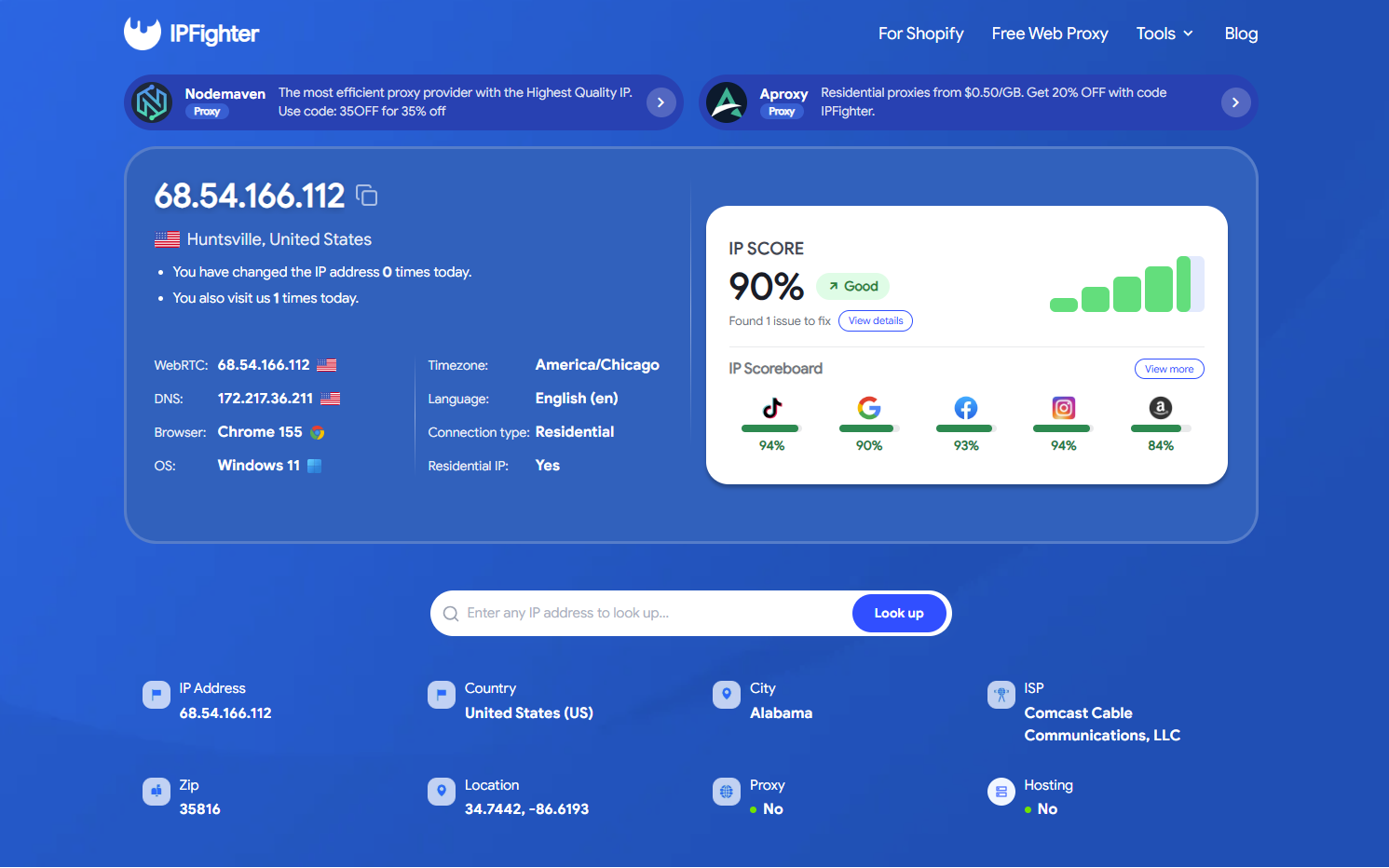
Check proxy on IPFighter
8. Conclusion
Disabling proxies can be an effective way to resolve connection issues, improve internet speed, or simplify your browsing experience when anonymity is not required. If you have problems combining a proxy and a VPN, you will probably need to disable one of them to restore the connection. If you have further questions or need assistance, feel free to reach out to us.
9. FAQ
Is it OK to disable a proxy server?
Yes, in most home setups it is fine to turn off the proxy. The exception is a work or school network that requires one, where disabling it can cut your access or break the rules of the organization.
How do I turn off the proxy on Samsung?
Open Settings, then Connections, then Wi-Fi, tap the gear icon next to your network, tap View more, and set Proxy to None.
How do I disable a VPN extension in Chrome?
Type chrome://extensions in the address bar, find the VPN extension, and switch it off or click Remove.
Why does my proxy keep turning back on?
Usually a VPN or security app, a browser extension, a setup script or unwanted software, or a work policy is changing it. See the section on the proxy turning back on for the steps to find and fix the cause.
Read more

LegionProxy review: Is it worth buying?


Aproxy review: Proxy options, pricing, and performance

AstroProxy review: Uncovering real speeds & IP quality

FlashProxy review: Is this proxy network worth it?

PrivateProxy review: Is it worth your investment?

IPFoxy review: Are its pure rotating residential proxies worth it?