

Are you looking for a way to stay anonymous while browsing the web, protect your personal information, or access geo-restricted content? Proxy Helper is the ideal solution, allowing you to easily set up Proxy Helper in Chrome. In this article, we will show you how to install Proxy Helper in just three simple steps, making your internet connection safer and more effective.
What is Proxy Helper?
Proxy Helper is a tool designed to make managing and using proxies easy and convenient. By helping users optimize their network connections, Proxy Helper ensures security, anonymity, and unrestricted access to internet resources.

Outstanding features of Proxy Helper:
- Easy to install and use: An intuitive, user-friendly interface allows even new users to quickly set up Proxy Helper in Chrome and start operating seamlessly.
- Flexible proxy customization: Supports various proxy types, including HTTP, HTTPS, SOCKS4, and SOCKS5, to meet diverse needs.
- Quick proxy switching: Switch between proxies with just one click, saving time and improving performance.
- High security: Enhances personal information protection and helps avoid online surveillance, making browsing safer.
- Unlock blocked content: Access geo-restricted websites without interruption.
- Seamless browser integration: Easily integrates with popular browsers, ensuring a smooth user experience when you use Proxy Helper in Chrome.
- Bandwidth optimization: Saves data by avoiding wastage, ensuring a stable connection with good speed.
Instructions for installing Proxy Helper
Step 1: Install Proxy Helper
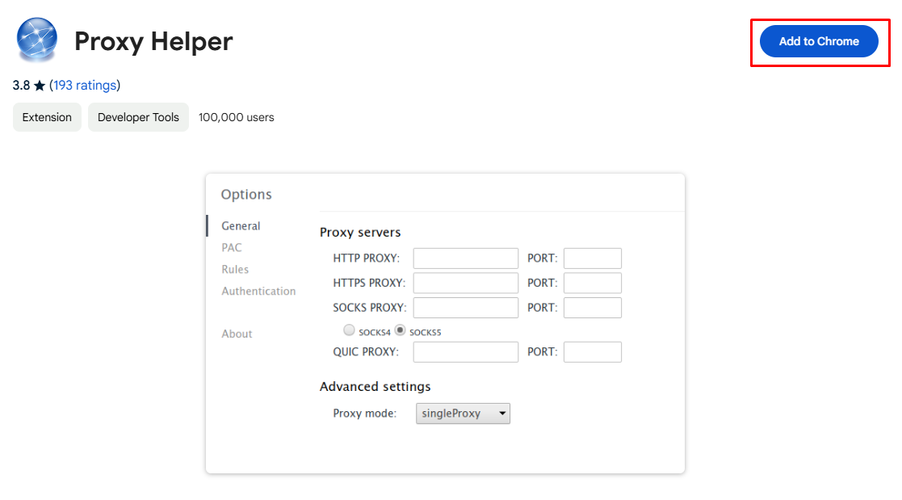
Open Google and search for “Proxy Helper,” then navigate to the Chrome Web Store or use a direct link for quick access. Click Add to Chrome to begin the installation.
Step 2: Configure Proxy Helper
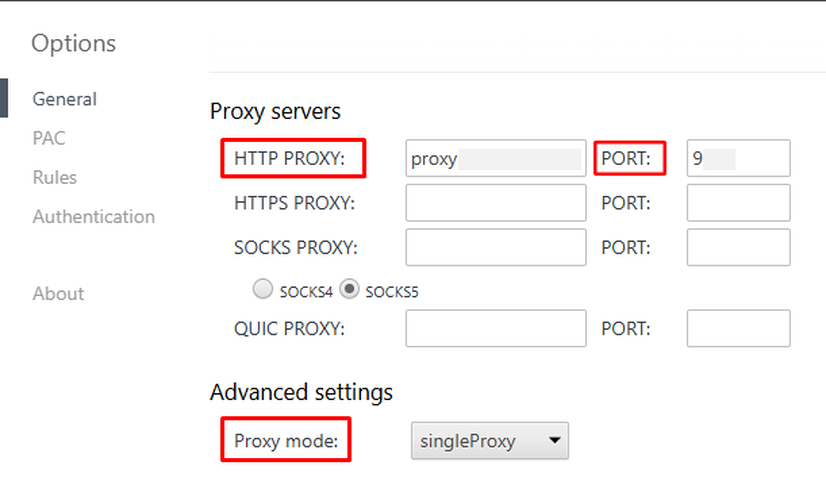
After successful installation, the interface Options will appear for you to proceed with configuration. First, you enter the IP address and Port into the boxes HTTP PROXY and PORT. Also select singleProxy in section Proxy mode.
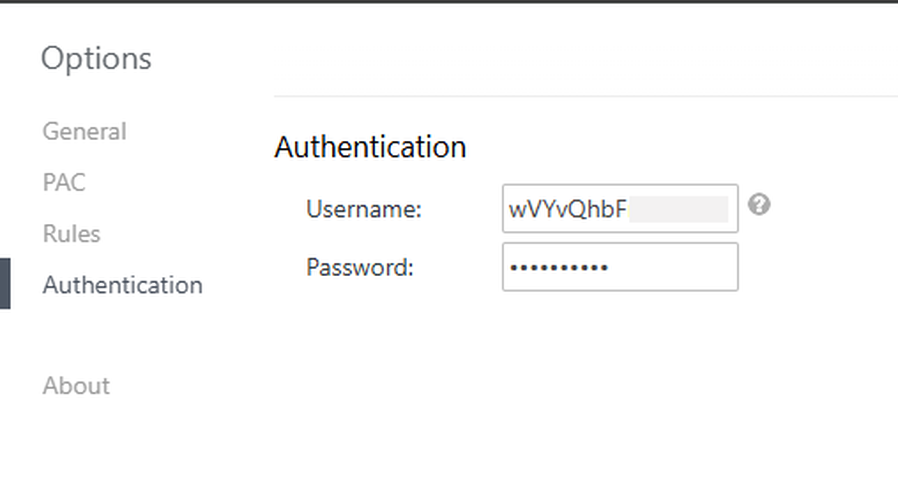
Next, go to section Authentication and enter account information and password.
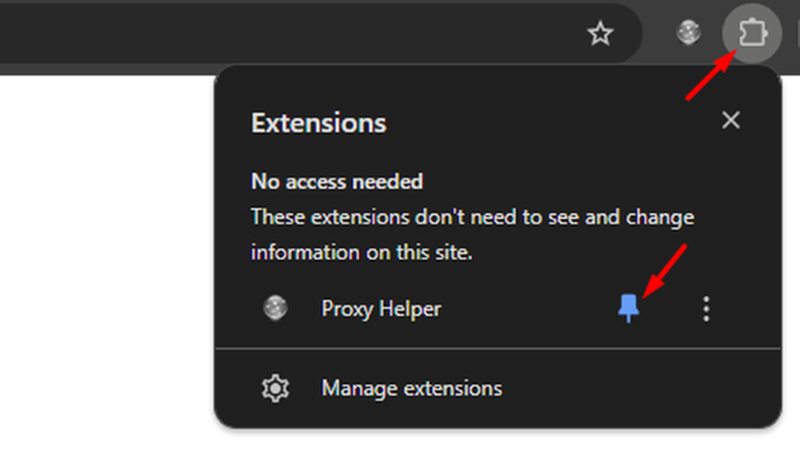
Finally, pin this extension by selecting the extension icon in the upper right corner of the screen, then select HTTP PROXY.
Step 3: Log in to Proxy Helper
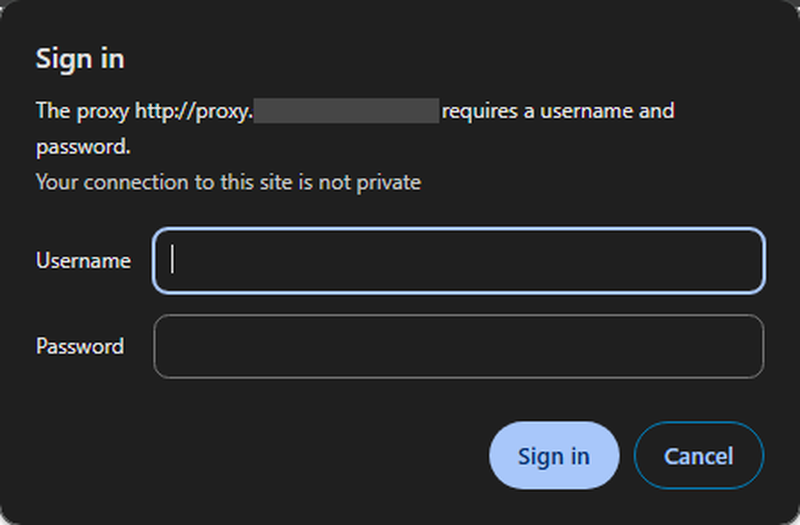
Perform a Google search for any keyword to activate Proxy Helper. The login interface will appear, prompting you to re-enter the account details configured in Step 2. Once logged in, you can begin using Proxy Helper.
Step 4: Check the IP address after using Proxy Helper
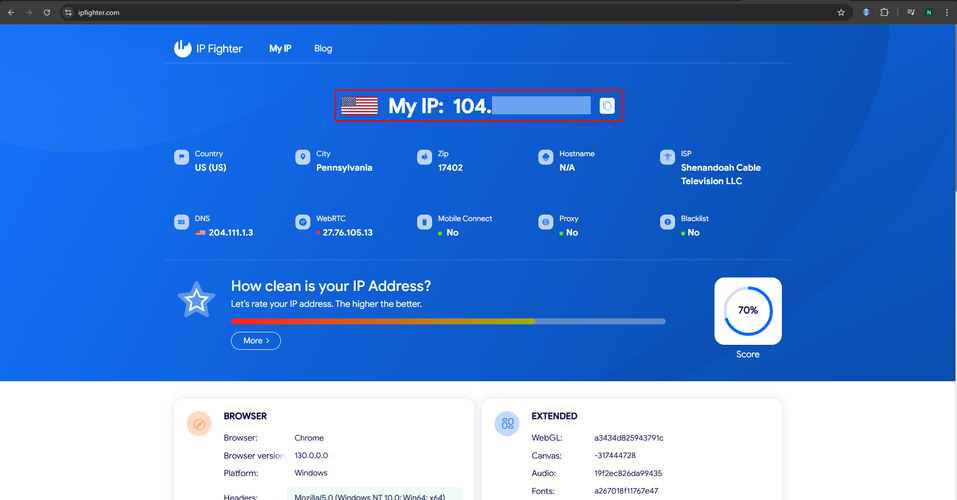
Visit the IPFighter website to check your current IP address. The new IP address will be displayed on the website’s interface.
Frequently asked questions
1. Is Proxy Helper free?
Proxy Helper is a free extension for the Google Chrome browser, allowing users to easily set up and manage proxy settings.
However, to use this tool effectively, you need to provide information about the proxy server. You can choose between free or paid proxies based on your needs and desired level of security.
2. Does Proxy Helper support browsers other than Chrome?
No, Proxy Helper is specifically designed for Google Chrome and does not directly support other browsers. If you want to use a proxy on a different browser, you’ll need to configure the browser’s built-in proxy settings or find a compatible proxy extension for that browser.
3. Is Proxy Helper safe?
Proxy Helper is equipped with robust security features to protect your personal information and ensure safe browsing. However, for enhanced security, it is recommended to use proxies from reliable providers.
Conclusion
With its user-friendly interface and powerful features, Proxy Helper is an excellent tool for improving your internet experience. We hope that with the instructions for installing Proxy Helper in the article above, you can easily set up and use this tool to enhance security and browse more anonymously. Best of luck!
Read more

IPFoxy review: Are its pure rotating residential proxies worth it?


CatProxies review: What do its five proxy types offer?
Hidemyacc review 2026: Features, pricing and real fingerprint test results

Whitecloakproxy review: What to know before you buy

Geonix review: What makes its proxy services stand out?

Floppydata review: A closer look at its proxy network