

In the era of the Internet of Things (IoT), where everything from smart TVs to laptops connects to the internet, understanding how devices communicate is more important than ever. A key concept in this communication is the private IP address.
Devices in a local network rely on private IP addresses to seamlessly connect and ensure smooth communication. This article explores how private IP addresses work and guides you in finding yours with ease.
What is a private IP address?
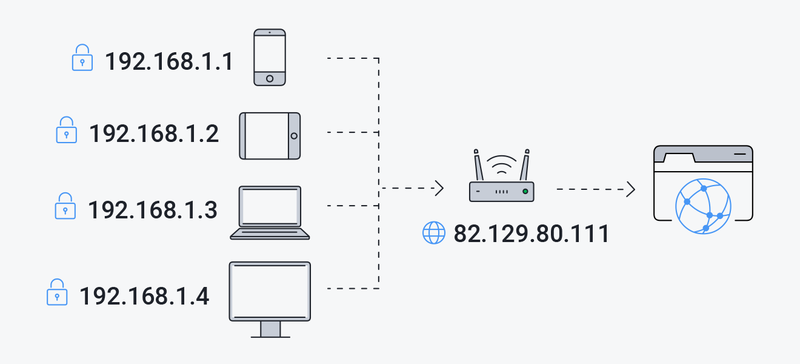
A private IP address is a unique identifier assigned to a device within a local network, such as your home Wi-Fi or office setup. Unlike public IP addresses, which facilitate global internet communication, private IP addresses allow devices in the same network to interact seamlessly while remaining isolated from external access.
For instance, devices like your smartphone (e.g., 192.168.1.1) and laptop (e.g., 192.168.1.3) can share the same local network via a router, communicating efficiently without requiring individual public IPs. These private IPs are a cornerstone of local networking, ensuring that devices can connect and function smoothly within a secure, isolated environment.
Classes of private IP addresses
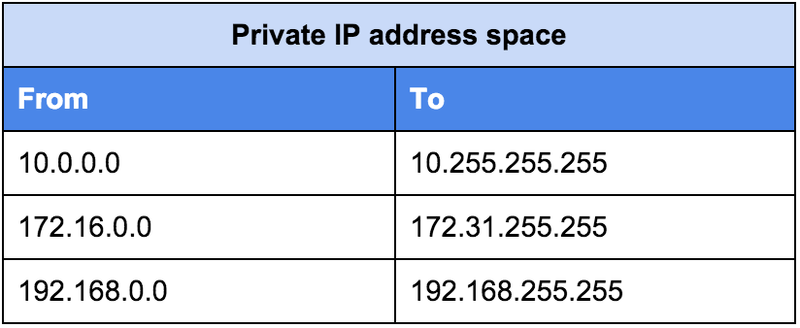
Private IP addresses are divided into three main classes, each serving specific purposes. These ranges are defined by the Internet Assigned Numbers Authority (IANA) and are used for different network sizes and configurations:
- Class A (10.0.0.0 – 10.255.255.255): Suitable for very large networks like enterprises or data centers, supporting up to 16 million addresses.
- Class B (172.16.0.0 – 172.31.255.255): Commonly used in medium-sized networks such as college campuses or large organizations, with support for up to 1 million addresses.
- Class C (192.168.0.0 – 192.168.255.255): Ideal for home and small business networks, providing up to 65,536 addresses.
For example, in a corporate environment (Class B), different departments might have their own private IP ranges to ensure efficient communication within the organization, while in a small office or home setup (Class C), devices like printers, smart TVs, and computers all operate under the same local network.
Benefits of private IP addresses
Using local IPs offers several advantages, particularly in terms of security and efficiency:
- Enhanced security: Devices with private IPs are hidden from external access, reducing vulnerability to attacks from the internet.
- Efficient use of IPv4: Private IPs conserve the limited pool of IPv4 addresses by allowing multiple devices to share a single public IP through Network Address Translation (NAT).
- Simplified local networking: They enable devices within the same network to communicate effortlessly, such as sending files between computers or streaming from a home server.
These benefits make private IPs indispensable for both home users and organizations.
How to find your private IP address on any device
Locating your private IP address is easier than you think. The process varies depending on the device you’re using. Here’s how to do it step by step:
1. Windows
Using Command Prompt:
- Press
Win + R, typecmd, and press Enter. - In the Command Prompt, type
ipconfigand press Enter. - Look for the line labeled “IPv4 Address” under your active connection. This is your private IP address.
Using Network Settings:
- Open the Start menu and go to Settings > Network & Internet.
- Select Wi-Fi or Ethernet, depending on your connection type.
- Click on your network and scroll to view the IP address under the “Properties” section.

2. MacOS
Via System Preferences:
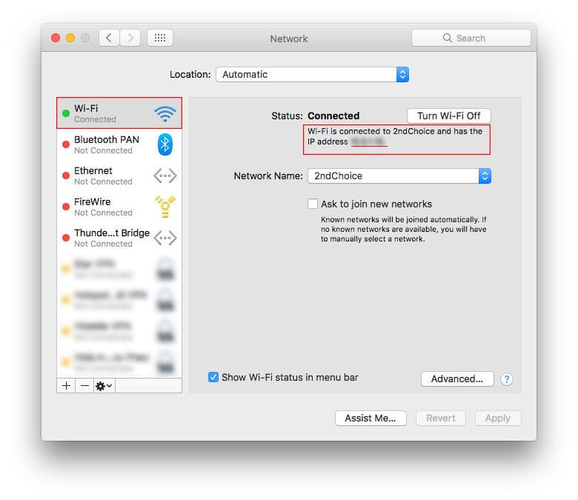
- Open System Preferences and click on Network.
- Select your active network connection (Wi-Fi or Ethernet).
- Your private IP address will be displayed under “Status.”
Using Terminal:
- Open the Terminal app.
- Type
ifconfig | grep inetand press Enter. - Look for the entry associated with your active connection.
3. Android
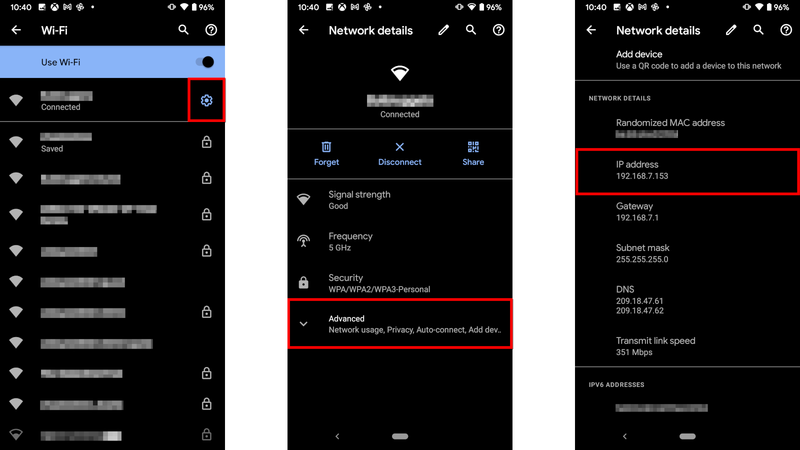
- Open Settings and navigate to Network & Internet.
- Tap Wi-Fi and select your connected network.
- Your private IP address will be listed under “Advanced” or “Network details.”
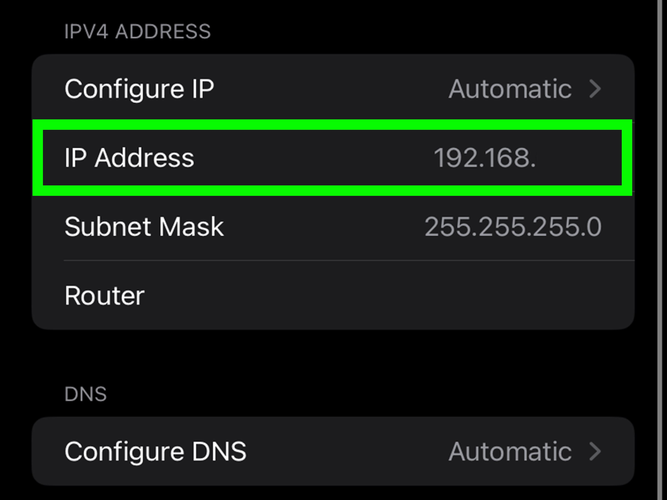
4. iOS
- Go to Settings > Wi-Fi.
- Tap the “i” icon next to your connected network.
- Your private IP address will be displayed under the “IP Address” section.
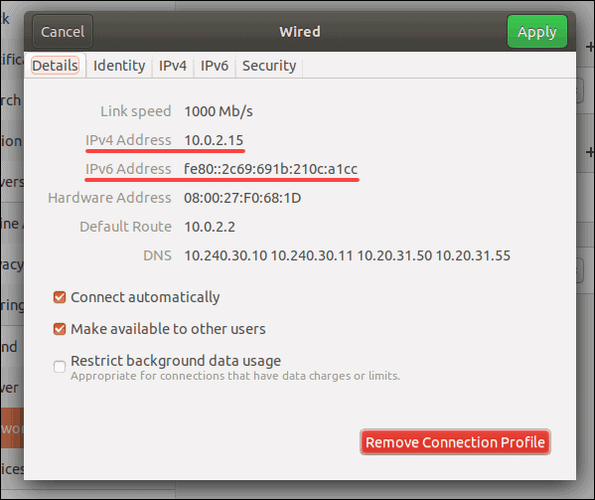
5. Linux
- Open a terminal window.
- Type
hostname -Iand press Enter to see your private IP address.
6. Router
If you want to view the private IP addresses of all devices on your network:
- Open a web browser and log into your router’s admin panel (typically accessed via 192.168.1.1 or 192.168.0.1).
- Navigate to the “Connected Devices” or “DHCP Clients” section.
- You’ll find a list of all devices and their private IP addresses.
Conclusion
Understanding private IP addresses is essential for managing your devices and maintaining a secure network. By knowing how to locate your private IP, you can simplify tasks like troubleshooting connectivity issues or setting up new devices. Take some time to explore your network and appreciate how private IPs ensure the seamless operation of your digital world.
FAQs about private IP addresses
1. Can I change my private IP address?
Yes, you can manually assign a static IP through your device’s network settings or router configuration.
2. Are private IPs the same across networks?
No, private IP ranges are reused across different networks, but the specific assignment depends on the router’s configuration.
3. Are private IPs hidden from the internet?
While private IPs are not directly accessible from the internet, they are not inherently hidden. Routers and firewalls ensure that private IPs remain within the local network.
Read more

What is a CAPTCHA? The check that separates people from bots

What is a mesh network and when should you use one?
What is an IP2 network? How it works, uses, and benefits
Explaining how to know if you have a DNS leak

How to know if you have a WebRTC leak: Reading your results
How to improve IP score: A complete guide